Guide
Room Booking for K-12 Schools
The 2026 Guide
How private and independent schools can stop fighting over conference, counseling and admissions rooms. Options compared, setup tips, student privacy.
A room booking system for schools doesn't need to be a big software project. For most private and independent schools, the right setup is the calendar you already have (Google Workspace or Microsoft 365) with every bookable room added as a proper calendar resource, clear rules about who can book what, and a small screen at the door of the rooms people actually fight over. This guide covers which rooms those are, who should be booking them, the options side by side, and how to set it up without handing a hallway full of student names to anyone who walks past.
The rooms schools actually fight over
Classrooms mostly take care of themselves. The master schedule assigns them, and nobody books Room 204 during third period. The trouble is the shared, "non-instructional" spaces that everyone needs a little bit of, at unpredictable times:
- Conference rooms. Department meetings, IEP-style learning plan meetings, vendor calls, the occasional hard conversation with a family. Usually one or two of them, and usually overbooked.
- Counseling and learning-support offices. Often a counselor's office doubles as a meeting space when they're out, which is how two people end up with the same room and a student waiting in the hall.
- Admissions tour and interview rooms. Admissions season (roughly October through February for many schools) turns one comfortable room into the most important room in the building. If a family arrives for an interview and a faculty committee is in there eating lunch, that's a bad first impression.
- The board room. Rarely used, very important, and the one room students and most staff should never be able to book.
- Library study rooms. Students, tutors and teachers all want them, typically in the same free period.
- Music practice rooms. High turnover, short sessions, lots of "is anyone actually in there?"
- Faculty workrooms. Mostly drop-in, but sometimes a department wants it for an hour, and nobody knows until they walk in.
Start with the two or three rooms that cause arguments.
Who books, and who books on whose behalf
Schools have a booking pattern that offices don't. Faculty book their own meetings, but much of the scheduling happens on behalf of other people:
- Faculty and staff book conference rooms and workrooms directly.
- Admissions books tour and interview slots for prospective families who have no account in your system.
- The front office books rooms for parents, outside specialists, tutors and visiting coaches, none of whom have school accounts.
- Students may book library study rooms or practice rooms, but only those.
- The head's assistant books the board room and usually wants to be the only one who can.
Decide who can book which room before you pick any software, and write it down. It saves you from the student who discovers they can reserve the board room for "study group."
Your options, compared
| Option | Cost | Good at | Weak at |
|---|---|---|---|
| Shared spreadsheet or paper sign-up sheet on the door | Free | Zero setup, everyone understands it | No conflict checking, no permissions, paper gets taken down, nobody updates it when plans change |
| Google Calendar or Outlook room resources only | Included in what you already pay | Real conflict checking, permissions, works from the tools faculty already use | Nobody at the door can see whether the room is free; no-shows hold rooms all day |
| QR code on the door | Low | Cheap way to let people book from the hallway | You have to pull out a phone to find out if the room is free; doesn't show who's in there |
| Full room/space management platform | Typically per-room or per-user subscription | Visitor management, analytics, desk booking, multi-campus reporting | Overkill for a handful of rooms; annual cost that has to survive every budget cycle |
| iPad display at the door, synced to your calendar | Price of an iPad plus app | Shows free/busy at a glance, walk-up booking, frees rooms nobody showed up for | Needs power and Wi-Fi at the door; still relies on good calendar resources underneath |
Honest take: if you only have one or two contested rooms and a disciplined staff, calendar resources alone are probably enough. If you run a multi-campus school with a facilities team that wants utilization reports and visitor sign-in, a full platform is the better fit. The door display is for the middle, which is where most independent schools live: a handful of rooms that matter, a busy front office, and no appetite for another subscription.
Practical setup advice
1. Make every contested room a calendar resource
This is the foundation, whatever else you do. In Google Workspace that means adding rooms in the Admin console under buildings and resources. In Microsoft 365 it means room mailboxes. Give each room a capacity and a sensible name. I wrote a full walkthrough for schools on Google: Google Workspace for Education room booking, step by step.
2. Name rooms the way people talk about them
"Admissions Interview Room" beats "MS-2-114". Add the division if you have more than one ("Upper School Conference Room").
3. Set permissions by group, not by person
Create groups (faculty, staff, admissions, students) and grant booking rights to groups. When a teacher leaves in June, you remove them from one group instead of hunting through twenty room settings. Students get the library and practice rooms. The board room gets the head's office and maybe the business office.
4. Decide what happens when nobody shows up
A weekly department meeting gets booked in August and quietly stops happening in October. The room stays "booked" every Tuesday for the rest of the year. Someone needs to own cleaning that up, or you need something at the door that releases rooms nobody checks into.
5. Plan for the calendar's peak weeks
Parent-teacher conferences, admissions open houses, the first week of school and exam weeks all spike demand at once. Conference week especially deserves its own plan. I wrote one: how to run parent-teacher conference week without double-booked rooms.
Student privacy: what goes on a hallway display
This is the part schools need to think about and offices don't. Anything on a screen outside a door is visible to every student, parent and visitor who walks by. Calendar event titles are written for the people in the meeting, not for the hallway.
A few habits that fix most of it:
- Never put student names in event titles. "Conference: J. Smith (Gr. 7)" is fine in someone's private calendar and not fine on a screen next to the cafeteria. Use "Family meeting", "Learning support", "Conference" instead.
- Be especially careful with counseling and learning-support rooms. Even "Counseling: [student]" tells passersby something sensitive. For these rooms, use a generic title like "Meeting" every time.
- Mark sensitive meetings private. In Google Calendar or Outlook, set the event to private. The display then shows "Private Meeting" instead of the title. On Microsoft 365, room mailboxes can also be set to replace the subject with the organizer's name, so the door says who booked the room and nothing more. I wrote more on that trade-off in show meeting title or organizer name?
- Put the rule in your faculty handbook. One line is enough: "Room booking titles are public. No student names."
FERPA and your state's student privacy laws govern education records, and a hallway screen showing a student's name next to "learning plan meeting" is the kind of thing you don't want to have to explain. This isn't legal advice; check your own requirements with whoever handles compliance at your school.
Where an iPad display fits
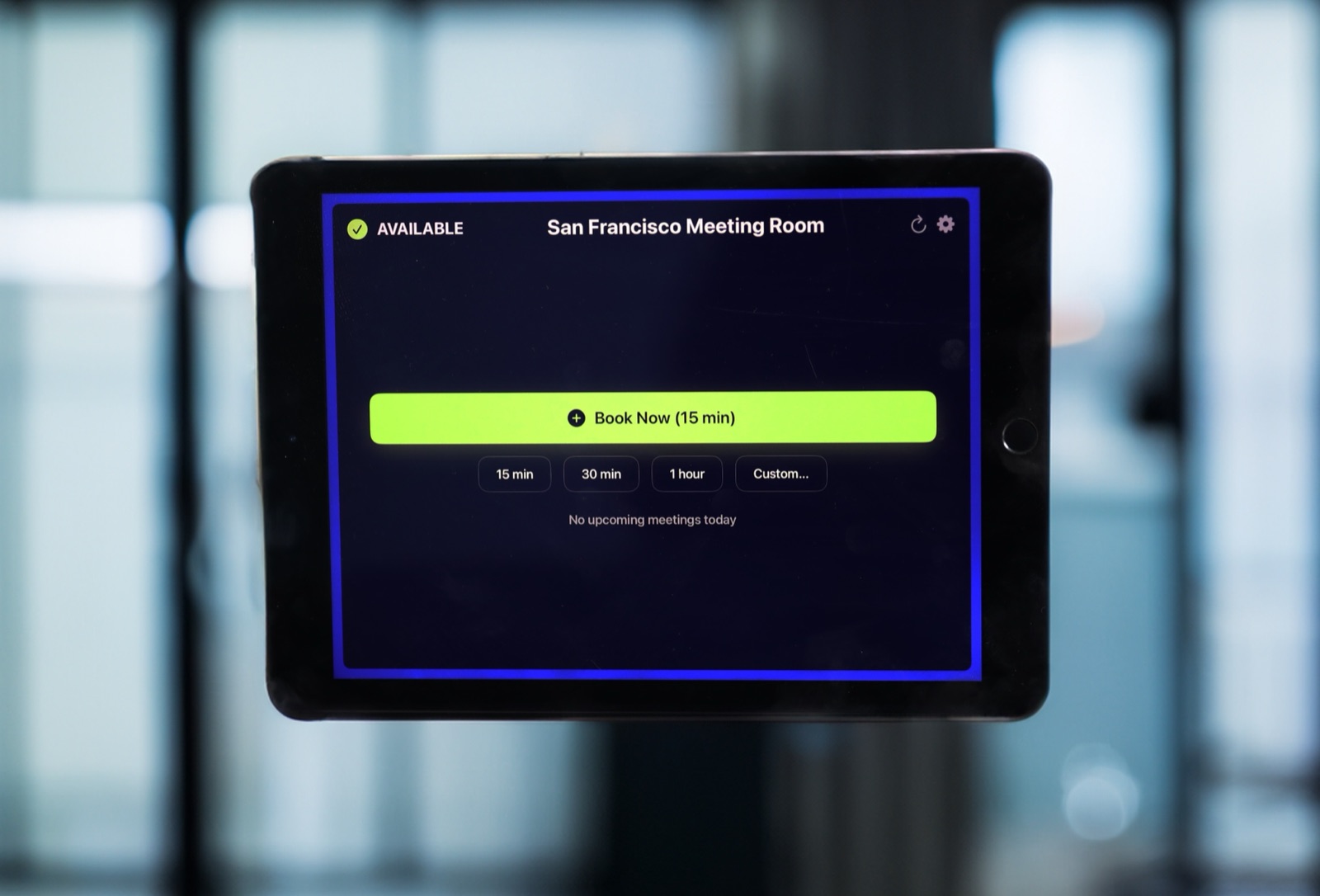
I built The Room Display because I kept seeing the same problem: the calendar knows the room is booked, but the person standing at the door doesn't. It turns any iPad from 2017 onward into a room display that shows green for available and red for in use, plus the rest of today's schedule, refreshing every 30 seconds.
For schools, the useful bits are:
- Walk-up booking. A teacher who needs the workroom for 30 minutes taps the screen and takes it, with preset durations or a custom time.
- Check-in and auto-release. When a meeting starts, the display asks someone to tap to check in. If nobody does within 5, 10 or 15 minutes (10 is the default), the booking is released. That's how the ghost Tuesday department meeting stops holding the conference room hostage.
- No cancel button in the hallway. On purpose. A student can't wipe the head's board meeting off the calendar by tapping a screen.
- Your data stays between the iPad and Google or Microsoft. The app talks directly to Google Workspace or Microsoft 365. Calendar data isn't routed through a separate booking cloud, which makes the privacy conversation with your IT director shorter.
It costs $99 per iPad, once, with no subscription. Many schools have a cart of retired iPads from a 1:1 program sitting in a closet, which makes the hardware cost close to zero. I ran the full numbers for budget committees in what room displays really cost schools over five years.
What it doesn't do: visitor sign-in, analytics dashboards or multi-room overview screens. If you need those, look at a full platform.
Frequently asked questions
What's the best room booking system for schools?
For most private and independent schools, the best room booking system is the one built into the calendar you already pay for, set up properly with room resources and permissions. Add door displays for the rooms people fight over. A full space-management platform makes sense mainly for large or multi-campus schools that need analytics or visitor management.
Can students book rooms without booking the board room?
Yes. Both Google Workspace and Microsoft 365 let you control who can book each room resource. Put students in their own group or organizational unit and grant them booking rights only for library study rooms and practice rooms.
How do we keep student names off hallway room displays?
Make it a written rule that event titles in shared rooms never include student names, and use generic titles like "Family meeting". For counseling and learning-support meetings, mark the event private so the display shows "Private Meeting" instead of the title.
Do parents need accounts to book a room?
No, and they shouldn't. The front office or the relevant teacher books the room on the parent's behalf and invites them by email if needed. Parents see their invitation; they never touch the booking system.
When is the best time to roll out room booking at a school?
Summer. Install and test in July, clean up calendars in early August, and announce it at opening faculty meetings. Rolling out mid-semester works too, but avoid conference weeks and admissions season.
The short version
Start with your calendar, name the rooms people fight over, set permissions by group, and keep student names off anything visible in a hallway. If you want a screen at the door that shows who's in the room and frees up the ones nobody uses, The Room Display is $99 once per iPad, and an old 1:1 iPad will do the job fine.
Related guides
- Google Workspace Meeting Room Booking: A Complete 2026 Guide
- Room Displays Beyond the Office: Clinics, Classrooms, Labs & Coworking
- The Second Life of a Retired Company iPad