Google Workspace
Google Workspace for Education
Room Booking Setup
Step-by-step: set up Google Workspace for Education room booking with buildings, resources, capacity, permissions for faculty vs students, and door displays.
Google Workspace for Education room booking works the same way as in any Google Workspace domain: an admin creates buildings and room resources in the Admin console, and faculty book those rooms by adding them to a Google Calendar event like a guest. The school-specific part is permissions. Students and staff usually live in different organizational units and groups, and you'll want faculty to book the conference room while students can book only study rooms. This guide walks through the setup in order, ending with a display at the door.
You need super admin rights (or an admin role with calendar resource privileges) for most of these steps. Budget an afternoon for a typical independent school with 10 to 30 bookable spaces.
What you'll set up, at a glance
| Step | Where | Who does it | Time |
|---|---|---|---|
| 1. Plan rooms and names | A spreadsheet | IT + operations | 30–60 min |
| 2. Create buildings | Admin console | IT admin | 10 min |
| 3. Create room resources | Admin console | IT admin | 2–3 min per room |
| 4. Set capacity and features | Admin console | IT admin | Included above |
| 5. Set booking permissions | Google Calendar (resource sharing) | IT admin | 5 min per room |
| 6. Check auto-accept behavior | Google Calendar (resource settings) | IT admin | A few minutes |
| 7. Test with a faculty and a student account | Google Calendar | IT admin | 15 min |
| 8. Add a door display | iPad at the door | IT or facilities | About 10 min per iPad |
Step 1: Plan your rooms and naming convention
Before touching the Admin console, list every space you want to be bookable. For a school that's typically: conference rooms, the board room, admissions interview rooms, counseling and learning-support meeting rooms, library study rooms, music practice rooms, faculty workrooms, and maybe the auditorium or gym for events.
Then decide on names. Google generates a full resource name from the building, floor, room name and capacity, and that's what faculty see when they search in Calendar. Some tips that work well in schools:
- Lead with the division or building if you have more than one: "Upper School", "Lower School", "Arts Center".
- Use the name people say out loud. "Admissions Interview Room" beats "Room 114B".
- Keep student-bookable rooms obvious: "Library Study Room 1", "Practice Room 3".
- Don't put people's names in room names. Ms. Alvarez will retire; the room will not.
I go deeper on structure and naming in the Google Calendar room resources guide.
Step 2: Create buildings
In the Google Admin console, go to Directory, then Buildings and resources, then Manage resources. You'll find a place to add buildings there. Create one building per physical building on campus, with its floors. Even single-building schools should create one, because rooms are attached to buildings and Google uses that to suggest nearby rooms.
Step 3: Create room resources
Still under Buildings and resources, add a new resource for each room. You'll pick a category (meeting space for rooms, or "other" for things like a projector cart or a school van), choose the building and floor, and give it a name.
Google creates a resource calendar with its own email address for each one. You don't need to memorize these, but your door displays and any booking tools will find rooms through them.
Step 4: Add capacity and features
Fill in capacity for every room. It's what lets faculty filter for "rooms that fit 10" when scheduling a department meeting, and it keeps a two-person counseling office from being suggested for a board committee.
Add features where they matter in a school: display or projector, video conferencing camera, piano, whiteboard, wheelchair access. You define features once and attach them to rooms. Keep the list short; nobody filters by "has blinds."
There's also a user-visible description field. Use it for room rules people actually need: "Board room: book through the head's office", or "Practice room: 45 minutes max, students only after 3 p.m."
Step 5: Set booking permissions for faculty, staff and students
This is where schools differ from offices. By default, rooms are typically bookable by everyone in your domain, which in a school includes students. You probably don't want a ninth grader booking the board room.
The cleanest approach uses Google Groups:
- Create groups if you don't have them: faculty, staff, admissions, students, and maybe "board room bookers" (the head's office and business office).
- Open the resource calendar in Google Calendar as an admin. Resource calendars can be added under "Other calendars" by browsing resources.
- Turn off access for the whole organization on rooms that only some people should book. In the resource calendar's "Settings and sharing", remove the organization-wide access.
- Share the resource calendar with the groups who should book it. Any sharing level lets people book. "See only free/busy (hide details)" books without showing other events. "See all event details" also shows titles. Google recommends at least "See all event details" if your organization doesn't allow free/busy booking.
One thing that catches schools out: Google has no "see but not book" level for rooms. If a group can see a room's calendar at all, it can book it. So the real choice per group is book or no access. A resource set to auto-accept rejects bookings from people without access. Anyone can still check the door display.
A typical school permission map (the board room is shared only with a "board room bookers" group):
| Room type | Faculty | Staff | Admissions | Students |
|---|---|---|---|---|
| Conference rooms | Book | Book | Book | No access |
| Board room | No access | No access | No access | No access |
| Admissions interview rooms | No access | No access | Book | No access |
| Counseling/learning support | Book (that team only) | No access | No access | No access |
| Library study rooms | Book | Book | No access | Book |
| Music practice rooms | Book | No access | No access | Book |
A note on organizational units: many schools put students in their own OU with some services restricted. If Calendar is turned off for students, they can't book anything, which is simple but blocks study-room booking too. Groups give you finer control than OUs for this.
Step 6: Understand auto-accept behavior
Google resource calendars typically auto-accept an invitation if the room is free and decline it if there's a conflict. That's what you want for most rooms: no human approval, no double bookings.
You can change this per resource in its calendar settings, under the options for automatically accepting invitations. For a school, consider:
- Conference rooms, study rooms, practice rooms: leave auto-accept on.
- Board room or auditorium: some schools prefer a person to approve bookings. You can set the resource so invitations aren't auto-accepted and give someone in the head's office rights to manage its calendar. Be aware this means bookings sit as pending until someone acts, so pick a person who checks it daily.
Watch out for recurring events. A weekly department meeting booked for the whole year will get the room for every week where it's free and be declined for the weeks where it isn't, which faculty sometimes miss.
Step 7: Test with a faculty and a student account
Make or borrow one faculty test account and one student test account. With each:
- Create an event, click to add rooms, and search for the board room, a conference room and a study room.
- Confirm the faculty account can book the conference room and the student account can't.
- Confirm the student account can book a library study room.
- Try booking a room that's already taken and confirm it's declined.
Fix anything that's off before you tell 80 faculty members about it in a staff meeting.
Step 8: Add a door display
Calendar resources solve booking. They don't tell a teacher standing in the hallway whether the room is free, and they don't release rooms nobody shows up for. That's where a door display comes in.
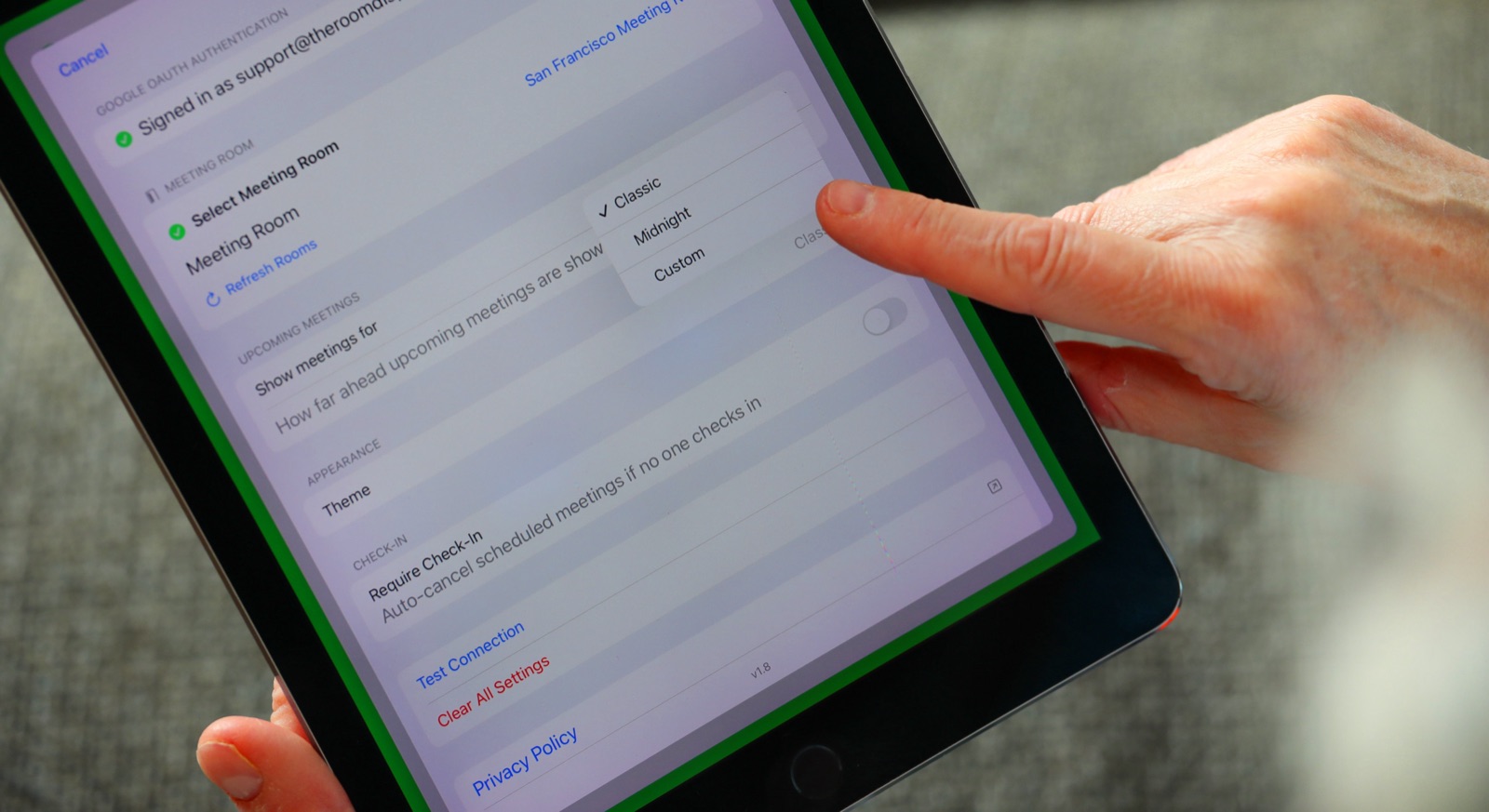
The Room Display turns an iPad into one. It connects directly to Google Workspace through the Google Calendar API and finds your rooms through Admin SDK room discovery, so the rooms you just created show up in the app. Authentication is OAuth 2.0 (recommended) or a service account with domain-wide delegation if your IT team prefers that, and credentials are stored in the iPad's Keychain. Calendar data goes straight between the iPad and Google rather than through a third-party booking cloud.
Setup per iPad is about 10 minutes:
- Install The Room Display from the App Store on any iPad running iOS 15 or later.
- Sign in with your Google Workspace account and pick the room.
- Turn on "Require Check-In" and pick the timeout (5, 10 or 15 minutes; 10 is the default). If nobody taps to check in at the start of a meeting, the booking is released.
- Lock the iPad to the app with Guided Access or your MDM's single-app mode. Here's how: iPad kiosk mode for room displays.
- Mount it and plug it in.
The display shows green or red, the current meeting and today's schedule, and lets people book on the spot. There's no button to cancel scheduled meetings from the hallway, which in a building full of curious students is a feature. Full setup details are in the docs.
For sensitive rooms like counseling, keep event titles generic ("Meeting") and never include student names, since whatever is in the title may be visible at the door. I cover this and the rest of the school picture in room booking for K-12 schools, and the broader Google setup (not school-specific) in the Google Workspace meeting room booking guide.
Frequently asked questions
Is room booking different in Google Workspace for Education versus regular Google Workspace?
The mechanics are the same: buildings and resources in the Admin console, booking through Google Calendar. The difference is your users. Schools have students in the domain, so you need to set permissions deliberately instead of leaving every room open to everyone.
How do I stop students from booking the board room?
Remove the organization-wide access on the board room's resource calendar, then share it only with a group such as the head's office. Any sharing level allows booking, so don't give students free/busy access either. Test with a student account to confirm.
Can students book library study rooms in Google Calendar?
Yes, if Calendar is enabled for their organizational unit and the study room resources are shared with a students group at a level that allows booking. Leave other rooms at no access for students.
Do I need extra software for room booking in Google Workspace for Education?
Not for booking itself. Google Calendar handles that well once resources and permissions are set up. Extra tools are for what happens at the door: seeing whether a room is free at a glance, walk-up booking, and releasing rooms nobody uses.
Last thing
Do the resource setup properly once and it'll serve the school for years; most of the work is naming and permissions, not technology. If you want a display at the doors that matter, The Room Display is $99 once per iPad, and it'll find the rooms you just created.
Related guides
- How to Set Up Google Calendar Room Resources
- Managing Google Calendar Room Resources at Scale
- How to Lock an iPad in Kiosk Mode for a Meeting Room Display