Best Practices
Interview Room Booking:
No More Hallway Awkwardness
Interview room booking that keeps candidate names off the hallway display, with private events, neutral titles and a door that shows the room is taken.
Short answer: Book interview rooms as calendar resources, give every interview a neutral title like "Interview", and mark the event private. The Room Display at the door then shows "Private Meeting" instead of the candidate's name, while the colored ring still tells everyone the room is taken. Nobody walks in mid-interview, and no names end up on a hallway screen.
Interviews create a special kind of hallway awkwardness. The candidate waits outside a room that someone else is using. A colleague opens the door mid-answer, looking for a quiet place for a call. Or worse, the screen by the door says "Interview: Jane Doe, Senior Engineer" while Jane's future teammates walk past, and her current employer's friend is visiting for lunch.
All of this is fixable with a bit of calendar discipline.
What goes wrong on interview days
- The room is taken. The recruiting coordinator booked it, but a team stand-up ran long, and the candidate waits in the corridor.
- Interruptions. The room looks free through the glass, so someone walks in.
- Names on display. The calendar title includes the candidate's name, and whatever is in the title can end up on a door screen.
- Internal candidates. An employee interviewing for another team may not want their manager to know yet. A name on a door is a disclosure.
Why candidate names don't belong on a door
A door display shows the meeting title to everyone who passes. That's useful for most meetings. For interviews, it's the one field you don't want public.
Many applicant tracking systems create calendar invites with the candidate's name in the title by default, something like "Interview: Jane Doe for Senior Engineer". When the room is invited, that title lands on the room's calendar too. So the fix has to happen in the calendar, before the event reaches the room.
There's no setting in The Room Display that hides titles. That's on purpose: the privacy decision lives with the event, where the organizer controls it. Here's what the door shows in each case:
| How the event is set up | What the door display shows |
|---|---|
| Title "Interview: Jane Doe", not private | "Interview: Jane Doe" (avoid this) |
| Title "Interview", not private | "Interview" |
| Any title, marked private in Google Calendar or Outlook | "Private Meeting" |
| Microsoft 365 room mailbox set to delete the subject and add the organizer | The organizer's name, like "Sam Lee" |
How to keep names off the door
- Change the ATS invite template. Most applicant tracking systems let you edit the event title. Use "Interview" or "Interview: Engineering". Put the candidate's name in the event description, which the display doesn't show.
- Mark interview events private. In Google Calendar, set visibility to Private. In Outlook, turn on Private. The display shows "Private Meeting" in place of the title.
- On Microsoft 365, consider the room mailbox setting.
Set-CalendarProcessing -Identity "Interview Room 2" -DeleteSubject $true -AddOrganizerToSubject $truereplaces every subject on that room with the organizer's name. It applies to all bookings in that room, and only to new ones. - Test it. Book a fake interview with a fake name and check the door.
- Write it down for hiring managers: "Interview titles are public. No candidate names."
I go deeper on titles vs organizer names in should a room display show the meeting title or the organizer's name? If your interview rooms sit near the lobby, also read room display privacy in lobbies and open-plan offices.
Set up the room for back-to-back interviews
Interview days are tight. A panel loop might run four 45-minute interviews with different interviewers in the same room.
- Book the whole loop as one block on the room, owned by the recruiting coordinator. Interviewers rotate. The room doesn't.
- Add 15 minutes between candidates to reset the room, refill water and wipe the whiteboard.
- Book a debrief slot right after the last interview, so the panel isn't kicked out mid-discussion.
- Keep a waiting spot nearby, so the candidate isn't standing in the corridor.
- Phone screens go in booths, not interview rooms. I covered that in phone booths and focus pods.
What the door display does on an interview day
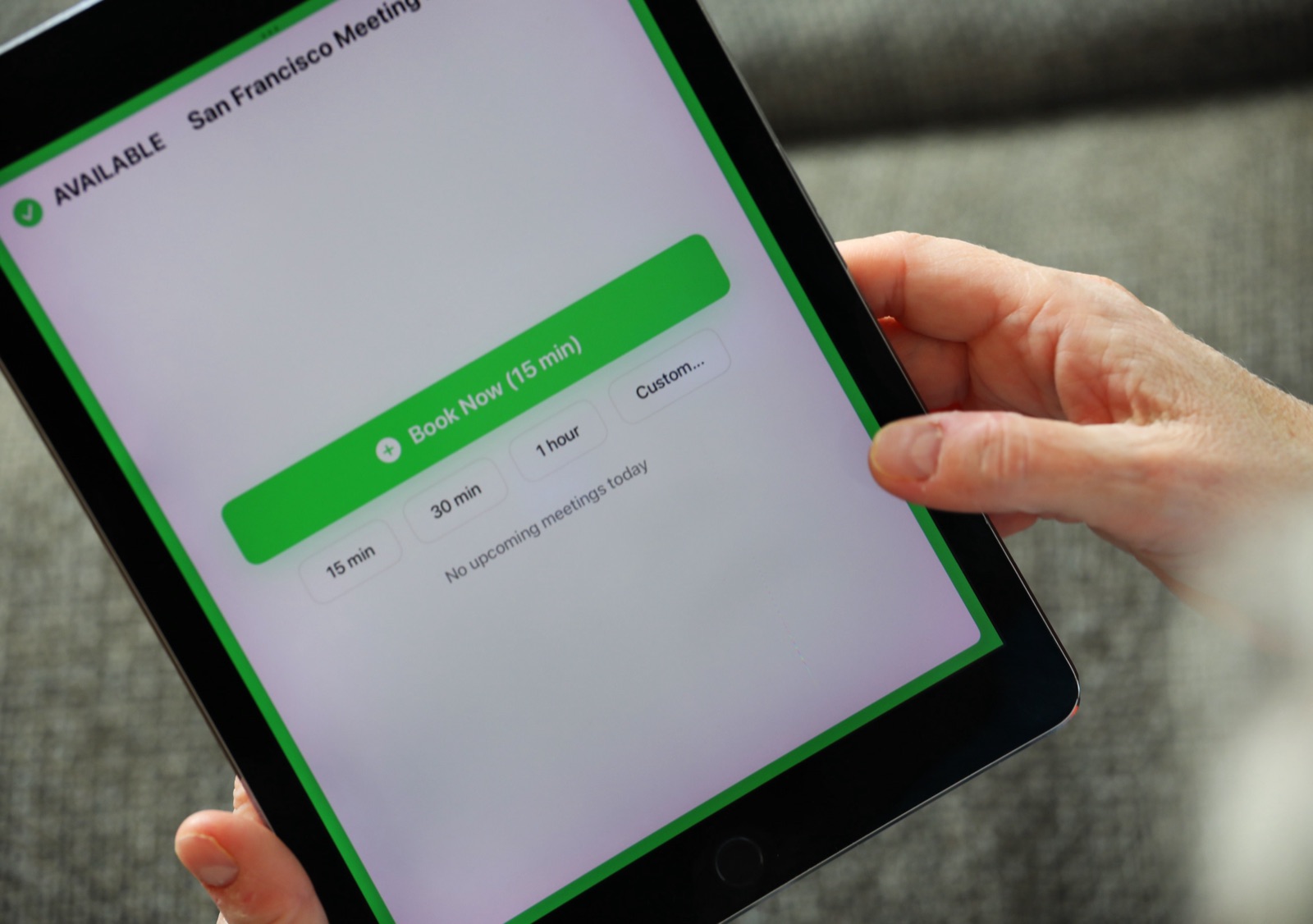
The Room Display is a small piece of digital signage for one room, with booking built in. Outside an interview room, it shows:
- A colored ring for Available, In Use, or Ending soon. A red ring means "don't open the door," no matter what the title says.
- The current booking (or "Private Meeting") and how much time is left. An interviewer stepping out to grab a colleague can see they have 10 minutes left.
- Upcoming bookings for the rest of the day, so the coordinator can see the loop is intact.
- Walk-up booking: if the room is free, a recruiter can tap 30 min or 1 hour for a last-minute call with a candidate.
Scheduled interviews can't be cancelled from the door, so nobody walking past can wipe out your afternoon loop. A walk-up booking can be cancelled within 5 minutes, in case someone tapped by mistake.
Should interview rooms use check-in?
Check-in releases bookings nobody checks in to after 5, 10 or 15 minutes. It's great for ghost meetings, but interviews are different. Candidates get stuck in traffic. Interviewers run over from their last meeting. On Microsoft 365, check-in needs Direct Room Access, which an admin grants to the iPad's account.
If you turn check-in on for an interview room, use 15 minutes, and tell coordinators to tap Check In when they bring the candidate in. If your interview rooms are dedicated and rarely contested, leave check-in off. Losing the room for a late candidate is worse than an empty room for 15 minutes.
The first impression
Candidates judge you by the hallway too. A tidy display with your logo and colors, a room that's ready, and a door that says the room is taken all signal that you have your act together. Add your logo with a Custom theme. And see what your conference room tells clients before the meeting starts for the same idea from a client's point of view.
The cost is $99 per iPad, once. No subscription.
When The Room Display isn't the right fit
- You want candidates to check in at a kiosk when they arrive. The app doesn't do visitor management.
- You want a direct ATS integration. The display reads the room's calendar, so it shows whatever your ATS writes there, nothing more.
- You need an app setting to hide all titles. There isn't one. Use private events, or the room mailbox subject settings on Microsoft 365.
- Interviews happen in managers' offices, not shared rooms. No booking problem, no display needed.
Frequently asked questions
How do I keep candidate names off a meeting room display?
Use a neutral title like "Interview" and put names in the event description. Mark the event private in Google Calendar or Outlook, and the display shows "Private Meeting". On Microsoft 365, a room mailbox can also replace every subject with the organizer's name.
Why does our interview room display show the candidate's name?
Your applicant tracking system probably puts the name in the calendar title, and the room receives that title. Edit the invite template, or mark interview events private.
Should interview rooms use auto-release check-in?
Only with care. If you use it, set the timeout to 15 minutes and have the coordinator tap Check In. For dedicated, rarely contested interview rooms, leaving check-in off is often better.
Can a room display show who is interviewing without the candidate's name?
Yes. On Microsoft 365, set the room mailbox to delete the subject and add the organizer, and the door shows the organizer's name. Or title the event with the team, like "Interview: Design".
Related guides
- Should a Room Display Show the Meeting Title or the Organizer's Name?
- Room Display Privacy in Lobbies and Open-Plan Offices
- Training and Onboarding Rooms: Book Them Before New Hires Arrive