Best Practices
Training and Onboarding Rooms:
Book Them Before New Hires Arrive
A simple timeline for training and onboarding room booking in Google Workspace or Microsoft 365, so the room is ready before new hires start.
Short answer: Book the onboarding room the day an offer is signed, not the week before the start date. Make the training room a calendar resource that only HR and L&D can book ahead, block regular start days as a recurring series, and put an iPad running The Room Display at the door. New hires find the right room on day one, and nobody else squats in it.
A new hire's first morning sets the tone. If they stand in the lobby while someone hunts for a free room, or walk into a sales lunch-and-learn that took over "their" room, the welcome deck can't fix that. Most of this is a calendar timing problem, and it's easy to solve.
Why onboarding rooms get lost
I see the same three failures again and again:
- Booked too late. HR books the room the Thursday before. Someone else booked it two weeks ago.
- Booked without setup time. The room is free at 9:00, but IT needs 8:00 to 9:00 to lay out laptops and badges.
- Borrowed by everyone. The training room is the biggest room with a projector, so every all-hands, vendor demo and offsite planning session ends up there.
An onboarding room is any room you use for new-hire orientation: welcome sessions, IT setup, policy walkthroughs and first-week product training. Sometimes it's a dedicated training room. Often it's a large meeting room borrowed for the morning.
The onboarding room timeline
Here's a timeline that works for most companies hiring a few people a month:
| When | What to book | Who books it |
|---|---|---|
| The day the offer is signed | Day-one welcome session in the training room (for example 9:00 to 12:00) | HR or the recruiter |
| Same day | IT setup block in the same room, 8:00 to 9:00 | HR, on IT's behalf |
| Same day | Training laptops or loaner devices, if the new hire's machine may not arrive in time | IT |
| Two weeks before start | Confirm headcount, move to a bigger room if two cohorts merge | HR |
| First week | Product, tools and safety sessions | L&D or team leads |
| Day one, 8:55 | Nothing. The room is ready, and the door says so. | Nobody |
If your new hires always start on the same days, like the first and third Monday of the month, skip the per-hire booking. Book a recurring series for the whole year, and cancel the dates nobody starts.
For the device side, I covered loaners in loaner laptops: a booking system for the IT helpdesk. It's worth booking a loaner as a fallback the same day you book the room.
Set up the training room as a resource
- Make sure the room is a calendar resource. A room mailbox in Microsoft 365, or a resource in the Google Workspace Admin console under Buildings and resources. Give it a capacity.
- Name it so people understand it's special: "Training Room (HR priority)".
- Restrict booking ahead. On Microsoft 365, set
BookInPolicyto your HR and L&D groups, and let everyone else request it through a resource delegate. In Google Workspace, use the resource's booking permissions to limit who can book it. Approval lives in your calendar settings, not in the display. - Book setup and teardown time. 30 minutes before any session with equipment, 15 after. My post on buffer time between meetings explains why.
- Add recurring cohort days as a series owned by an HR shared account, so the bookings don't disappear when one person leaves.
If you run regulated training, like OSHA courses, multi-day blocks and refresher cycles need more planning. I wrote a separate guide on scheduling training rooms for OSHA safety training.
What the door display does for a new hire
New hires often don't have working calendar access at 9:00 on day one. Their account may be brand new, their laptop may still be in a box. The door is the one thing they can read.
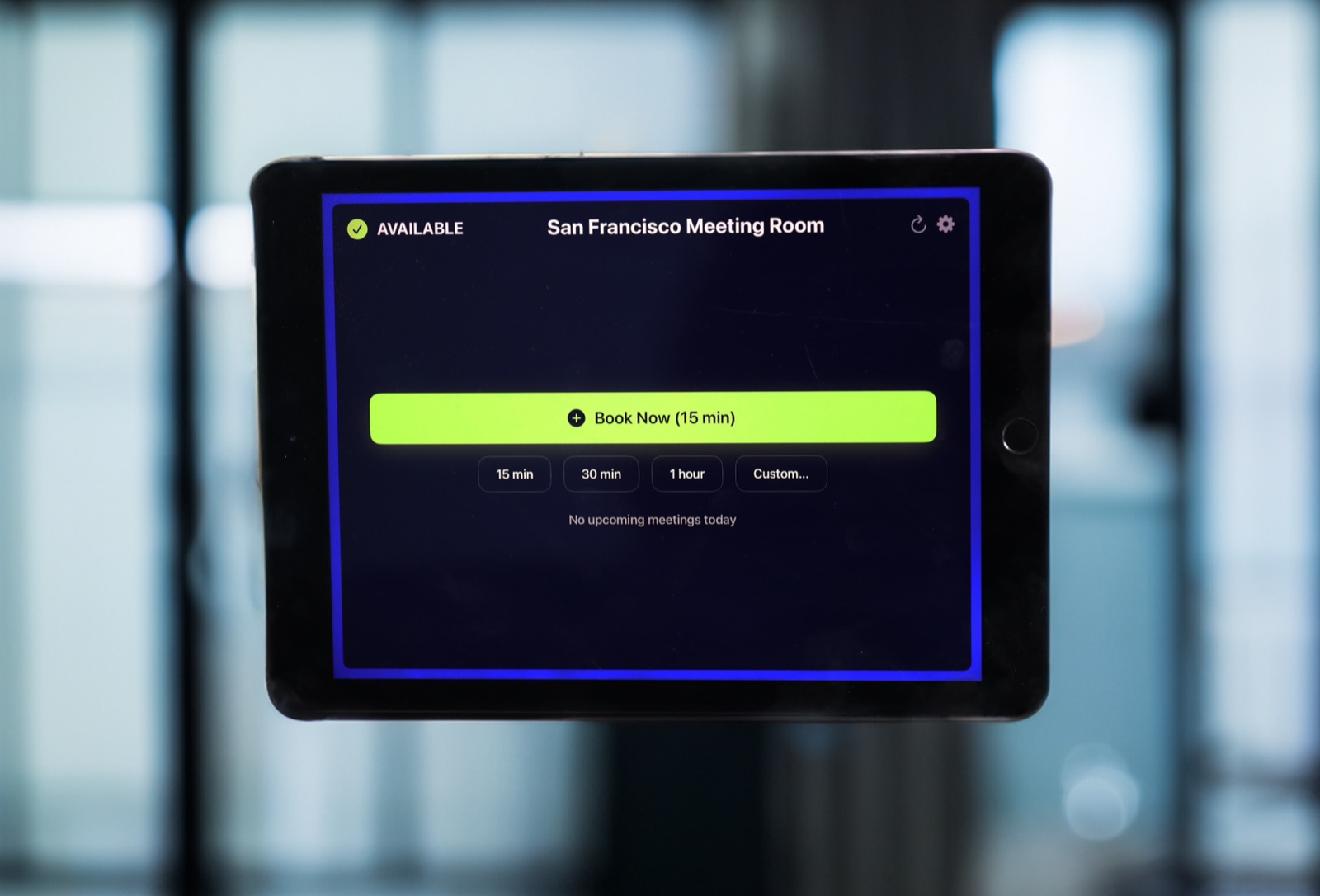
The Room Display turns an iPad by the door into a small piece of digital signage for that room, with booking built in. It shows:
- Status with a colored ring: Available, In Use, or Ending soon.
- The current session: title and organizer. "New Starter Welcome" with the HR lead's name tells a nervous new hire they're in the right place.
- Upcoming sessions for the window you pick. For a training room, set the lookahead to 7 days, so trainers and new hires can see the whole week.
- Walk-up booking for gaps: Book Now (15 min), 15 min, 30 min, 1 hour and Custom.
Add your logo and colors with a Custom theme, so the first screen a new hire sees looks like your company.
Use check-in to catch cancelled sessions
Cohorts get pushed. Start dates slip. A trainer gets sick. The booking stays, and the room sits empty. Turn on Require Check-In with the default 10-minute timeout. The trainer taps Check In when they arrive. If nobody does, the booking is released, and the room shows as free in the calendar for anyone who needs it. On Microsoft 365, check-in needs Direct Room Access, which an admin grants to the iPad's account.
Be careful with early setup blocks: if IT books 8:00 to 9:00 for laptop setup, they need to tap Check In too, or the setup slot will be released.
What should the door say about new hires?
Most companies are happy to show "Welcome, Maria and Dev!" on the door. That's a nice touch. But sometimes a hire is confidential: a senior role not yet announced, or a replacement for someone who doesn't know they're being replaced.
For those, use a neutral title like "Onboarding" and mark the event private in Google Calendar or Outlook. The display then shows "Private Meeting" instead of the title. There's no app setting that hides titles, so the habit lives in the calendar. More on the trade-off in show the meeting title or the organizer's name?
The cost is $99 per iPad, once, with no subscription.
When The Room Display isn't the right fit
- You need attendance tracking or training records. A calendar shows the room was booked, not who sat in it. Use your LMS or HRIS.
- External trainees need to register for sessions. The display doesn't handle sign-ups or visitors.
- You want approval workflows at the door. Approval is a Google Workspace or Microsoft 365 resource setting, not an app feature.
- The training room is rarely contested. Calendar booking alone may be enough.
Frequently asked questions
When should HR book the onboarding room?
The day the offer is signed. Start dates are usually two to four weeks out, which is enough time to get the room before other teams do. If new hires start on fixed days, book a recurring series for the year.
How do I stop other teams from taking the training room?
Restrict who can book it ahead. On Microsoft 365, set BookInPolicy to HR and L&D and route other requests through a delegate. In Google Workspace, limit booking permissions on the resource. Turn on check-in so unused bookings release.
Should the display show new hires' names?
It can, if the hire is public. For confidential hires, use a neutral title and mark the event private, so the door shows "Private Meeting".
What lookahead should a training room display use?
7 days. Training rooms are planned a week or more ahead, so trainers and new hires benefit from seeing the full week on the door.
Related guides
- How to Schedule Training Rooms for OSHA Safety Training (2026 Guide)
- Buffer Time Between Meetings: How to End the Back-to-Back Room Handover Mess
- Should a Room Display Show the Meeting Title or the Organizer's Name?