Best Practices
Phone Booths and Focus Pods:
Booking the Quiet Spaces
How to handle phone booth and focus pod booking in Google Workspace or Microsoft 365, with walk-up booking and check-in so quiet spaces stay free.
Short answer: Make each phone booth or focus pod a calendar resource, but keep most of its time free for walk-ups. Put an iPad running The Room Display at the booth so people see free or busy from down the hall and can grab 15 or 30 minutes with one tap. Turn on check-in with a 5-minute timeout so no-show bookings release fast.
Phone booths are the smallest rooms in the office and often the most fought over. They're also the rooms where a normal meeting-room setup works least well. Here's what I'd do differently for them.
Why booths aren't just small meeting rooms
A meeting room gets booked days ahead, for groups, in 30 or 60 minute blocks. A phone booth gets used by one person, usually for 10 to 30 minutes, usually with no warning. Someone's phone rings, they need quiet now, and they walk toward the booths hoping one is open.
That creates three problems a calendar alone can't solve:
- You can't tell from a distance. Glass doors help a bit, but a person sitting low on a call is easy to miss, and a booked-but-empty booth looks free.
- Walk-ups collide with bookings. Someone takes an empty booth for a quick call. Ten minutes later the person who booked it at 2:00 is knocking on the glass.
- Hoarding. One person books the same booth every afternoon "for calls" and uses it twice a week.
Should phone booths be bookable at all?
Some offices make booths first come, first served, and it works fine with plenty of booths and light demand. Once booths get scarce, you need something better. Here are the three common policies:
| Policy | Works when | Breaks when |
|---|---|---|
| Walk-up only, no calendar | You have more booths than people on calls at peak | People start waiting outside booths, or someone camps in one all afternoon |
| Bookable in the calendar only | Most booth use is planned (scheduled calls, interviews) | Walk-ups take booths that look empty but are booked, and nobody can tell |
| Calendar plus a display at the booth, with check-in | Booths are scarce and use is a mix of planned and spontaneous | Rarely. The cost is one iPad per booth |
The third option is what I recommend for busy booths. People with a scheduled call book ahead. Everyone else walks up, sees the ring color and books on the spot. Bookings nobody uses get released.
Set up booths as calendar resources
- Create one resource per booth. In Google Workspace, add it in the Admin console under Buildings and resources as a meeting space. In Microsoft 365, create a room mailbox.
- Set capacity to 1 (or 2 for a duo pod), so people looking for a room for four don't see it.
- Name it so it's easy to find in the room picker: "2F Booth A (1 person)" or "Focus Pod East".
- Cap the booking length. On Microsoft 365,
Set-CalendarProcessing -Identity "2F Booth A" -MaximumDurationInMinutes 60declines anything over an hour. Google Workspace has no per-resource cap that I know of, so put the limit in your booking rules. - Block recurring bookings if hoarding is a problem:
-AllowRecurringMeetings $falseon Microsoft 365.
A focus pod is a small enclosed space meant for solo deep work, not calls. Treat it the same way, with one difference: focus sessions run longer, so allow up to 2 hours.
What the display does at a booth
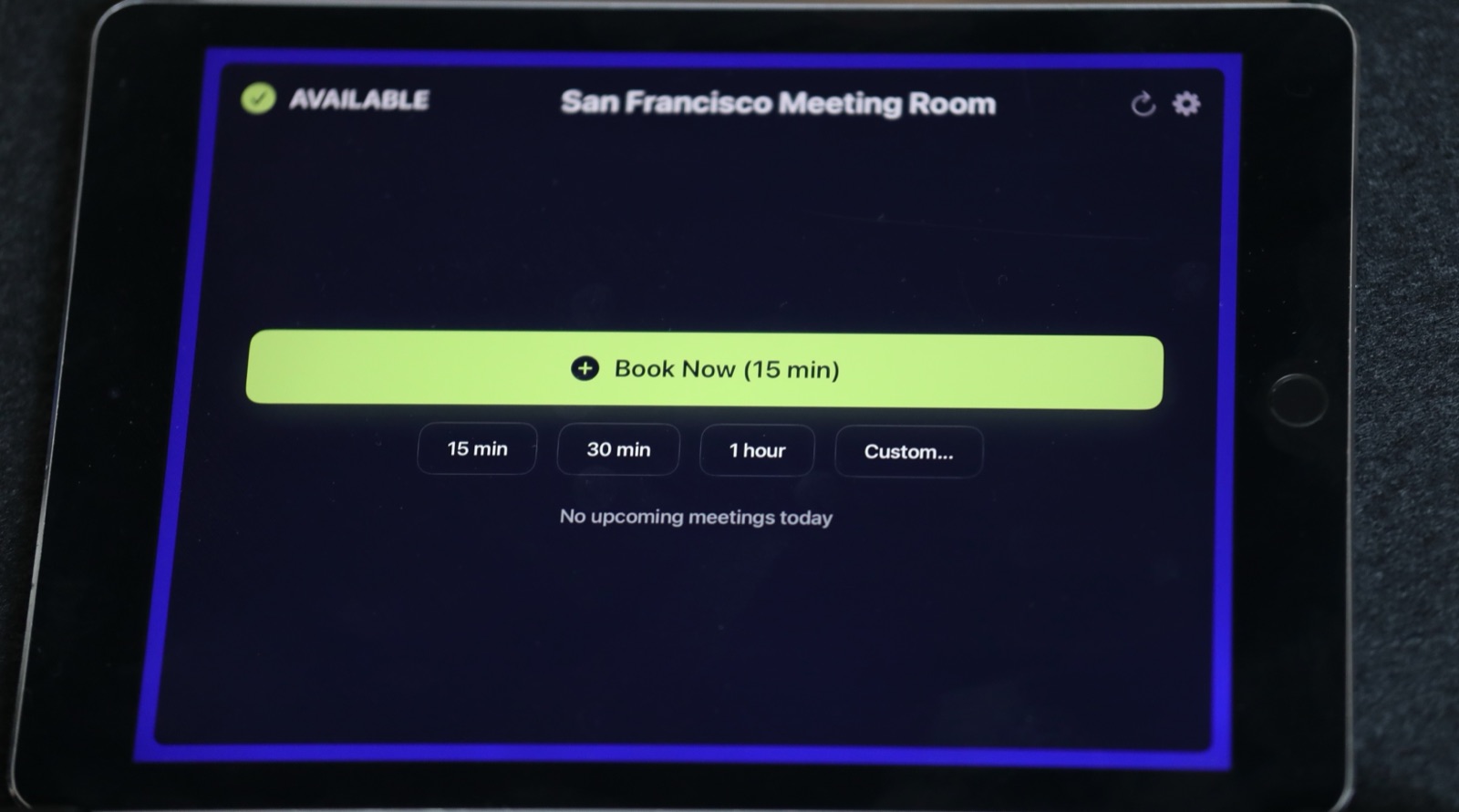
The Room Display is a small piece of digital signage for one booth, with booking built in. Mounted outside the booth, it shows:
- A colored ring around the screen for Available, In Use, or Ending soon. You can read it from 30 feet away, which is the whole point.
- The current booking and how much time is left, so you know whether to wait five minutes or keep walking.
- The next bookings, so a walk-up knows they have the booth until the 2:30 call.
- Walk-up booking: Book Now (15 min), 15 min, 30 min, 1 hour and Custom, with an optional title. The booking goes straight into the booth's calendar.
If you tap the wrong button, you can cancel a walk-up booking within 5 minutes. Scheduled bookings can't be cancelled from the door. Anyone standing at the display can book, with no login, which is exactly how booths should work.
Use a short check-in window for booths
Check-in is optional and off by default. For booths, turn it on. With Require Check-In enabled, someone has to tap Check In on the display when their booking starts. If nobody does, the booking is released and the booth goes back to Available, in the calendar too. On Microsoft 365, check-in needs Direct Room Access, which an admin grants to the iPad's account.
The timeout can be 5, 10 or 15 minutes. Meeting rooms usually do well with 10. For booths, I'd use 5. A phone call doesn't wait for a late arrival, and a booth booking held for 10 minutes of a 30-minute slot loses a third of its value. If the person who booked it hasn't shown up after 5 minutes, someone else should get it. I explain the mechanic in more detail in meeting room check-in, explained.
Walk-up bookings made at the door are already "checked in" by definition. The person is standing right there.
Mounting a display on a booth
Booths are awkward to mount on. A few options, from best to worst:
- The wall beside the booth, at eye height, next to the door. Easiest if the booth sits against a wall.
- The booth's own exterior panel. Many prefab pods have a solid side panel and a built-in power outlet inside. Ask the manufacturer before drilling into acoustic panels, since it can affect the warranty and the sound seal.
- A glass mount on the door side. Works, but the cable run gets ugly fast.
Whatever you choose, the iPad needs constant power and Wi-Fi. A battery-only setup will be dark by Thursday. My guide to keeping a wall-mounted iPad charged covers cable routing. Lock the iPad to the app with Guided Access, or Single App Mode through MDM if you're doing more than a few.
Booth rules that keep things fair
Write them down and stick them on the wall:
- Book only what you need. Most calls fit in 15 or 30 minutes.
- No recurring booth bookings.
- If your plans change, cancel the booking in your calendar so someone else can have it.
- Long video calls with a group go in a meeting room, not a booth.
The cost is $99 per iPad, once. Four booths is $396, with no subscription. Compare that with dedicated room panels, which typically cost $500 to $2,000 each plus $15 to $30 per room per month. Full details are on the pricing page.
When The Room Display isn't the right fit
- You have lots of booths and light demand. Leave them walk-up only and save the money.
- You want occupancy sensors that detect someone inside. Check-in here is a tap on the screen, not a sensor.
- You want one screen showing all booths at the end of a corridor. One iPad shows one booth's calendar.
- The booth has no power anywhere nearby. Fix that first, or skip the display.
Frequently asked questions
Should phone booths in the office be bookable?
If booths are scarce, yes, but keep them friendly to walk-ups. Make each booth a calendar resource so scheduled calls can be booked, and put a display outside so people can see if it's free and book it on the spot.
How long should a phone booth booking be?
Most calls fit in 15 to 30 minutes, so those are good defaults. Cap booth bookings at 60 minutes. On Microsoft 365 you can enforce that with the MaximumDurationInMinutes setting on the room mailbox.
What check-in timeout should I use for phone booths?
5 minutes. Calls start on time, and a booth held for a no-show wastes a big share of a short booking. Meeting rooms usually work better with 10.
Can you put a room display on a glass phone pod?
Yes, but the side wall or a solid exterior panel is easier than glass. The iPad needs constant power, so check whether the pod has an internal outlet and ask the manufacturer before drilling.
Related guides
- Walk-In Meetings: Why Tap-to-Book at the Door Changes How Rooms Get Used
- Meeting Room Check-In, Explained: How Auto-Release Kills Ghost Meetings
- How to Keep a Wall-Mounted iPad Charged 24/7 (Without Ugly Cables)