IT & Security
Room Display Privacy
in Lobbies and Open-Plan Offices
What a room display should and shouldn
Short answer: A room display in a lobby or open-plan area is read by anyone who walks past — visitors, contractors, delivery drivers. In those spaces, don't show meeting titles. Configure the display to reveal only "Busy"/"Available" or, at most, the organizer's name. Because The Room Display is local-only, that calendar data never passes through a third-party cloud on its way to the screen — one fewer place it could leak.
A display outside a private meeting room, inside a badged office, can safely show more than one mounted in a public lobby. The privacy question isn't "what can the app show?" — it's "who can see this particular screen?" Match what's displayed to how public the location is.
The threat model: who's actually reading the screen?
Start by naming who can see each display. A screen's audience determines what's safe to show:
| Location | Typical viewers | Safe to show |
|---|---|---|
| Inside a badged floor, private room door | Employees only | More detail is usually fine |
| Open-plan area near desks | Employees + occasional visitors | Be cautious with titles |
| Lobby, reception, visitor-facing room | Anyone, including the public | Minimal — status only |
A meeting title like "Acme acquisition — legal review" or "Performance review: J. Smith" is harmless on a badged floor and a genuine leak in a lobby. The same app, the same room, different location, different setting.
What a public-facing display should hide
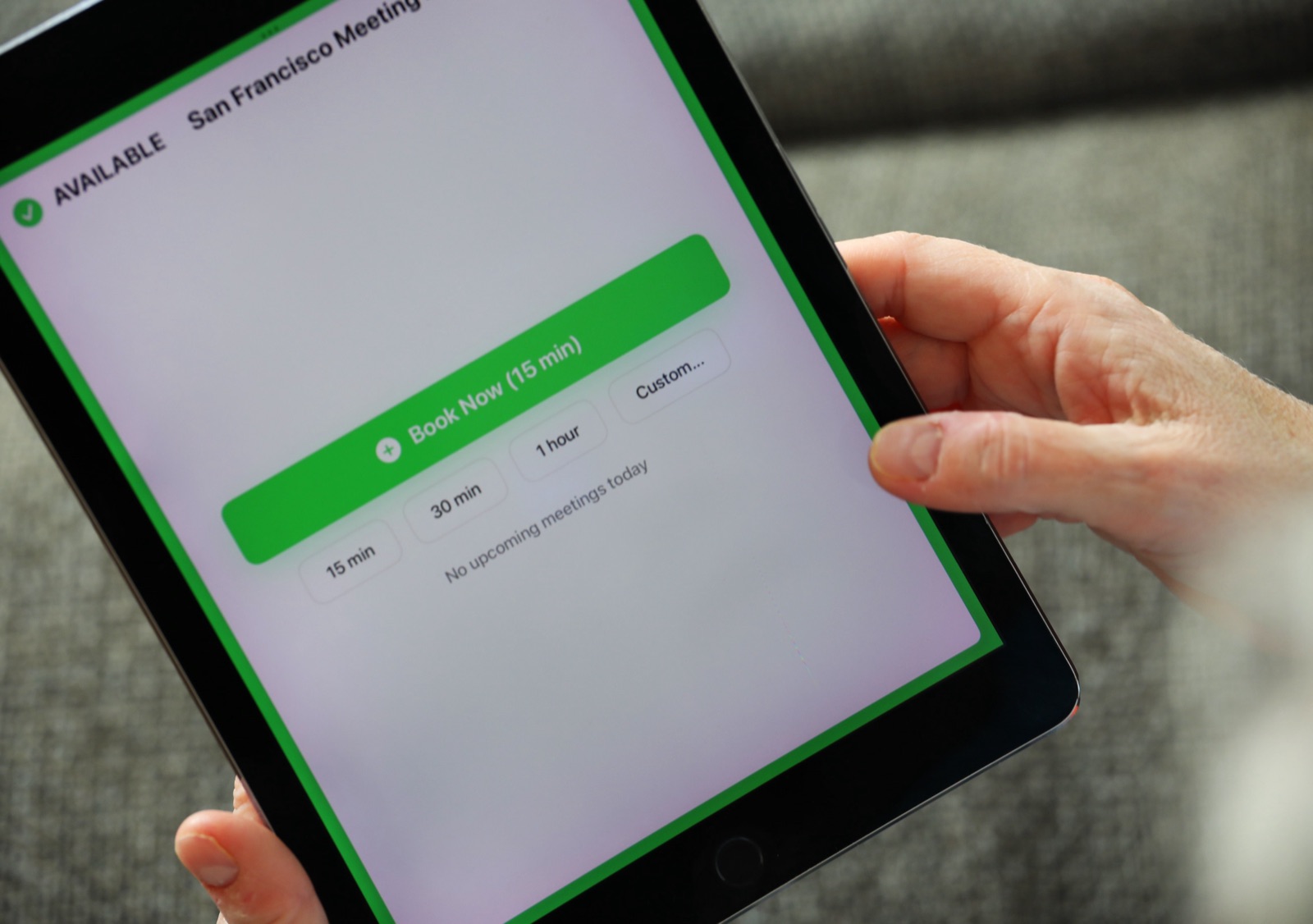
The most sensitive thing on a room display is usually the meeting title, followed by the organizer or attendee names. In a public or semi-public space:
- Hide meeting titles. A title can reveal deals, personnel matters, client names, or strategy. In a lobby it should never appear.
- Consider hiding organizer names too. Even a name plus a room can be revealing ("the VP of Sales is in a room with an external visitor right now").
- Show status, not substance. For a visitor, "In Use until 3:00" is all they need. Whether the room is free is useful; who's in it and why is not.
The title-vs-organizer privacy setting
The Room Display lets you choose what appears for each booking rather than forcing an all-or-nothing exposure. You can show:
- The meeting title — most detail, for private/internal displays only.
- The organizer's name — moderate; useful for "whose meeting is this?" without exposing the subject.
- Just "Busy" — minimum; the room is occupied, nothing more.
For lobbies and visitor-facing rooms, choose "Busy." For open-plan areas, organizer-only is often a sensible middle ground. Reserve full titles for displays behind access control. We cover the trade-offs in depth in show meeting title or organizer name.
This is also just good hygiene with calendar systems generally: many events are marked private by the organizer, and a display should honor that by never surfacing a private event's details on a wall.
Shoulder-surfing and physical placement
Content settings handle what's on screen; placement handles who can physically see it.
- Angle and position a lobby display so casual passers-by see status but can't easily read fine detail from across the room.
- Avoid mounting a detail-rich display where a queue forms (reception lines, elevator banks) — that's prime shoulder-surfing territory.
- The booking flow matters too. If walk-up booking is enabled in a public area, be mindful that whatever a booker types could be glanced at. In high-traffic public spots, consider limiting on-device booking to simple quick-book buttons rather than free-text entry.
Our mounting guide covers placement mechanics; here the point is to treat sightlines as part of your privacy design.
Visitor-facing rooms need extra care
Rooms used to host external visitors — interview rooms, client meeting rooms, reception-adjacent spaces — are a special case, because the people reading the display include the very outsiders the meetings might concern. For these:
- Default to status-only ("Available" / "In Use").
- Never expose attendee lists or titles.
- Remember the visitor standing at the door is part of your audience — design for them.
Why local-only architecture helps
What's shown on screen is one half of privacy. Where the data travels to get there is the other half.
Many room-booking platforms pull your calendar into their own cloud, cache it there, and push it to displays. That means your meeting titles and organizer names — including for public-lobby rooms — sit on a third party's servers. Every extra hop is another place data can be exposed or breached.
The Room Display is local-only: each iPad talks directly to your Google Workspace or Microsoft 365 account via their official APIs. No vendor cloud sits in the middle holding a copy of your meeting data. For a public-facing deployment that's a meaningful reduction in exposure — the sensitive fields you're carefully hiding on screen also aren't accumulating on someone else's server. See why a local-only display beats cloud SaaS and our broader room display security overview.
Locking the settings down with MDM
In a managed environment you don't want the privacy setting to be something anyone can toggle on the device. The Room Display supports MDM managed configuration, so IT can push the display's privacy level (title vs organizer vs Busy) centrally and lock it. That guarantees your lobby displays stay status-only even if the device is reset or handled by non-IT staff.
A quick placement-and-privacy checklist
- Public lobby or visitor-facing room -> "Busy" only, MDM-locked.
- Open-plan near desks -> organizer name at most.
- Behind access control -> full titles acceptable if desired.
- Angle screens away from queues and sightlines.
- Honor private events; never surface their details.
- Prefer quick-book buttons over free-text entry in public areas.
Frequently asked questions
Can I hide meeting titles on a public room display?
Yes. The Room Display lets you show just "Busy," the organizer's name, or the full title. For lobbies and visitor-facing rooms, choose "Busy" so no meeting subject appears on screen.
What should a lobby room display show?
Status only — "Available" or "In Use," with an end time at most. Titles, organizer names, and attendee lists should be hidden in any space the public can see.
Does a room display send my calendar to a third-party cloud?
Not with a local-only app. The Room Display connects each iPad directly to your Google Workspace or Microsoft 365 account, so meeting data isn't copied to a vendor's servers on the way to the screen.
Can IT lock the privacy setting so it can't be changed on the device?
Yes. Via MDM managed configuration, IT can push and lock the privacy level centrally, ensuring public displays stay status-only even after a reset.
How do I prevent shoulder-surfing at a display?
Angle and position public displays so passers-by see status but not fine detail, avoid mounting detail-rich displays where queues form, and prefer quick-book buttons over free-text entry in high-traffic areas.