Best Practices
Parking Space Booking
for Hybrid Offices
Parking space booking for hybrid offices with Google or Microsoft calendars. Book the pool from a phone, and keep one iPad at reception for the visitor bay.
Short answer: In a hybrid office, book parking spaces as calendar resources in Google Workspace or Microsoft 365, usually from a phone the evening before. The calendar handles the pool on its own, so you don't need a screen per space. Add one iPad running The Room Display indoors at reception for the bay that gets contested on the day, typically the visitor bay.
Assigned parking made sense when everyone came in five days a week. In a hybrid office, half the assigned spaces sit empty on Monday and Friday, while on Tuesday people circle the block. Booking spaces from the calendar fixes that, and it costs nothing you don't already pay for.
Why hybrid work broke assigned parking
Say you have 40 people and 22 spaces. Under assigned parking, 22 people have a space and 18 don't, regardless of who's actually in. On a typical Monday, maybe 12 of those 22 are working from home. Ten empty spaces, and the people who came in are parking on the street.
Shared, bookable spaces fix the math: whoever is coming in that day books a space. The only question is how to run the booking.
Your options, compared
| Option | Cost | Works well when | Breaks when |
|---|---|---|---|
| Assigned spaces | Free | Everyone is in every day | Hybrid schedules leave spaces empty |
| First come, first served | Free | You have more spaces than cars | Early arrivals take everything, and people stop coming in |
| Shared spreadsheet | Free | Very small teams | Nobody updates it, and conflicts slip through |
| One calendar resource per space | Included in Google Workspace or Microsoft 365 | Most hybrid offices with 5 to 100 spaces | You need gate control or license plate recognition |
| Dedicated parking platform | Per-space or per-user subscription | Large sites, permits, paid parking, gates | Overkill for a small lot |
For most offices, the calendar row is the sweet spot.
Set up parking spaces as calendar resources
A parking resource is a calendar resource that stands for one space, so people can book it from Google Calendar or Outlook and the calendar blocks double bookings.
- Create one resource per space. In Google Workspace, use the Admin console under Buildings and resources, with category Other and a type like "Parking". In Microsoft 365, an equipment mailbox is fine for calendar-only spaces. For any space that will get a display, create a room mailbox, since the app only lists room mailboxes on Microsoft 365.
- Name spaces so people find the right one: "P14", "P03 (EV)", "P01 (Accessible)", "Visitor Bay 1".
- Book full days, not hours. Most people want the space from arrival to departure. Suggest 8:00 to 18:00 as the default booking.
- Limit how far ahead people can book. On Microsoft 365,
Set-CalendarProcessing -BookingWindowInDays 14stops people from claiming every Tuesday until summer. On Google, put it in your rules. - Block recurring bookings:
-AllowRecurringMeetings $falseon Microsoft 365. Recurring parking is just assigned parking in disguise. I wrote more about this pattern in how to stop meeting-room hoarding.
Then tell people how to book from their phone. My guide to booking a Google Workspace room from your phone covers the steps, and Outlook mobile works the same way.
Where does a display actually help?
Not on the pool. Nobody walks past space P14 wondering whether to book it. They booked it last night from the couch. A screen per space would mean an iPad outdoors on a pole, which you should never do: iPads can't handle heat, cold, rain or theft.
A display earns its place on the bay that gets decided on the day, by people standing indoors. In most offices that's the visitor bay.
Visitors aren't on your calendar. The receptionist or host books the visitor bay for them, with a title like "Visitor: Acme Supply, 10:00". Mount one iPad at reception, at eye height, showing Visitor Bay 1. Reception sees at a glance whether the bay is free for an unplanned guest. A host can walk up and book the bay for the courier arriving in 20 minutes. If you have two visitor bays, use two iPads side by side.
What about the accessible bay? Accessible spaces come with legal rules (in the US, the ADA, plus state and local rules). Many offices keep them out of any booking system and leave them for permit holders. If you do make yours bookable, limit booking ahead to the people who need it, and only add a display if reception is staffed, because anyone at the display can book. When in doubt, ask whoever handles compliance. This isn't legal advice. For mounting the reception iPad at a height everyone can reach, see accessible room displays.
What does the display show at reception?
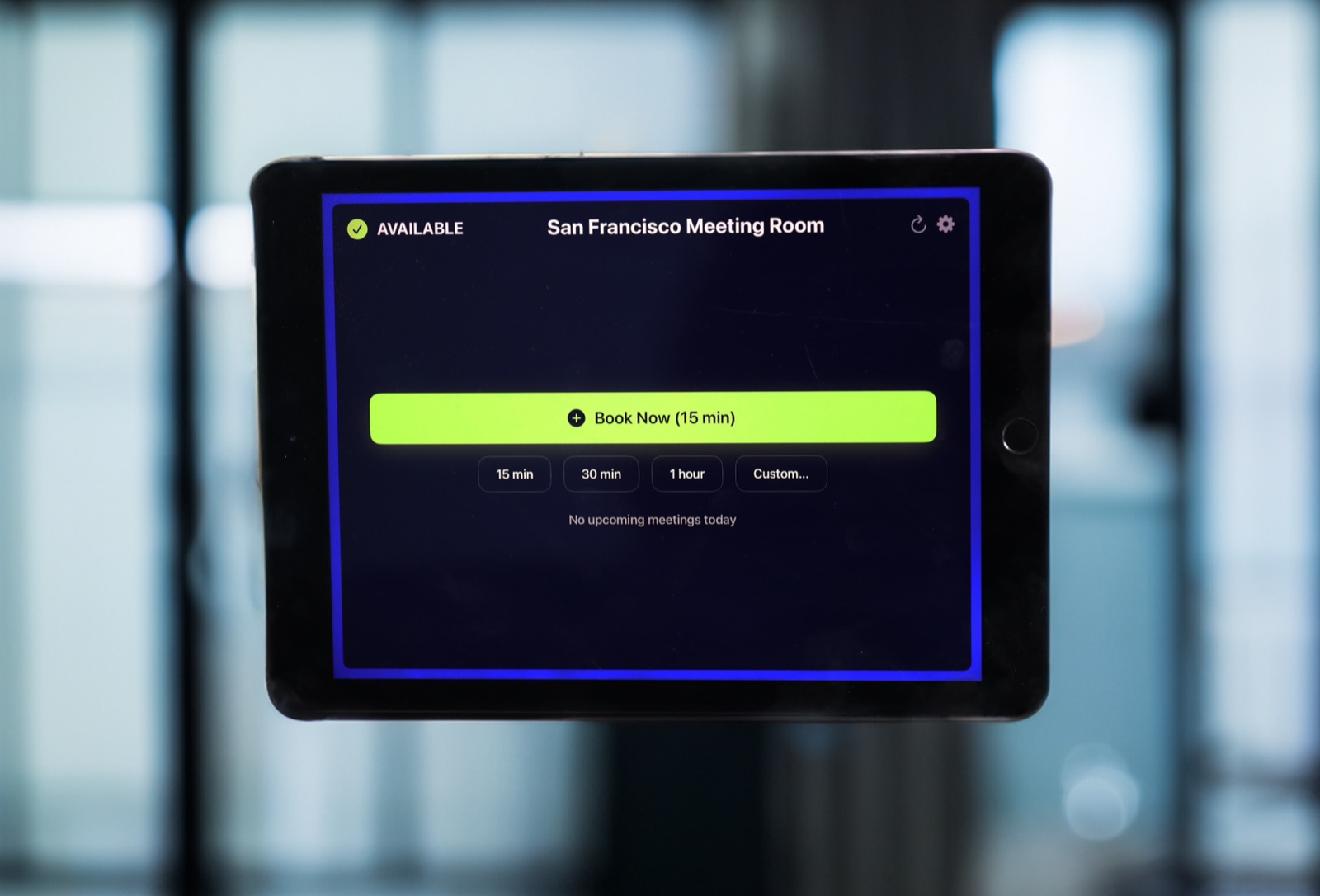
The Room Display is a small piece of digital signage for one bay, with booking built in:
- Status with a colored ring: Available, In Use, or Ending soon.
- The current booking: title (the visitor's company works well), organizer and time left.
- Upcoming bookings for Today, 24 hours, 72 hours, or 7 days. For a visitor bay, Today is usually right.
- Walk-up booking: Book Now (15 min), 15 min, 30 min, 1 hour and Custom up to 4 hours 45 minutes. Full-day bookings come from the calendar.
Release spaces nobody uses
Empty-but-booked spaces are the hybrid version of ghost meetings. Two habits help:
- For the visitor bay, turn on Require Check-In with a 15-minute timeout. When the visitor arrives, reception taps Check In. If the visitor doesn't show, the booking releases and the bay goes back to Available in the calendar. On Microsoft 365, check-in needs Direct Room Access, which an admin grants to the iPad's account.
- For the pool, there's no display, so check-in doesn't apply. Ask people to cancel by 9:00 if they're not coming in. A Monday reminder in your team chat does more than any policy document.
Rules that keep parking fair
- Book the evening before, or earlier in the week. No more than 14 days ahead.
- One space per person per day.
- Cancel as soon as your plans change.
- No recurring bookings.
- Visitor bays are booked by hosts or reception, never for staff.
The cost is $99 per iPad, once, with no subscription. One visitor bay display is $99 in total.
When The Room Display isn't the right fit
- You need gate or barrier control, or license plate recognition. The app doesn't control hardware.
- You sell parking or manage permits. No payments or permit handling.
- You want a lot map with every space on one screen. One iPad shows one resource.
- Nobody books on the day. Then skip the display and let the calendar do it all.
Frequently asked questions
How do hybrid offices share parking spaces?
Most switch from assigned spaces to bookable ones. Each space becomes a calendar resource in Google Workspace or Microsoft 365, people book a space for the days they come in, and recurring bookings are blocked so nobody turns a shared space back into an assigned one.
Can I book a parking space in Outlook?
Yes. Create the space as a resource mailbox in Microsoft 365, and people add it to an all-day event like a meeting room. Google Workspace works the same way with an Other resource.
Do I need a display for every parking space?
No. The calendar handles the pool. Put one display indoors at reception for the bay decided on the day, usually the visitor bay. Never mount an iPad outdoors in the lot.
How far ahead should employees be able to book parking?
One to two weeks is a good default. Long enough to plan, short enough that nobody locks in a space for the whole quarter.
Related guides
- How to Stop Meeting-Room Hoarding and Recurring-Meeting Bloat
- Rooms, Cars, Cameras: If It Has a Calendar, It Can Have a Display
- Pool Cars: A Simple Booking System for Company Vehicles