Best Practices
Pool Cars:
A Simple Booking System for Company Vehicles
A pool car booking system built on Google Workspace or Microsoft 365, with an iPad indoors by the key cabinet. Setup steps, rules and honest limits.
Short answer: Make each pool car a calendar resource in Google Workspace or Microsoft 365, so trips are booked like meetings and can't overlap. Then put one iPad running The Room Display indoors, beside the key cabinet at reception, showing the car people grab on short notice. Never mount it in the parking lot. Heat, cold, rain and theft will kill an iPad out there.
The classic pool car system is a whiteboard next to the key hooks. It works until someone writes "Car 2, Thurs" and someone else takes Car 2 anyway. You already pay for a system that refuses double bookings: your calendar.
What goes wrong with pool cars
Most pool car problems are information problems:
- Two people, one car. Both thought they'd booked it. One of them is now late for a client.
- Nobody knows when it's back. The car is gone, the key is gone, and the whiteboard says nothing.
- The car is "booked" but sitting there. Someone reserved it for Friday and then took the train.
- Recurring hoarding. One team books the nicest car every Monday "just in case."
A calendar fixes the first and third problems on its own. A display at the key cabinet fixes the second one for the people standing there.
Set each car up as a calendar resource
A vehicle resource is a calendar resource that stands for one car, so trips can be booked in Outlook or Google Calendar and the calendar blocks overlapping bookings.
- Create one resource per car. In Google Workspace, open the Admin console, go to Buildings and resources, and add a resource with the category Other and a type like "Vehicle". In Microsoft 365, an equipment mailbox works fine for calendar-only booking. For the car that gets a display, create a room mailbox instead (
New-Mailbox -Room -Name "Pool Car 5"), because the app only lists room mailboxes on Microsoft 365. - Name cars so people pick the right one: "Car 3 (Corolla, 5 seats)" or "Van 1 (cargo, 3 seats)". Put the plate number in the description.
- Turn on auto-accept. On Microsoft 365:
Set-CalendarProcessing -Identity "Pool Car 5" -AutomateProcessing AutoAccept. Google resources accept non-conflicting bookings automatically. - Limit how far ahead people can book.
-BookingWindowInDays 30on Microsoft 365. On Google, put it in your rules. - Block recurring trips if hoarding is a problem:
-AllowRecurringMeetings $false.
Now anyone can add "Car 3" to a calendar event, just like a meeting room. If it's taken, the booking is declined.
Where the iPad goes (and why not the parking lot)
iPads are indoor devices. Apple rates them for roughly 32 to 95°F (0 to 35°C). A car park sees both extremes, plus rain, condensation and people who'd like a free iPad. There's also rarely good Wi-Fi or a protected outlet out there.
The right spot is where people already go when they start a trip: the key cabinet.
| Location | Good spot? | Why |
|---|---|---|
| Pole or wall in the parking lot | No | Weather, theft, no Wi-Fi or power |
| Inside the car | No | Heat, theft, and you'd need one per car anyway |
| Beside the key cabinet at reception | Yes | Indoors, powered, on Wi-Fi, and it's where trips start |
| Inside the garage lobby door | Yes, if heated | Works when keys live there and there's Wi-Fi and power |
| The fleet manager's desk | Only if keys live there | Otherwise nobody walks past it |
Mount it beside the cabinet at eye height. Lock it to the app with Guided Access, or Single App Mode if you manage iPads with MDM. My guide on where to mount a room display covers height and cabling.
One display, one car: which car gets it?
One iPad shows one resource. So a small fleet doesn't get one big screen showing every car. Here's how I'd set it up, depending on fleet size:
- One or two cars: one iPad per car, side by side above the key cabinet. Each car gets walk-up demand.
- Three to ten cars: book all of them in the calendar. Put a display only on the car people grab on short notice.
- More than ten: the calendar does the work. A display might cover one special vehicle, like the only van.
Say you have five cars. Cars 1 to 4 get booked ahead in Outlook for client visits. Car 5 is the errand car, used for bank runs, post office trips and lunch with a supplier. Nobody books it more than a day ahead. The iPad by the key cabinet shows Car 5, with the lookahead set to the next 24 hours. Someone walks up, sees green, taps 1 hour, takes the key and goes.
What the display does at the key cabinet
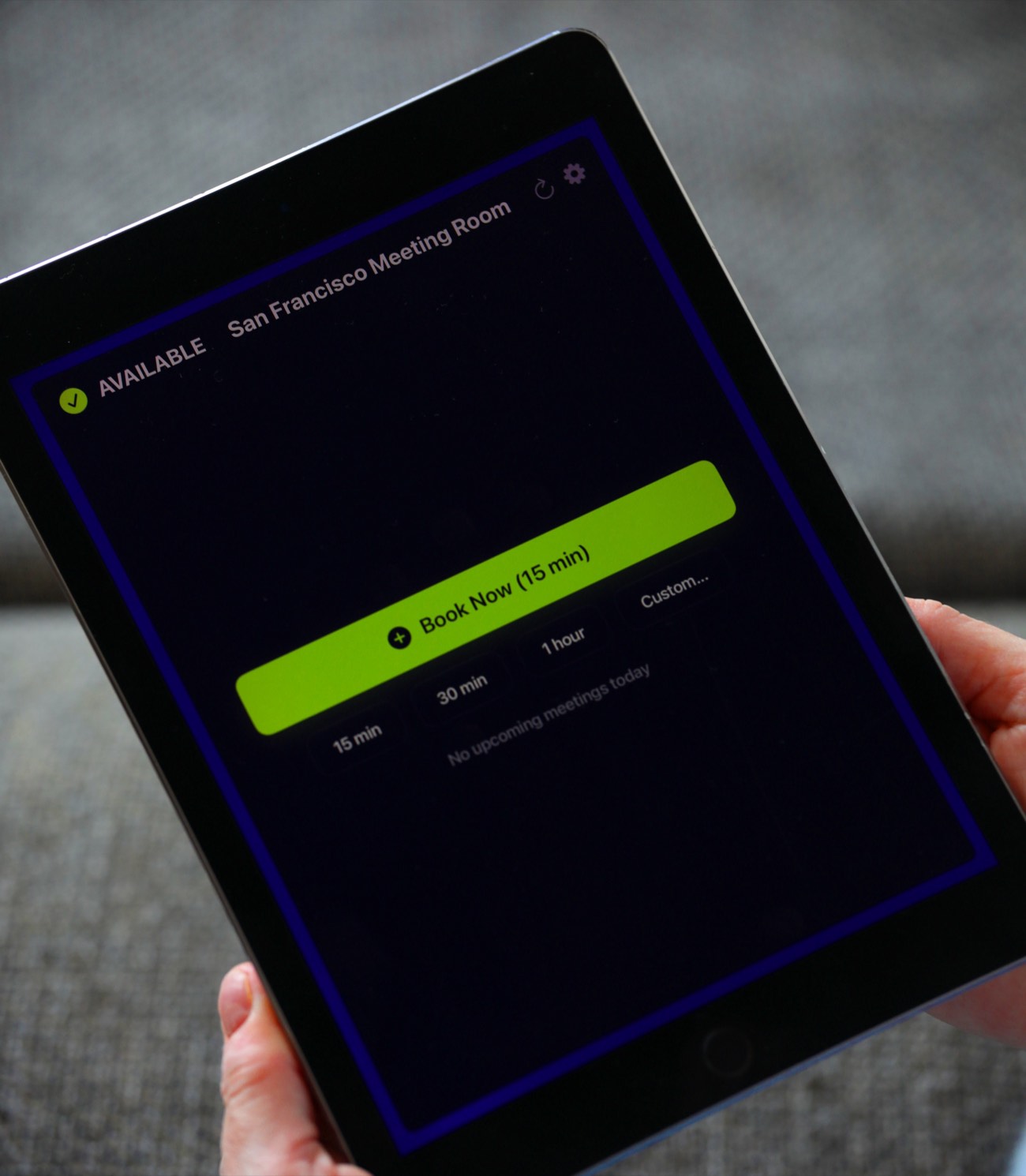
The Room Display is a small piece of digital signage for one car, with booking built in. It shows:
- Status with a colored ring: Available, In Use, or Ending soon.
- The current trip: title, organizer and how much time is left before it's due back.
- Upcoming trips for Today, the next 24 hours, 72 hours, or 7 days.
- Walk-up booking: Book Now (15 min), 15 min, 30 min, 1 hour and Custom up to 4 hours 45 minutes. For a full-day trip, book from the calendar.
A walk-up booking doesn't know who tapped, because there's no login at the display. Ask people to use Custom and type their name in the title. Anyone at the display can book. Who can book ahead from Outlook or Google Calendar still follows your calendar permissions.
Use check-in at the moment the key comes off the hook
Check-in is optional. For a pool car with a display, it fits naturally. Turn on Require Check-In, and when a booked trip starts, the driver taps Check In as they take the key. If nobody taps within the timeout (5, 10 or 15 minutes, with 10 as the default), the booking is released and the car shows Available again, in the calendar too. On Microsoft 365, check-in needs Direct Room Access, which an admin grants to the iPad's account.
For cars, I'd use 15 minutes. People run a little late for car trips. This is the same mechanic described in meeting room check-in, explained.
Rules that make pool cars work
Write these down and tape them inside the cabinet door:
- Book the return buffer. Add 15 minutes to every trip for parking, refueling or plugging in.
- Key in the cabinet means car on site. Don't take a key without a booking.
- Your name goes in the title. "Anna: client visit, Springfield" beats "Meeting Room Booking".
- Cancel when plans change, so the car goes back into the pool.
- Report damage and low fuel on the form or log book you already use. The display doesn't handle that.
A calendar tells you who has the car, not where it went. Mileage logs and fuel cards stay where they are.
When The Room Display isn't the right fit
- You need GPS tracking or telematics. Use a fleet management system.
- You want electronic key cabinets that release a key on booking. The app doesn't control locks.
- You want one screen showing all your cars. One iPad shows one resource. Use the calendar for the overview.
- You need mileage, fuel or expense tracking. That's a fleet or expense tool, not a booking display.
The cost is $99 per iPad, once, with no subscription. One display at the key cabinet is $99. Details are on the pricing page.
Frequently asked questions
Can I book a company car in Outlook or Google Calendar?
Yes. Create the car as a resource (an equipment or room mailbox in Microsoft 365, or an Other resource in Google Workspace). People add it to an event like a meeting room, and the calendar refuses overlapping bookings.
Can I mount the booking iPad in the parking garage?
Only if it's an indoor, heated lobby with Wi-Fi and power. Never outdoors or in an open garage. iPads aren't built for heat, cold or rain, and they get stolen. The key cabinet at reception is the best spot.
Can one iPad show all our pool cars?
No. The Room Display shows one resource calendar per iPad. Book every car in the calendar and put a display on the car with walk-up demand, or one per car if you only have two.
How do I stop people from booking the same car every week?
On Microsoft 365, set AllowRecurringMeetings to false on the car's mailbox and limit the booking window. On Google Workspace, make it a written rule and check the calendar now and then.
Related guides
- Rooms, Cars, Cameras: If It Has a Calendar, It Can Have a Display
- Where to Mount a Meeting Room Display: Placement That Actually Works
- Meeting Room Check-In, Explained: How Auto-Release Kills Ghost Meetings