Google Workspace
How to Book a Google Workspace
Meeting Room From Your Phone
Book a Google Workspace meeting room from your phone using Google Calendar or Gmail — plus when it
Short answer: Open the Google Calendar app on your phone, create or edit an event, tap Rooms, and pick an available room — Google shows you which resources are free for your time slot. Gmail's "Create event" flow works the same way. For a meeting starting right now, it's usually faster to walk up to the room and book it on the display at the door with one tap.
Booking a room from your phone is the everyday case: you're on your way in, you realize you need a room for the 2pm, and you want it locked in before you sit down. Google Workspace supports this natively, and it pairs neatly with a wall-mounted display that shows the same calendar in real time. This guide covers both — the on-the-go booking flow and the walk-up experience — and when to reach for each.
Book a room in the Google Calendar mobile app
The Calendar app is the most reliable way to reserve a room from your phone because it queries room availability directly.
- Open Google Calendar and tap the + button, then Event
- Set your date, start time, and duration first — room availability depends on the time slot
- Tap Rooms (or Add room)
- Google lists rooms your organization has shared with you, with a green indicator for the ones that are free
- Tap a room to add it, then Save
If a room shows as unavailable, Calendar will often suggest the nearest free alternative. The room you pick has to be set up as a calendar resource by your Workspace admin — if you don't see any rooms at all, that's the missing piece, not your phone.
Book from Gmail
If the meeting starts from an email thread, you don't need to switch apps:
- Open the message, tap the overflow menu (⋮), and choose Create event (wording varies by version)
- Gmail pre-fills the attendees from the thread and opens the same event editor
- Add a room the same way — tap Rooms and pick an available one
- Save, and every attendee gets the invite with the room attached
This is handy for "let's grab a room and hash this out" moments that start in email.
On-the-go booking vs. walking up to the display
The two approaches solve different problems. Phone booking is best when you're planning ahead; the display is best when you're standing right there.
| Situation | Best tool | Why |
|---|---|---|
| Meeting later today, you're commuting | Phone (Calendar/Gmail) | Lock the room in before it's taken |
| You need a room right now | Walk-up display | One tap, no typing, no app-switching |
| Recurring weekly sync | Phone (desktop or mobile) | Set the recurrence once |
| Impromptu huddle passing an empty room | Walk-up display | The room is in front of you and shows it's green |
| Inviting external attendees | Phone/desktop | Easier to add emails and agenda |
The Room Display shows the exact same Google Calendar data as your phone, in real time. A room booked from your phone turns red on the display within seconds, and a room booked at the door appears instantly in everyone's Calendar. There's no separate system to keep in sync — it's one calendar, two ways in.
The walk-up experience
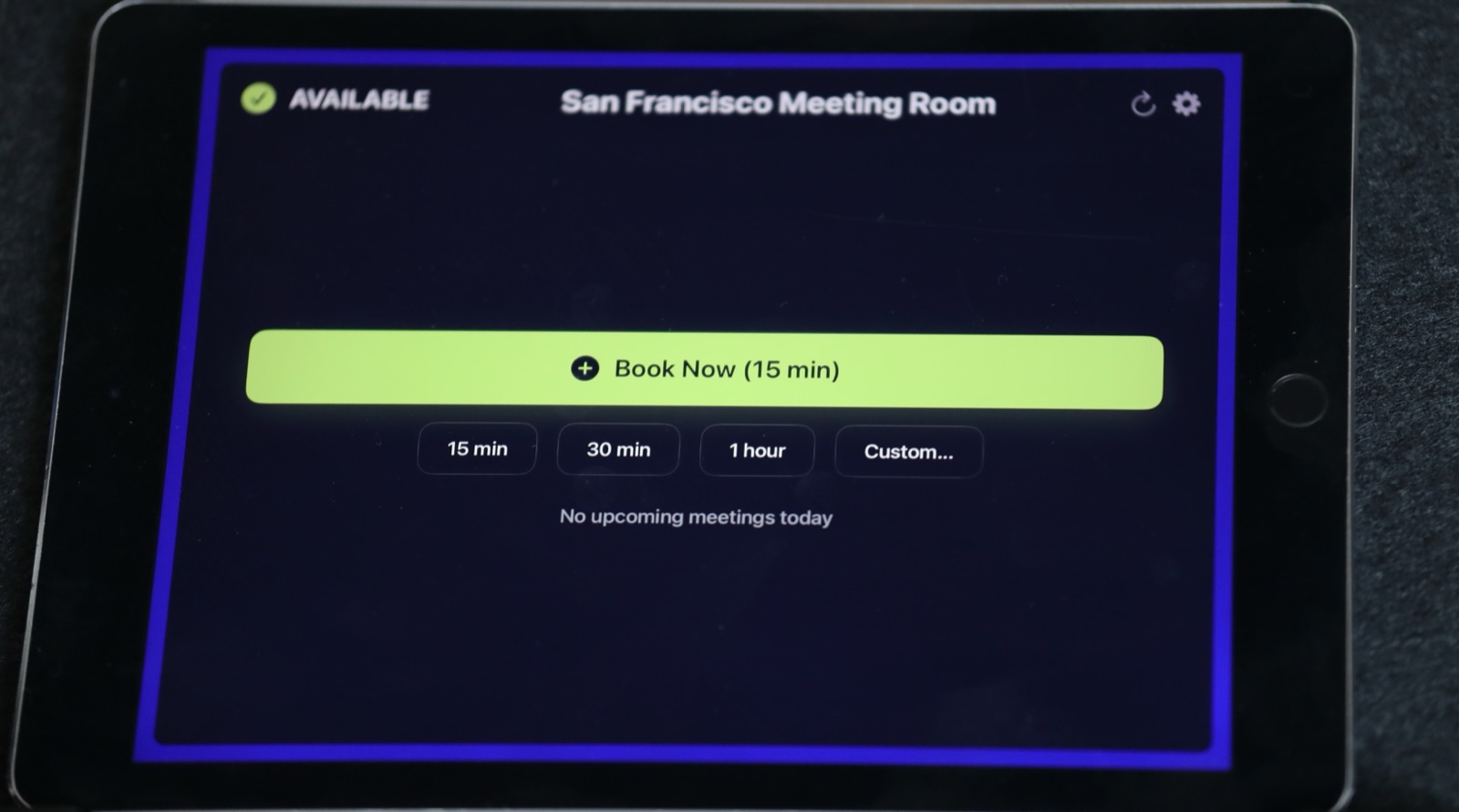
When you reach a room with The Room Display mounted outside it, a green screen means it's free. You can:
- Tap Book Now to grab it, or use the 15 / 30 / 60-minute quick buttons
- See what's coming up next so you don't book over the 2:30
- Walk in and start — the booking is already on the room's calendar
No account login, no app to install, no QR code to scan. For a genuinely spontaneous meeting, this is faster than any phone flow because there's no typing involved. We compare this head-to-head in our guide on walk-in meeting room booking.
Why the display beats a QR code for walk-ups
Some offices put a QR code sticker on the door instead of a display. It works, but it's slower: you unlock your phone, open the camera, scan, wait for a page to load, sign in, and then book — and you still can't see at a glance whether the room is free. A display answers "is this room free?" from across the hallway and books in one tap. We break down the trade-offs in QR code room booking vs. a display.
Frequently asked questions
Why don't I see any rooms when I try to add one?
Rooms have to be created as calendar resources by your Google Workspace admin and shared with your organization. If the Rooms option is empty, ask your admin to check the resource setup — see our Google Calendar room resources guide.
Can I book a room from my phone without the Calendar app?
Yes — you can use Gmail's "Create event" flow, or open Google Calendar in a mobile browser. The dedicated app gives the smoothest room-picker experience.
Does booking on the display require me to log in?
No. The Room Display books directly against the room's calendar, so a walk-up booking takes one tap with no sign-in. Meetings you book still show up in everyone's Google Calendar.
What happens if I book a room but don't show up?
If check-in is enabled, the display asks someone to confirm the meeting; if nobody does, the booking auto-releases and the room frees up. See meeting room check-in explained.
Is my data going through a third-party service?
No. The Room Display is a local-only app that talks directly to Google Calendar — there's no third-party cloud storing your bookings.
Related guides
- Walk-in meeting room booking
- Google Workspace meeting room booking guide (2026)
- QR code room booking vs. a display