Guide
Apple School Manager
Buying iPad Apps in Bulk (50% Off 20+ Licenses)
How schools buy iPad apps in bulk with Apple School Manager, assign the licenses through MDM, and get 50% off when ordering 20 or more licenses at once.
Short answer: Schools buy iPad apps in bulk in Apple School Manager, under Apps and Books. Search for the app, choose a location and a quantity, pay with a credit card or Volume Purchase credit, then assign the licenses to iPads through your MDM. For apps that offer Apple's education discount, like The Room Display, 20 or more licenses in one order get 50% off automatically.
The question I get most from schools isn't about features. It's "how do we actually buy this for 25 iPads?" The answer is Apple School Manager, and once you've done it once, it takes about ten minutes. This guide walks through the purchase, the discount and how the licenses reach the iPads.
What is Apple School Manager?
Apple School Manager is Apple's free web portal for schools and other education institutions. It's where a school buys apps and books in volume, enrolls its devices into an MDM, and manages Managed Apple Accounts for staff and students. You sign in at school.apple.com.
You'll still hear people call app purchasing "VPP", short for the old Volume Purchase Program. The program now lives inside Apple School Manager as Apps and Books, but the name stuck.
A few things to know before the first purchase:
- Your institution has to be enrolled. Apple verifies that you're an education institution. If your school already uses Apple School Manager to enroll iPads, this part is done.
- You need the right role. Purchasing is limited to accounts with a role that's allowed to buy content. Your Apple School Manager administrator can assign it.
- Someone has to accept Apple's purchasing terms once. This happens in the account's payment and billing settings. Do it before the day you need to buy.
How do you buy apps in bulk in Apple School Manager?
- Sign in at school.apple.com with an account that's allowed to buy apps.
- Open Apps and Books in the sidebar.
- Search for the app by name, for example "The Room Display".
- Select the app and choose the location that should own the licenses. A location is a group in Apple School Manager, usually one campus or one school, that holds licenses and connects to an MDM.
- Enter the quantity. If the app offers the education discount and you enter 20 or more, the discount applies to that order.
- Choose how to pay. Depending on your country, you can pay with a credit card or with Volume Purchase credit. Volume Purchase credit is a prepaid balance your school buys from Apple or an authorized reseller, typically with a purchase order, which suits schools that can't use a card.
- Complete the purchase. The licenses appear under that location, ready for your MDM to assign.
The exact button labels move around as Apple updates the portal, but the order of the steps stays the same: find the app, pick a location and quantity, pay.
How does the 50% off for 20+ licenses work?
Apple lets app developers offer a 50% education discount when an institution buys 20 or more licenses of the same app in a single order. I've enabled it for The Room Display. A few details matter:
- It's per order. Twelve licenses in September and eight in January are two orders of under 20. Neither gets the discount.
- There's no code and no quote. Apple applies it when the quantity is 20 or more.
- Not every app offers it. It's the developer's choice, so check before you plan a budget around it for other apps.
That makes the math a little surprising. Twenty discounted licenses cost exactly the same as ten at full price.
What it costs
| Licenses in one order | Price per iPad | Total |
|---|---|---|
| 10 | $99 | $990 |
| 15 | $99 | $1,485 |
| 19 | $99 | $1,881 |
| 20 | $49.50 | $990 |
| 30 | $49.50 | $1,485 |
| 50 | $49.50 | $2,475 |
If you need 15 displays this year and expect a few more next year, buying 20 in one order costs $495 less than buying 15. The extra licenses stay with your location until you assign them. For the five-year view against subscription panels, see what room displays really cost schools over five years.
How do licenses get from Apple School Manager to the iPads?
Licenses don't install themselves. Your MDM does that part.
- Connect your MDM to the location. Most MDMs do this with a content token, a small file you download from Apple School Manager's settings and upload into the MDM. Some MDMs connect directly. Your MDM's documentation will say which.
- Assign the app to devices, not people. Device-based assignment ties the license to the iPad itself. Nobody signs in with an Apple Account, and no student or staff account is involved.
- Let the MDM install it. On supervised iPads, the app installs silently.
- Reassign when hardware changes. When an iPad is retired, revoke its license in the MDM and assign it to the replacement. You don't buy the app again.
For a room display, you can then push the settings too. The Room Display supports managed app configuration, so your MDM can send the room's calendar address, check-in rules, theme and logo to each iPad. With a Google service account, the iPad can set itself up with no one touching it. On Microsoft 365, check-in needs Direct Room Access, which an admin grants to the iPad's account.
Where The Room Display fits in a school
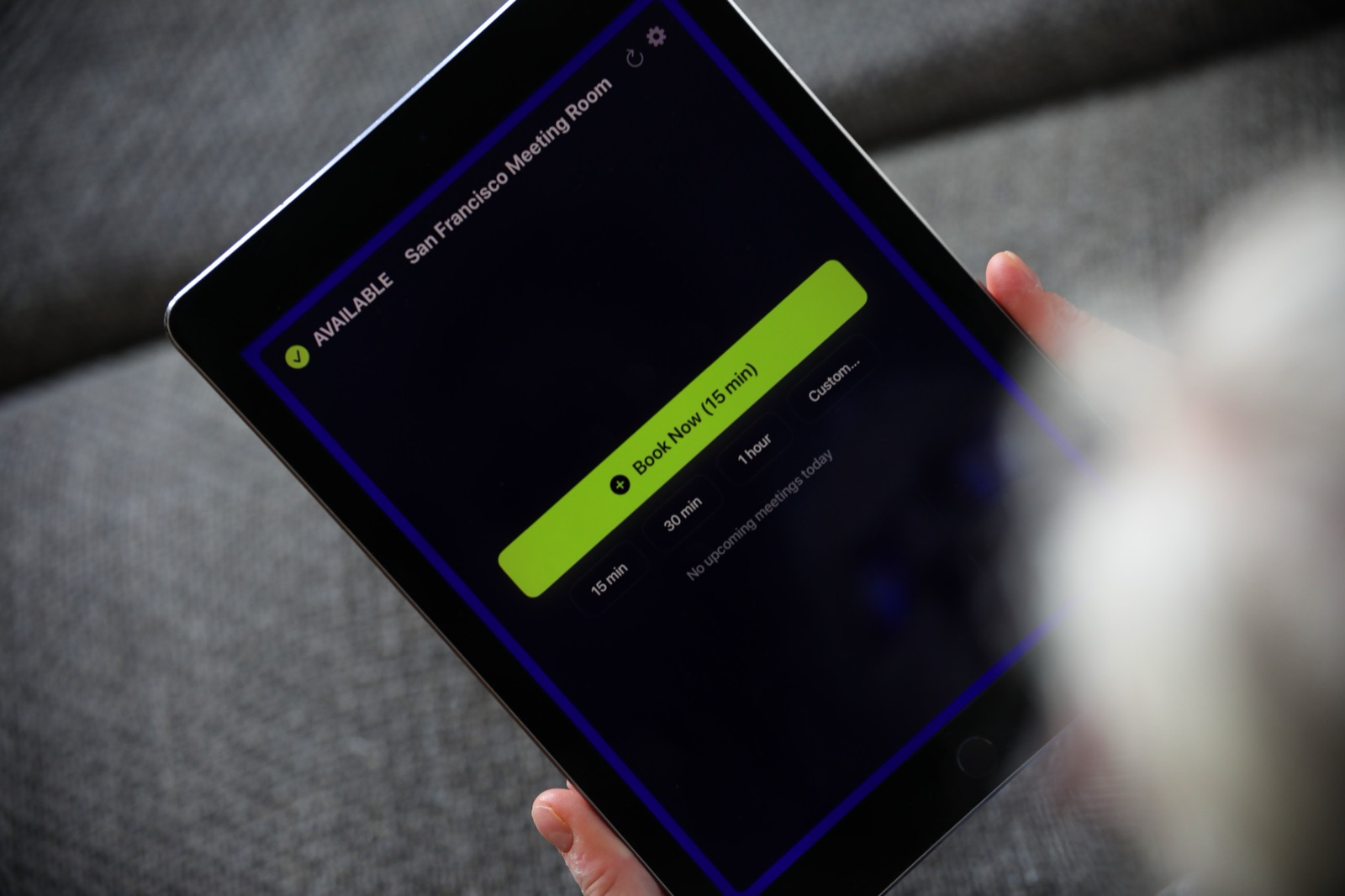
The Room Display turns an iPad into a small piece of digital signage beside a door. It shows whether the room is Available, In Use or Ending soon, with a colored ring around the screen, plus the current meeting, the organizer's name, the time left and what's booked next. It refreshes every 30 seconds.
Schools use it on the rooms people fight over: conference rooms, library study rooms, counseling offices, practice rooms. Anyone at the door can book a free room for 15 minutes, 30 minutes, an hour or a custom time. Optional check-in releases bookings nobody shows up for. Booking ahead still happens in Google Calendar or Outlook, with your normal permissions.
It works with Google Workspace for Education and Microsoft 365. Calendar data goes directly between the iPad and Google or Microsoft, with no third-party booking cloud. Any iPad on iPadOS 15 or later works, which often includes the retired 1:1 iPads in the storage closet.
When The Room Display isn't the right fit
- You want one screen listing every room in a building. One iPad shows one room's calendar. There's no overview screen.
- You need visitor sign-in or badge printing. The app doesn't do visitor management.
- You want room use reports. There are no analytics dashboards or occupancy sensors.
- The room isn't in Google Workspace or Microsoft 365. The display only reads those calendars.
Frequently asked questions
Do we need an Apple Account for each iPad?
No. When the MDM assigns the license to the device, no Apple Account is needed on the iPad. That's the main reason to buy through Apple School Manager instead of on someone's personal account.
Can we split a purchase across two orders and still get 50% off?
No. Apple's education discount applies to 20 or more licenses in a single order. Two orders of 12 are each under 20, so neither gets the discount. Plan ahead and buy 20 at once.
Can a teacher just buy the app with a school credit card on their own iPad?
They can, but the license then belongs to that person's Apple Account, not the school. It can't be reassigned through MDM, and it leaves when they do. Apple School Manager keeps the licenses with the school.
Do businesses get the same discount?
No. The 50% volume discount is for education institutions buying through Apple School Manager. Businesses can buy licenses in bulk through Apple Business Manager at the regular $99 per iPad.
What if we bought some licenses at full price already?
Those licenses keep working and can be assigned as normal. The discount is calculated per order, so your next order of 20 or more gets 50% off regardless of what you bought before.
Related guides
- Room Booking for K-12 Schools: The 2026 Guide
- Room Displays for Schools: What They Really Cost Over 5 Years
- Library Study Rooms and Makerspaces That Run Themselves