IT & Security
Loaner Laptops:
A Booking System for the IT Helpdesk
Run loaner laptop booking for your IT helpdesk with Google or Microsoft calendars and one iPad at the counter. Pool vs per-device setups compared.
Short answer: Make each loaner laptop a calendar resource in Google Workspace or Microsoft 365, so loans are booked like meetings and can't overlap. Use a single "Loaner pool" resource only when the laptops go out together, like a training-day set. Put one iPad running The Room Display at the helpdesk counter, showing the loaner people ask for on the spot.
Most helpdesks I've seen track loaners on a spreadsheet, a sticky note on the shelf, or a ticket comment nobody can find later. It works until two people are promised the same MacBook for the same trip. You already have a system that prevents double bookings. It's your calendar.
What goes wrong with loaner laptops
Loaner laptops are the IT team's small, constant headache:
- Double promises. Two techs each tell someone "sure, take Loaner 3 on Thursday."
- No return date. A loaner goes out "for a few days" and turns up three weeks later.
- The wrong machine. Someone books "a laptop" for a client demo and gets the one with the dead battery and no adapter.
- Counter traffic. Half the walk-ups at the helpdesk are "do you have a loaner free right now?"
A loaner pool is a set of laptops the helpdesk lends out short-term: for repairs, travel, new starters whose machine hasn't arrived, or events. The question is how to model that pool in a calendar.
Pool resource vs one resource per laptop
Here's the catch most people hit: a calendar resource can hold only one booking at a time. That's what makes it good at preventing conflicts. It also means one "Loaner pool" resource can't track six laptops lent to six people at once.
| Setup | How it works | Good for | Weak at |
|---|---|---|---|
| One resource per laptop ("Loaner 01" to "Loaner 08") | Each laptop has its own calendar. People book a specific machine. | Most helpdesks with 3 to 20 loaners, and mixed models (Mac vs Windows, small vs large) | More resources to name and maintain |
| One "Loaner pool" resource | The whole set is booked as one item | A cart or set of laptops that goes out together, like a 12-laptop training kit | Can't track individual laptops going to different people |
| Spreadsheet or ticket notes | Someone updates a list by hand | Very small teams with one or two loaners | No conflict checking, and it's never up to date |
| Asset management module in your ITSM tool | Check-out against serial numbers | Large fleets, audits, chain of custody | Usually no forward booking, and it costs more |
My default is one resource per laptop. If you also have an event kit, add it as one more resource next to the individual loaners.
Set it up in Google Workspace or Microsoft 365
- Create one resource per loaner. In Google Workspace, use the Admin console under Buildings and resources, with the category set to Other and a type like "Loaner laptop". In Microsoft 365, an equipment mailbox works for calendar-only booking. For any loaner that will get a display, create a room mailbox instead, because the app only lists room mailboxes on Microsoft 365.
- Name by what people care about: "Loaner 03 (MacBook Air 13, USB-C)" or "Loaner W2 (Windows, 15 in)". Put the asset tag in the description, not the name.
- Set a maximum loan length. On Microsoft 365,
Set-CalendarProcessing -Identity "Loaner 03" -MaximumDurationInMinutes 10080caps loans at 7 days. On Google, write the rule down. - Decide who can book ahead. You can let anyone book from their calendar, or restrict booking to the helpdesk group and have people request through a ticket. On Microsoft 365 that's
BookInPolicy. I covered the options in room mailbox permissions and delegation. - Add a return buffer. Book 30 minutes after each loan for wiping and charging, or make it part of the rule.
Every loan now shows up in a real calendar. A tech can open Outlook or Google Calendar and see which loaners are out, who has them and when they're due back.
Where does the iPad go?
At the helpdesk counter, beside the loaner shelf, at eye height. Not on the shelf itself, where it'll get knocked around. It needs constant power and Wi-Fi, which a helpdesk has in abundance.
One iPad shows one resource. So the display should show the loaner with the most walk-up demand. In most helpdesks, that's a same-day loaner: one laptop kept for "my machine is being fixed, I need something until 3 pm." Say you have eight loaners. Loaners 01 to 07 are booked ahead from the calendar for trips and new starters. Loaner 08 is the same-day machine, and the iPad at the counter shows its calendar.
When someone walks up, they can see whether it's free, who has it, and when it's due back. If it's free, they or the tech tap Custom, type their name and ticket number as the title, and pick a duration. Custom walk-up bookings go up to 4 hours 45 minutes, which suits same-day loans. Longer loans get booked from the calendar.
If you run two same-day loaners, use two iPads side by side. Retired company iPads are perfect here, since any iPad with iPadOS 15 or later works.
What does the display show?
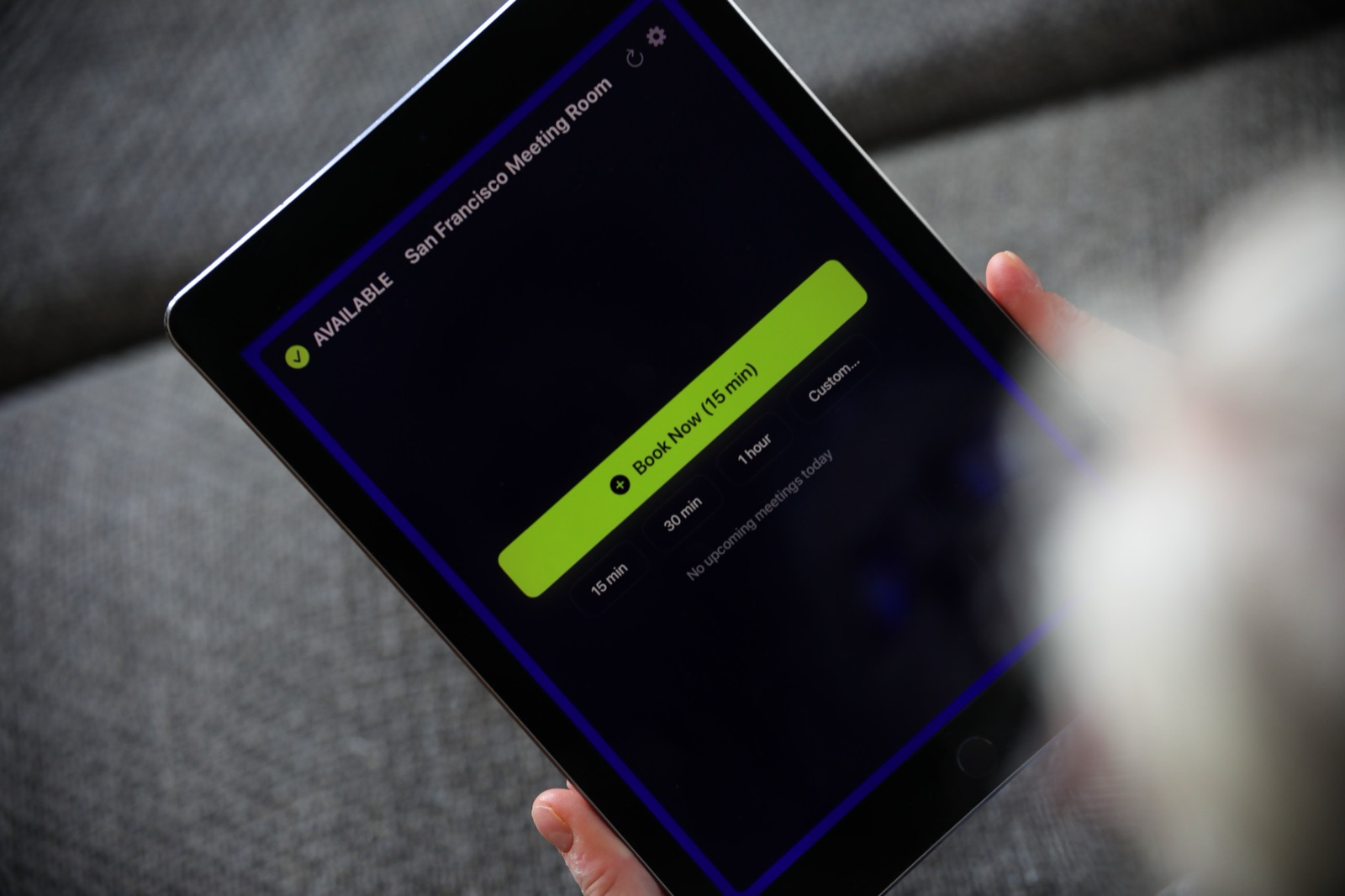
The Room Display is basically a small piece of digital signage for one loaner, with booking built in:
- Status ring: green for Available, red for In Use, and a separate color for Ending soon.
- Current loan: booking title, organizer and time left.
- Upcoming loans for Today, the next 24 hours, 72 hours, or 7 days. For loaners, 72 hours or 7 days is usually more useful than Today.
- Walk-up booking: Book Now (15 min), 15 min, 30 min, 1 hour and Custom.
The security questions your team will ask
Since this sits at a public counter, here's what IT usually wants to know:
- Where does the data go? Directly between the iPad and Google or Microsoft. There's no third-party booking cloud in between. Credentials are stored in the iPad Keychain.
- Can someone tamper with bookings? Anyone at the counter can make a walk-up booking, since there's no per-person login at the display. They can cancel their own walk-up booking within 5 minutes. They can't cancel scheduled bookings from the display.
- Can someone leave the app? Not if you lock it. Use Guided Access for one or two iPads, or Single App Mode through MDM. See how to lock an iPad in kiosk mode.
- How is it deployed? Managed App Configuration keys cover the room email, service account credentials, check-in, lookahead and theme. With a Google service account, setup can be fully zero-touch. On Microsoft 365, check-in needs Direct Room Access, which an admin grants to the iPad's account.
More in iPad room display security.
The calendar shows who booked a loaner. It isn't an asset register. It doesn't record serial numbers, wipe status or a signature at handover. Keep those in your ITSM or asset tool.
When The Room Display isn't the right fit
- You need chain of custody, with serials, signatures and audit trails. Use an asset management tool.
- You want self-service lockers that open when a booking starts. The app doesn't control locks.
- You want one screen showing every loaner on the shelf. One iPad shows one resource's calendar.
- Your loaners are rarely contested. Calendar resources alone will do the job, with no display.
The cost is $99 per iPad, one time, with no subscription. See pricing.
Frequently asked questions
How do I track loaner laptops in Outlook or Google Calendar?
Create each loaner as a resource: an equipment or room mailbox in Microsoft 365, or a resource in the Google Admin console. People book a loaner by adding it to an event. The calendar refuses overlapping bookings, and anyone can see who has which laptop and until when.
Should I use one loaner pool resource or one per laptop?
One per laptop, in most cases. A resource holds one booking at a time, so a single pool resource only works when the laptops go out together as a set.
Can one iPad show all the loaner laptops?
No. The Room Display shows one resource per iPad. Put it on the loaner with the most walk-up demand, usually a same-day loaner, and book the rest from the calendar.
Does the display record who picked up the laptop?
Only what's in the booking. A walk-up booking at the display doesn't know who tapped, so ask people to type their name and ticket number in the title. For a full handover record, use your asset tool.
Related guides
- Rooms, Cars, Cameras: If It Has a Calendar, It Can Have a Display
- iPad Room Display Security: What IT Admins Should Check Before Approving
- Who Can Book This Room? Room Mailbox Permissions and Delegation Explained