Guide
Scheduling Rooms for
OSHA Safety Training
How EHS managers and training coordinators can schedule classrooms and hands-on bays for OSHA safety training, refreshers and contractor orientation.
Safety training room scheduling works best when each classroom, hands-on bay and piece of training equipment is its own calendar resource, multi-day courses are booked as single blocks, and refresher cycles are planned a year ahead as recurring series. A display on the training room door helps outside trainers and contractors find the right room and stops other teams from grabbing it. Keep in mind that a calendar shows a room was booked; it is not a training record, and it won't prove who attended.
I'm writing this for EHS managers and training coordinators at manufacturers, contractors, and safety equipment distributors that run their own training centers. You're juggling instructors who fly in, crews who can't all leave the line at once, and a classroom that the sales team keeps booking for lunch-and-learns.
Why safety training is a scheduling problem
OSHA standards require employers to train workers on many specific hazards. For example, in construction, 29 CFR 1926.503 sets out fall protection training requirements, and plenty of other standards across general industry and construction have their own training provisions. Many of them also expect retraining when conditions change or when a worker's understanding falls short.
That's a lot of sessions. And unlike a normal meeting, a training session usually needs a specific kind of space (a classroom with a projector, a bay with harness anchor points, a room big enough for a forklift demo), a trainer who may be coming from outside, and a group of workers pulled off shift at the same time.
If the room isn't there when the trainer arrives, you've lost a day of an external instructor's fee and a crew's worth of production time. That's why it's worth taking the room side seriously.
Please check your own requirements with your safety team or counsel. This post is about scheduling, not compliance advice.
Training types and what they need from a room
Here's how I'd think about the most common kinds of safety training from a room point of view.
| Training type | Room needs | Booking pattern |
|---|---|---|
| New-hire safety orientation | Classroom, projector, seating for a hiring cohort | Recurring, tied to start dates (e.g. every other Monday) |
| Contractor orientation | Classroom or small room near the entrance, quick turnaround | Frequent short sessions, often booked at short notice |
| Fall protection (classroom + practical) | Classroom plus a hands-on bay with anchor points | Multi-day block covering both spaces |
| Forklift / powered industrial truck | Classroom plus a marked-off practical area | Classroom half-day, practical area booked separately |
| Confined space, lockout/tagout | Classroom plus a training prop or mock-up | Block booking for the full course |
| First aid / CPR (often external provider) | Classroom with floor space for mannequins | Single or two-day block, external trainer |
| Annual or periodic refreshers | Classroom | Recurring series planned a year ahead |
| Toolbox talks | Break room or shop floor corner | Short, frequent, often weekly |
The two things that stand out: training often needs two spaces at once (classroom and practical area), and much of it is predictable enough to schedule months ahead.
Set up your spaces as calendar resources
Before any scheduling, get every training space into your calendar system as its own resource. In Google Workspace that's a calendar resource; in Microsoft 365 it's a room mailbox (or an equipment mailbox for things that aren't rooms).
Create one each for:
- Each classroom, named with capacity ("Training Room A – 24")
- Each hands-on bay or practical area ("Fall Protection Bay", "Forklift Practical Area")
- Shared training equipment that two courses might need on the same day, like a demo harness kit, AED trainers, or a mobile projector
Equipment doesn't need a door display. It just needs to be bookable so two trainers don't plan around the same kit. I covered this in booking anything, not just rooms.
Scheduling patterns that work
Multi-day courses
Book a multi-day course as one event spanning all days, with both the classroom and the practical area attached. Don't book each day separately; it's too easy for one day to get bumped and nobody notices until the trainer arrives.
If the classroom is only needed in the mornings and the bay in the afternoons, book them as two events in the same series. That frees the classroom for others in the afternoon without risking the course.
External trainers
When the trainer is coming from outside:
- Book the room in your own calendar and invite the trainer as a guest.
- Put the room name, the building entrance and a site contact in the invite.
- Book 30 to 60 minutes of setup time before the session starts. External trainers bring their own gear and need to test your projector.
- Tell reception the trainer's name and arrival time.
A display on the training room door helps a lot here. The trainer can see from the corridor that they've found the right room and that it's theirs until 4 pm.
Recurring refresher cycles
Refreshers are the easiest training to schedule and the easiest to forget. At the start of your fiscal year, sit down with your training matrix and put every known refresher on the calendar as a recurring series. Quarterly, semiannual, annual, whatever applies to your site.
Booking them early means the room is protected before anyone else plans around it. You can always move a session; it's much harder to find a free classroom for 20 people three weeks out.
Contractor orientation
Contractor orientation is the opposite: frequent, short, and often at short notice when a crew shows up. Keep a small room near the entrance for this if you can. A display with instant booking lets the person running orientation walk up and claim the room for 45 minutes without going back to a desk.
Shift-friendly scheduling
If you run shifts, don't schedule all training at 8 am. Spread sessions so each shift can attend without overtime. Rooms used for training at shift changeover times are often busy with handover meetings too, which is where my post on room scheduling in manufacturing facilities comes in. And for the short, frequent stuff, see scheduling toolbox talks and break rooms.
Keep the training room for training
The most common complaint I hear from training coordinators: "Everyone else books our room." Sales has a lunch-and-learn, the plant manager has a big review, and suddenly the course you planned for Thursday is in the cafeteria.
Three things help:
- Restrict who can book the training room in your calendar settings, or require approval. Both Google Workspace and Microsoft 365 support booking restrictions on resources.
- Book your training calendar first, as early as possible.
- Use check-in with auto-release for everyone else. With The Room Display, a booking that isn't checked in within 5, 10 or 15 minutes of the start (default 10) is released automatically. I explain how this works in meeting room check-in explained. It doesn't need sensors; someone just taps the iPad on the way in.
For training sessions themselves, the trainer or coordinator taps check-in when the class starts. If you'd rather not risk a long safety course being released because the trainer was setting up, use the 15-minute window.
The calendar is not a training record
I want to be very clear on this, because it's easy to blur.
A calendar booking shows that a room was reserved for a session. It does not show who attended, whether they completed the course, whether they understood it, or who the trainer was in any verifiable way. The check-in tap on a room display only means someone tapped the screen; it isn't an attendance record either.
For training documentation, use a proper system: sign-in sheets, a learning management system, or whatever your safety program already uses. Several OSHA standards include certification or recordkeeping requirements for training, so your records need to hold up on their own. Keep the calendar for what it's good at: making sure the room is there.
A display on the training room door
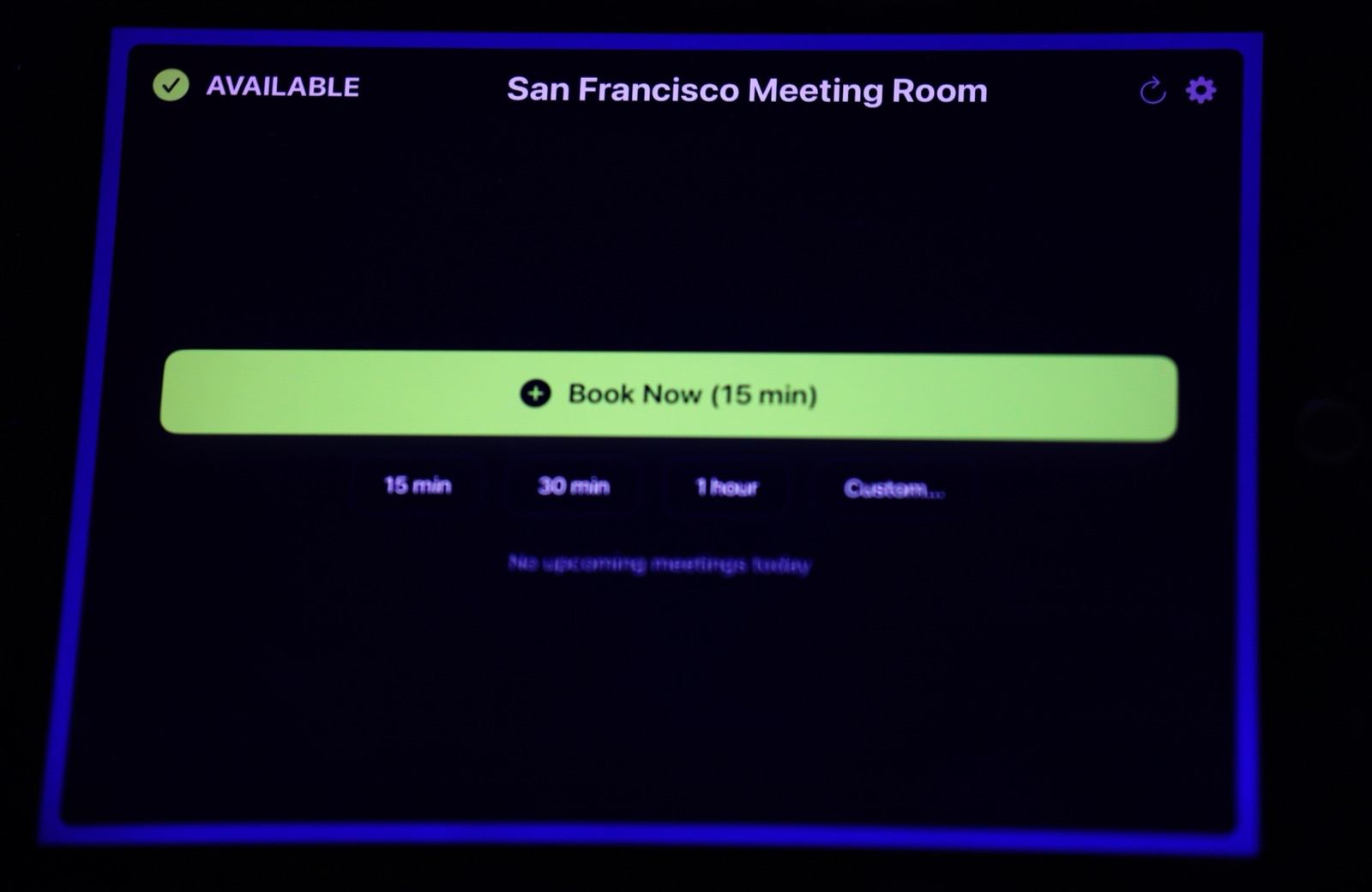
That's where The Room Display fits. It's an iPad app that shows whether a room is free or in use, who has it and what's next, reading directly from Google Workspace or Microsoft 365. Trainers and contractors can see at a glance they've found the right room. People can book on the spot from the iPad. Bookings that nobody checks into are released.
It works on any iPad on iOS 15 or later, so an old iPad from the safety office drawer will do. It's $99 per iPad, once. Dedicated panels typically run $500 to $2,000 per unit plus a monthly subscription, which is a hard sell for a training room budget.
What it doesn't do: track attendance, manage certifications, or replace your LMS.
Frequently asked questions
How far ahead should I schedule safety refresher training?
Plan the full year at the start of your fiscal year, as recurring series. That protects the room early. You can move individual sessions as needed later.
Can I book a classroom and a hands-on bay together?
Yes. Make both of them calendar resources, then add both to the same course event. For courses that use them at different times of day, split it into two events in the same series.
Is a calendar booking proof that safety training happened?
No. A booking only shows the room was reserved. Keep attendance and completion records in a sign-in system or LMS that meets your own requirements.
How do I stop other departments booking the training room?
Restrict booking rights or require approval on that resource in Google Workspace or Microsoft 365. Book your training calendar early, and use auto-release so ad hoc bookings that don't happen free the room.
What's the best room setup for external trainers?
Book setup time before the session, put directions and a site contact in the invite, and make sure the door clearly shows the room name and booking. External trainers lose time finding rooms more often than you'd think.
Getting started
Start with your main training classroom. Get it into the calendar as a resource, block your refreshers for the year, and put a screen on the door. The Room Display is $99 once per iPad, no subscription, and takes about ten minutes to set up.
Related guides
- Customer Story: A Retired Factory iPad Became Their Room Display
- The Hidden Cost of Meeting Room No-Shows
- Free Meeting Room Booking Policy Template (Copy-Paste)