Best Practices
EV Charging Spots at Work,
Without the Awkward Emails
Book workplace EV charging spots in time-boxed slots with Google or Microsoft calendars, plus an iPad indoors at the garage lobby for the busiest charger.
Short answer: Make each EV charger a calendar resource and book it in time-boxed slots, with 2 hours as a good starting point for Level 2 chargers, so nobody parks on a charger all day. Most people book from their phone before they leave home. If one charger is always contested, put an iPad running The Room Display indoors at the garage lobby door, showing that charger. Never on the charger post.
Every office with more EVs than chargers ends up with the same email thread. "Whoever has the white Model 3 on charger 2, could you move it? You've been full since 10." Nobody likes sending it, and nobody likes getting it. A calendar fixes most of this without anyone having to be the parking police.
Why workplace charging gets awkward
The problem isn't really the chargers. It's that a charging spot has two states, and only one of them is visible:
- Charging. The car needs the spot.
- Full but still parked. The car is done, the owner is in meetings, and the spot is blocked until 5 pm.
From the parking lot, those look the same. Add a few people who arrive early and grab the chargers every day, and you get resentment fast.
A time-boxed slot is a booking with a fixed maximum length, after which the car should move. It turns "please be considerate" into a schedule everyone can see.
How long should a charging slot be?
Charging speed decides the slot length. These numbers are rough and depend on the car, but they're close enough to plan with:
| Charger type | Rough range added per hour | Suggested slot | Why |
|---|---|---|---|
| Level 1 (standard 120V outlet) | 3 to 5 miles | Full day, rotated by day | Too slow for short slots. Give each person a day. |
| Level 2, 7 kW | About 25 miles | 2 hours | 2 hours covers most round-trip commutes |
| Level 2, 11 kW | 30 to 40 miles | 1.5 to 2 hours | Many cars can't take the full 11 kW, so don't go shorter |
| DC fast charger, 50 kW | 100+ miles in about 40 minutes | 30 to 45 minutes | It's the scarcest charger. Keep slots short. |
Start with 2 hours for Level 2 and adjust after a month. Add a 10-minute gap between slots so the next person isn't standing next to a car that's still plugged in.
Set each charger up as a calendar resource
- Create one resource per charging port, not per charging post. A dual-port post is two resources. In Google Workspace, use the Admin console under Buildings and resources, with category Other and a type like "EV charger". In Microsoft 365, an equipment mailbox is fine for calendar-only booking. For a charger that gets a display, create a room mailbox, since the app only lists room mailboxes on Microsoft 365.
- Name it with the spot and the speed: "P2 Charger A (11 kW)" or "Fast Charger (50 kW)".
- Cap the slot length. On Microsoft 365,
Set-CalendarProcessing -Identity "P2 Charger A" -MaximumDurationInMinutes 120declines anything longer than 2 hours. Google Workspace doesn't have a per-resource cap that I know of, so put the limit in your charging rules. - Stop standing bookings:
-AllowRecurringMeetings $falseon Microsoft 365, and a booking window of a few days (-BookingWindowInDays 3). - Tell people how to book from their phone. Most charging slots get booked on the way in. I wrote a short guide on booking a Google Workspace room from your phone, and the same steps work for a charger.
Where the iPad goes (indoors, always)
Chargers live outside or in open garages. iPads don't. Apple rates iPads for about 32 to 95°F, and a parking structure goes past both ends of that. Add rain, theft, and the fact that charger posts don't come with Wi-Fi, and the answer is easy: the iPad goes inside.
The best spot is the garage lobby or elevator lobby, on the wall by the door people walk through between the garage and the building. Everyone who drives in passes it. If there's no lobby, use reception. It needs constant power and Wi-Fi, mounted at eye height.
One iPad shows one resource, so this is where you have to be practical. Say your garage has six Level 2 ports and one 50 kW fast charger. The six Level 2 ports get booked from phones and calendars, with no display. The fast charger is the one people fight over, so the iPad in the garage lobby shows its calendar. Someone parking for a 9:30 meeting walks in, sees "In Use until 9:45", and knows to come back.
If you have only two chargers and both are contested, two iPads side by side in the lobby is fine. If you have twenty, skip displays entirely.
What the display shows in the lobby
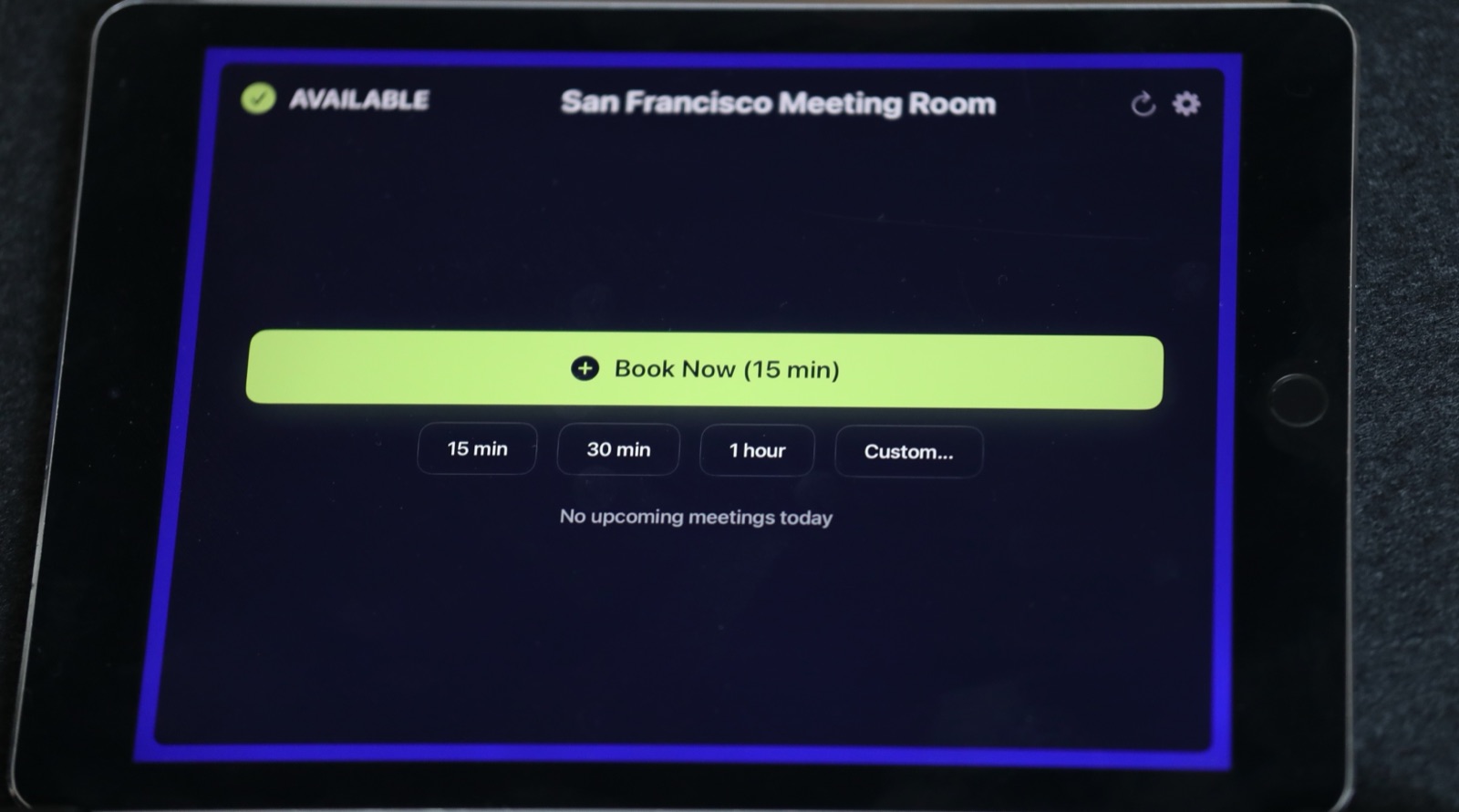
The Room Display works as a small piece of digital signage for one charger, with booking built in:
- Status with a colored ring: Available, In Use, or Ending soon.
- The current slot: title, organizer and time left. People put their name and car in the title, like "Sam, blue Ioniq".
- Upcoming slots for Today or the next 24 hours.
- Walk-up booking: Book Now (15 min), 15 min, 30 min, 1 hour and Custom. The slot goes straight into the charger's calendar.
Anyone in the lobby can book from the display, with no login. Booking ahead from Outlook or Google Calendar follows your normal calendar permissions.
Use check-in to release no-show slots
With Require Check-In on, the driver taps Check In on the lobby display when their slot starts. If nobody taps within the timeout (5, 10 or 15 minutes), the slot is released and the charger shows Available in the calendar too. For chargers, I'd use 15 minutes, since people park first and walk in second. On Microsoft 365, check-in needs Direct Room Access, which an admin grants to the iPad's account.
Check-in only works where there's a display, so it applies to the contested charger. For the calendar-only chargers, the rule is simple: cancel the slot if you're not coming in. The mechanic is explained in meeting room check-in, explained.
The charging rules, in five lines
- Book a slot before you plug in. Max 2 hours on Level 2, 45 minutes on the fast charger.
- Put your name and car in the title.
- Move your car when the slot ends, even if you're not at 100%.
- Cancel if you're not coming in.
- No recurring slots.
If you also run pool cars, give them their own charger resource so staff cars don't block the fleet. I covered the pool car side in pool cars: a simple booking system for company vehicles.
The cost is $99 per iPad, once. No subscription.
When The Room Display isn't the right fit
- You need to bill employees for electricity. The app doesn't do payments. Use the charger network's own app.
- You want the booking to start or unlock the charger. The app doesn't control hardware.
- You need load management across many chargers. That's the charger vendor's job.
- You have a big pool of identical chargers. The calendar alone is enough.
Frequently asked questions
How do you share EV chargers fairly at work?
Make each charging port a calendar resource and book it in time-boxed slots, usually 2 hours for Level 2. Ask people to move their car when the slot ends, and block recurring bookings so nobody claims a charger permanently.
Can employees book an EV charger from their phone?
Yes. Once a charger is a resource in Google Workspace or Microsoft 365, people book it from the Google Calendar or Outlook app like a meeting room. Most slots get booked on the commute.
Can I put a booking screen on the charger itself?
Not an iPad. iPads are indoor devices and won't handle heat, cold, rain or theft. Mount the display indoors in the garage lobby or at reception, where drivers walk past.
Can the room display start the charger or charge employees for power?
No. It shows the charger's booking calendar and lets people book slots. Starting a session and billing stay with your charger's own system.
Related guides
- How to Book a Google Workspace Meeting Room From Your Phone
- Rooms, Cars, Cameras: If It Has a Calendar, It Can Have a Display
- Pool Cars: A Simple Booking System for Company Vehicles