Best Practices
Drawing Tablets, VR Headsets and Test Devices
Booking Design Gear
Design team gear booking: make pen displays, VR headsets and test devices calendar resources, add charging and cleaning buffers, and place one display.
Short answer: Bundle design gear into kits (a VR headset with its controllers and charger, a set of test phones) and make each kit a calendar resource in Google Workspace or Microsoft 365. Book with buffers for charging and cleaning. Put a display like The Room Display only where people walk up: the VR area, the usability lab door, or the cabinet of one contested kit.
Design teams collect gear. A big pen display for illustration, a VR headset for spatial prototypes, a drawer of test phones in different sizes. None of it is expensive enough to need a full asset system, and all of it disappears into someone's bag the week you need it.
What design gear looks like as calendar resources
A calendar resource is anything bookable that has its own calendar in Google Workspace or Microsoft 365. It accepts bookings when it's free and declines overlaps. Rooms are the obvious ones, but gear works the same way.
Here's how I'd set up a typical 15 to 40 person design team:
| Gear | Book as | Buffer to add | Display? |
|---|---|---|---|
| Large pen display (drawing tablet) on a fixed desk | One resource for the desk with the tablet | None | Optional, on a stand at that desk if it's contested |
| VR headset | One kit: headset, controllers, charger, face covers | 30 min to charge, 5 min to clean | Yes, at the VR area if it has floor space set aside |
| Test phones and tablets | One kit per set ("iOS set A", "Android set A") | 15 min to charge | No, calendar is enough |
| Usability testing room | Room resource | 15 min to reset between sessions | Yes, at the door |
| Portable drawing tablets | One resource each, or no booking at all | None | No |
The pattern: book the thing people take turns with. Skip booking for the cheap stuff that's easier to just buy two of.
Why do buffers matter more for gear than rooms?
A room is ready the moment the last person leaves. Gear often isn't:
- Batteries. A VR headset might give you two or three hours, then need to charge. If sessions run back to back, the 3 pm person gets a dead headset.
- Hygiene. Face covers and controllers should be wiped between users. That takes five minutes nobody budgets for.
- Updates. Test phones decide to install an OS update right before a stakeholder review.
So book the buffer. If a VR session is 1 to 2 pm, the booking runs 1 to 2:30 pm, and the last 30 minutes are charging time. I wrote more on handover time for rooms in buffer time between meetings, and the logic is the same for kit.
How to set it up in 6 steps
- Bundle into kits. One VR kit, one iOS test set, one Android test set. People take kits out the door, not single cables.
- Create the resources. In Google Workspace, add each kit under Buildings and resources with category "Other" and a custom type like "VR" or "Test devices". In Microsoft 365, equipment mailboxes are fine for calendar-only kits. If a kit will have a display, create it as a room mailbox, because the app only discovers room mailboxes. The trade-offs are in Microsoft 365 equipment mailboxes.
- Write the contents in the description. "Headset, 2 controllers, charger, 10 face covers." People can see it when they book.
- Book with buffers. Charging and cleaning time go inside the booking.
- Label the cases. The label must match the resource name.
- Choose one display location. See the next section.
Where does a display help?
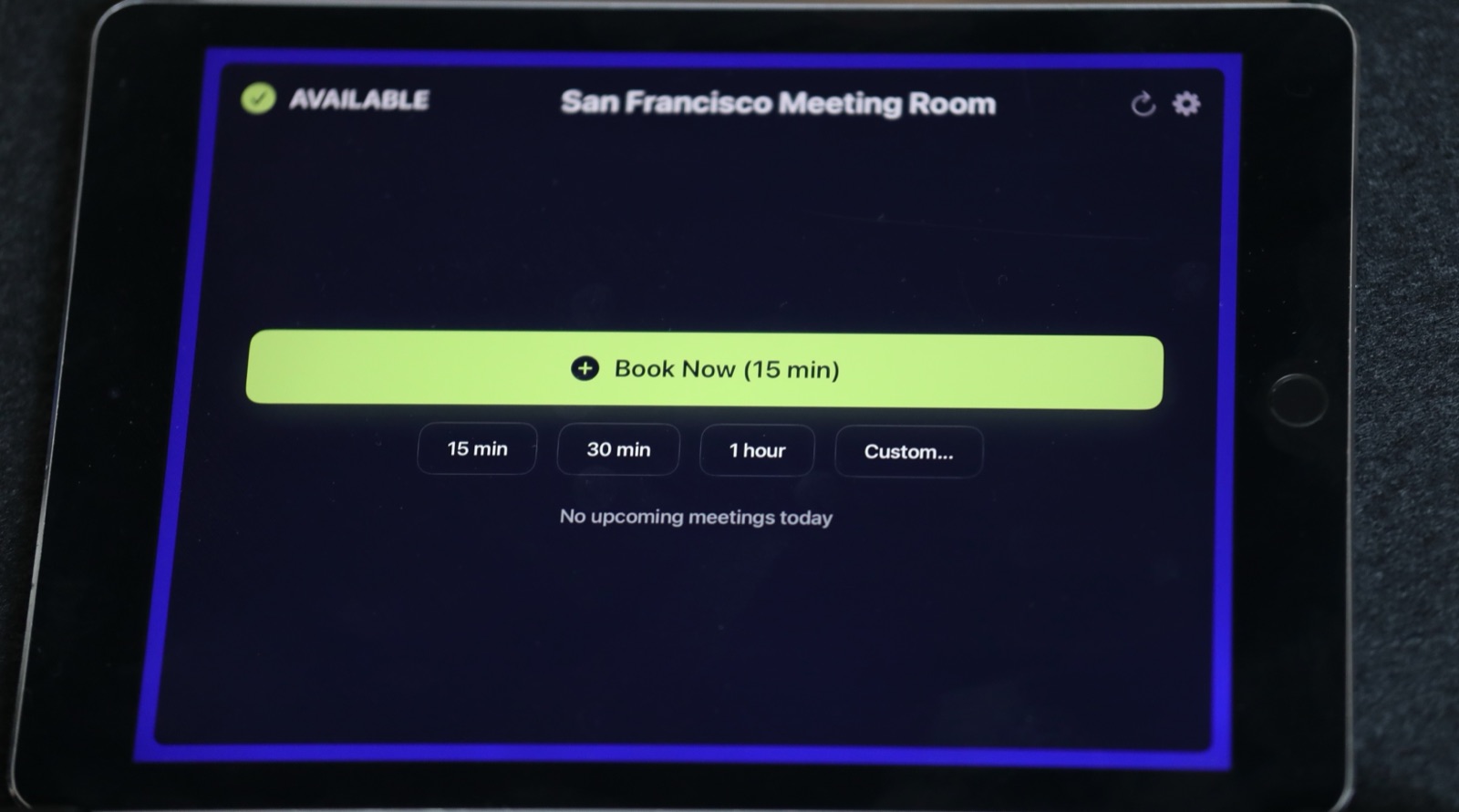
The Room Display shows one resource calendar on one iPad. That's the rule to plan around. It doesn't show every kit on one screen, and there's no overview mode. So put a display only where people physically walk up and wonder if they can use something right now.
The VR area. VR needs floor space, not just a headset. If you've cleared a corner or a small room for it, that space is the resource. Make the VR kit and the area one booking, mount the iPad on the wall beside it, and the screen shows "In Use, 22 min left" while someone is waving controllers around. It also saves the person in the headset from being tapped on the shoulder.
The usability testing room. Research sessions have participants arriving on a schedule. A display at the door with the lookahead set to "Today" shows the session times, so nobody walks in on a recorded test. Mark sessions private, so participant names stay off the door. The Room Display then shows "Private Meeting" instead of the title.
One contested kit. If the iOS test set is always gone, put an iPad at the cabinet where it lives, showing that kit's calendar. With the lookahead set to "next 7 days", designers can see when it's free this week before a review.
Walk-up booking works at all three. Tap "Book Now (15 min)", or pick 15 minutes, 30 minutes, 1 hour or Custom, and the booking is written to the resource's calendar. A mistaken walk-up booking can be cancelled within 5 minutes. As digital signage goes, it's a modest screen. But it's always right, because it reads the same calendar everyone books from.
The app costs $99 per iPad, one time, with no subscription. Dedicated panels typically cost $400 to $1,300 each plus $8 to $42 per month. For a gear cabinet, that's out of proportion. And an old iPad from the test-device drawer can do the job, as long as it runs iPadOS 15 or later.
Check-in as a pickup confirmation
Check-in is off by default. Turn it on for a kit display, and the screen asks someone to tap in when a booking starts. If nobody does within 5, 10 or 15 minutes, the booking is released. On Microsoft 365, check-in needs Direct Room Access, which an admin grants to the iPad's account.
For the VR area or a contested test set, that tap means "I picked it up." If you booked the headset for 2 pm and never came, it frees up for the next person. I described the same trick for shared camera kits.
When The Room Display isn't the right fit
- You need serial numbers or device management. Use your MDM or asset system for that. The display only handles booking.
- You want one screen for every piece of gear. One iPad shows one resource. There's no overview screen.
- You have lots of cheap gear. Booking portable drawing tablets or spare cables costs more time than it saves. Buy a few extras.
- You need to track who damaged what. The calendar shows who booked it, not what condition it came back in.
Frequently asked questions
Can I book a VR headset in Google Calendar or Outlook?
Yes. Create the headset kit as a resource in Google Workspace, or as an equipment or room mailbox in Microsoft 365. People then add it to an event like a room, and overlapping bookings are declined.
How much buffer should I add for VR headset bookings?
About 30 minutes to charge and 5 minutes to clean between users. Put the buffer inside the booking, so the next person gets a charged, clean headset.
Should test phones be booked one by one or as a set?
As a set, for most design teams. Designers usually need several screen sizes at once for a review, and booking a set keeps the phones together.
Can one display show all our design team gear?
No. One iPad shows one resource calendar. Put a display at the spot people walk up to, like the VR area or the usability lab, and book the rest in the calendar.
Related guides
- Who Has the Camera This Week? Shared Camera Kits at Agencies
- Rooms, Cars, Cameras: If It Has a Calendar, It Can Have a Display
- Buffer Time Between Meetings: How to End the Back-to-Back Room Handover Mess