Microsoft 365
Microsoft 365 Equipment Mailboxes
Booking More Than Rooms
How Microsoft 365 equipment mailboxes work, when to use a room mailbox instead, and the PowerShell to create both and auto-accept bookings.
Short answer: An equipment mailbox is a Microsoft 365 resource mailbox for a thing, like a car, camera kit or projector, rather than a space. Create it with New-Mailbox -Equipment and make it accept bookings with Set-CalendarProcessing -AutomateProcessing AutoAccept. If you want a screen showing its status, use a room mailbox instead. The Room Display, like Outlook's Room Finder, only discovers room mailboxes.
Most Microsoft 365 tenants have a tidy list of room mailboxes and nothing else. Meanwhile the pool car is booked on a whiteboard and the good camera is "probably with Sam." Exchange Online can handle both, for free, with the same conflict checking it uses for rooms. You just need to pick the right mailbox type.
Equipment mailbox vs room mailbox: what's the difference?
A room mailbox is a resource mailbox for a physical space, such as a meeting room, studio or training room. An equipment mailbox is a resource mailbox for a movable thing, such as a vehicle, a camera kit or a portable projector. Both have a calendar, both can accept or decline bookings automatically, and neither needs a license.
The difference is mostly about where they show up:
| Room mailbox | Equipment mailbox | |
|---|---|---|
| Represents | A space | A thing |
| PowerShell | New-Mailbox -Room |
New-Mailbox -Equipment |
| Auto-accept and conflict checking | Yes | Yes |
| Capacity field | Yes | No |
| Shows in Outlook's Room Finder | Yes, when it's in a room list | No |
| Shows in The Room Display's room list | Yes | No |
| Booked by | Adding it to a meeting | Adding it to a meeting |
| License needed | No | No |
When should you use each one?
Use an equipment mailbox for things people book from their calendar and nobody needs to check in person. Projectors that travel between floors, a loaner laptop, a portable speaker. Calendar-only booking is the whole job, and an equipment mailbox does it well.
Use a room mailbox for anything that should appear in Room Finder or on a display. That's most admins' habit already, even for things that aren't rooms, and it's what I recommend too. Some examples:
- The one camera everybody wants. Make it a room mailbox and put a display at the gear room door, showing that camera's calendar.
- The podcast studio or edit suite. It's a room anyway.
- A pool car. A room mailbox if you want a display by the key cabinet at reception. Never mount the iPad outdoors in the parking lot. Heat, cold, rain and theft all end iPads. The key cabinet is where people start the trip anyway.
Be honest with yourself about fleets. One iPad shows one resource calendar. If you have eight identical camera kits or ten parking spaces, book them all in the calendar, and only put a display where one specific item is contested, or at the door of the room where the gear lives. I wrote more about choosing what gets a screen in rooms, cars, cameras: if it has a calendar, it can have a display.
How to create an equipment mailbox in PowerShell
You can do this in the Microsoft 365 admin center under Resources, but PowerShell is faster for more than a couple of items and easier to repeat.
Step 1: Connect to Exchange Online
Install-Module -Name ExchangeOnlineManagement
Connect-ExchangeOnline -UserPrincipalName admin@contoso.com
Step 2: Create the equipment mailbox
New-Mailbox -Name "Camera Kit A" -Equipment -PrimarySmtpAddress camera-kit-a@contoso.com
Step 3: Make it accept bookings automatically
Set-CalendarProcessing -Identity camera-kit-a@contoso.com -AutomateProcessing AutoAccept
Step 4: Add sensible limits (optional)
This blocks conflicting bookings, caps a booking at three days, and allows booking up to 60 days ahead:
Set-CalendarProcessing -Identity camera-kit-a@contoso.com -AllowConflicts $false -MaximumDurationInMinutes 4320 -BookingWindowInDays 60
Step 5: Check the result
Get-CalendarProcessing -Identity camera-kit-a@contoso.com | Format-List AutomateProcessing,AllowConflicts,MaximumDurationInMinutes,BookingWindowInDays
Don't assume a resource mailbox already auto-accepts. Older or migrated mailboxes in particular can be set differently. Get-CalendarProcessing tells you in one line.
How to create a room mailbox for something you want on a display
The commands are almost the same:
New-Mailbox -Name "Camera A (Gear Room)" -Room -PrimarySmtpAddress camera-a@contoso.com
Set-CalendarProcessing -Identity camera-a@contoso.com -AutomateProcessing AutoAccept
Already created it as equipment? You can convert it:
Set-Mailbox -Identity camera-kit-a@contoso.com -Type Room
For a room mailbox to show up in Room Finder, it also needs to be in a room list. If a new one doesn't appear where you expect, the Room Finder troubleshooting guide walks through the usual causes. The full room mailbox setup, including room lists and capacity, is in how to set up Microsoft 365 room mailboxes.
Who can book is a separate setting. If the cinema camera or the CEO's car needs approval or a restricted group, see room mailbox permissions and delegation. Approval is a Microsoft 365 setting, not something a display does.
What does a display add at the gear room door?
The calendar knows the camera is booked. The person standing at the gear room door doesn't. That's the gap a display fills.
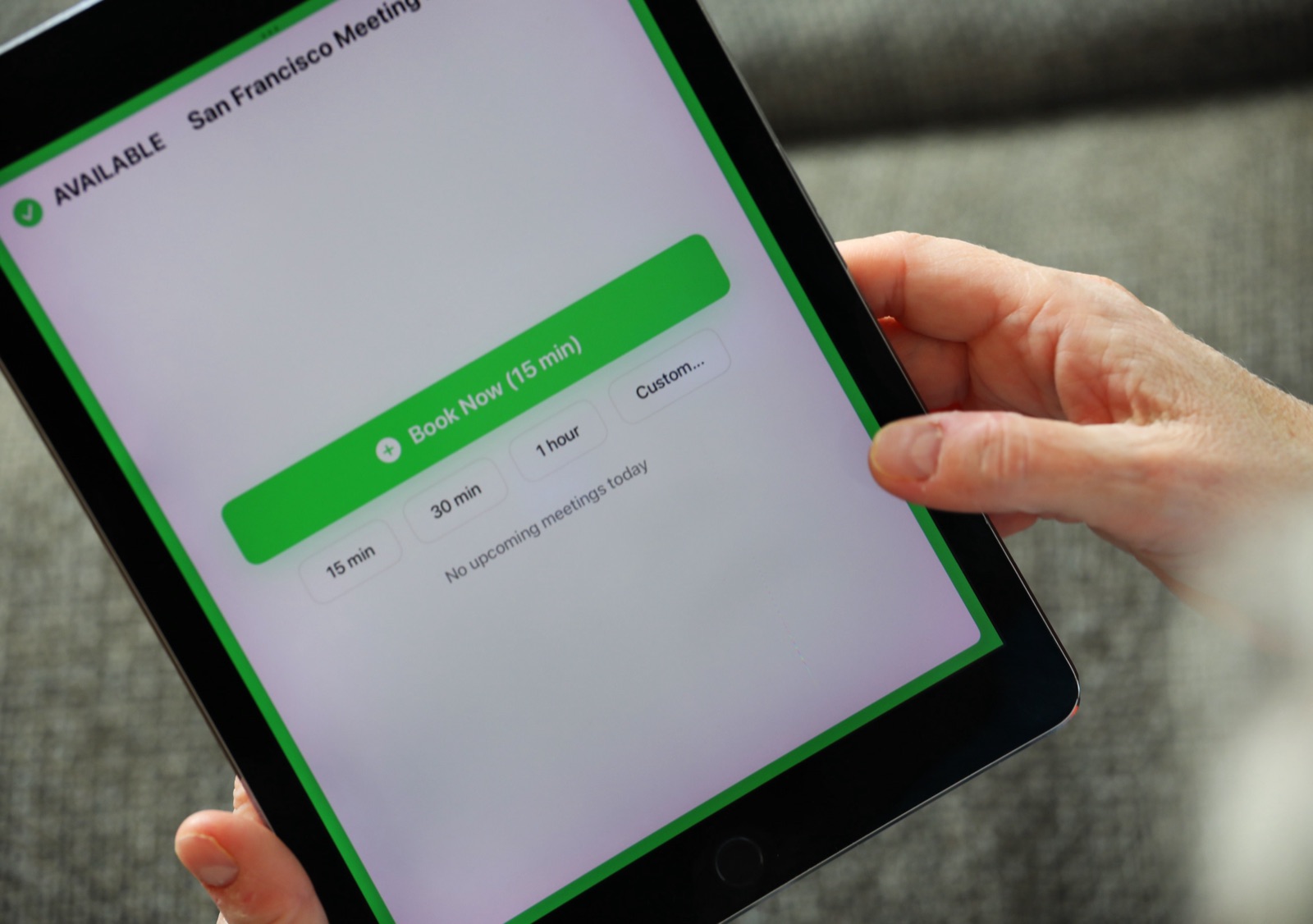
The Room Display turns an iPad into a small piece of digital signage for one resource. It shows Available, In Use or Ending soon with a colored ring around the screen, the current booking and who made it, the time left and what's booked next, refreshed every 30 seconds. Anyone at the door can book it on the spot for 15 minutes, 30 minutes, an hour or a custom time. With check-in turned on, a booking nobody claims is released automatically.
On Microsoft 365 the app finds room mailboxes through Microsoft Places. If admin consent for that is missing, you can type the room mailbox's email address in by hand. Turn on the optional Direct Room Access setting and bookings show up on the display instantly. Without it, they can take one to two minutes.
If booking titles shouldn't be visible in a hallway, mark events private (the display shows "Private Meeting"), or set the room mailbox to replace the subject with the organizer's name. Many tenants already have this on by default, so check with Get-CalendarProcessing first:
Set-CalendarProcessing -Identity camera-a@contoso.com -DeleteSubject $true -AddOrganizerToSubject $true
It's $99 per iPad, once, with no subscription.
When The Room Display isn't the right fit
- You want one screen showing all your equipment. One iPad shows one resource. There's no overview screen.
- The items must stay equipment mailboxes. The app only lists room mailboxes, so equipment mailboxes stay calendar-only.
- You need check-out tracking with barcodes or badges. The app books time, it doesn't scan items in and out.
- The item lives outdoors. Put the display indoors where people collect the keys or gear, or skip it.
Frequently asked questions
Do equipment mailboxes need a Microsoft 365 license?
No. Room and equipment mailboxes are resource mailboxes and don't need a user license in Exchange Online.
Can I convert an equipment mailbox to a room mailbox?
Yes. Run Set-Mailbox -Identity <address> -Type Room. Afterwards, add it to a room list if you want it in Room Finder, and check its calendar processing settings.
Why doesn't my equipment show in Outlook's Room Finder?
Room Finder only lists room mailboxes that belong to a room list. Equipment mailboxes are booked by adding them to a meeting directly. If you want the item in Room Finder, make it a room mailbox.
Can a meeting room display show equipment mailboxes?
The Room Display only discovers room mailboxes on Microsoft 365. Create the item as a room mailbox if it should have a display, and keep equipment mailboxes for calendar-only booking.
Related guides
- How to Set Up Microsoft 365 Room Mailboxes for Meeting Room Management
- Who Can Book This Room? Room Mailbox Permissions and Delegation Explained
- Microsoft Places Room Booking and Hallway iPad Room Displays