Deployment
Deploy Room Displays With MDM
in an Afternoon (Jamf, Intune, Mosyle)
Deploy iPad room displays with MDM in one afternoon. Where managed app configuration lives in Jamf, Intune and Mosyle, plus a timeline and checklist.
Short answer: If your iPads are already supervised in your MDM, you can deploy The Room Display to a whole floor in one afternoon. Assign the app licenses, push a managed app configuration with each room's email and your settings, add a Single App Mode profile, then mount. With a Google service account it's zero-touch. With interactive sign-in, sign in on each iPad before you lock it.
I've written before about why display iPads belong in Apple Business Manager and an MDM (it's linked at the bottom). This post is the practical one: what to prepare, what to click in your MDM, and how the afternoon actually goes.
What has to be true before the afternoon starts?
The afternoon goes fast only if the slow parts are done. Check these the week before:
- The iPads are supervised and enrolled in your MDM. Single App Mode needs supervision, and supervising an iPad wipes it. Don't do that on the day.
- You've bought the licenses. Businesses buy them in Apple Business Manager. Schools buy in Apple School Manager, where 20 or more licenses in one order get 50% off automatically, which is $49.50 per iPad (see pricing). The steps for schools are in how schools buy iPad apps in bulk with Apple School Manager.
- Wi-Fi is pushed by profile. Each iPad should join the right network without anyone typing a password.
- You have a room sheet. One row per iPad: serial number, room name, room calendar email, and which door it goes on.
- Calendar access is decided. For Google Workspace, a service account with domain-wide delegation makes the deployment fully zero-touch. For Microsoft 365, and for Google OAuth, someone signs in on each iPad. Service account or OAuth explains the trade-off.
The afternoon, hour by hour
This is a realistic plan for 15 iPads with one person doing the work, and with mounts and power already in place at each door.
| Time | Task | Minutes |
|---|---|---|
| 1:00 | Confirm licenses are synced to the MDM and assign the app to the display group | 15 |
| 1:15 | Build the managed app configuration (keys below) | 30 |
| 1:45 | Pilot: push app and configuration to one iPad, check it shows the right room | 20 |
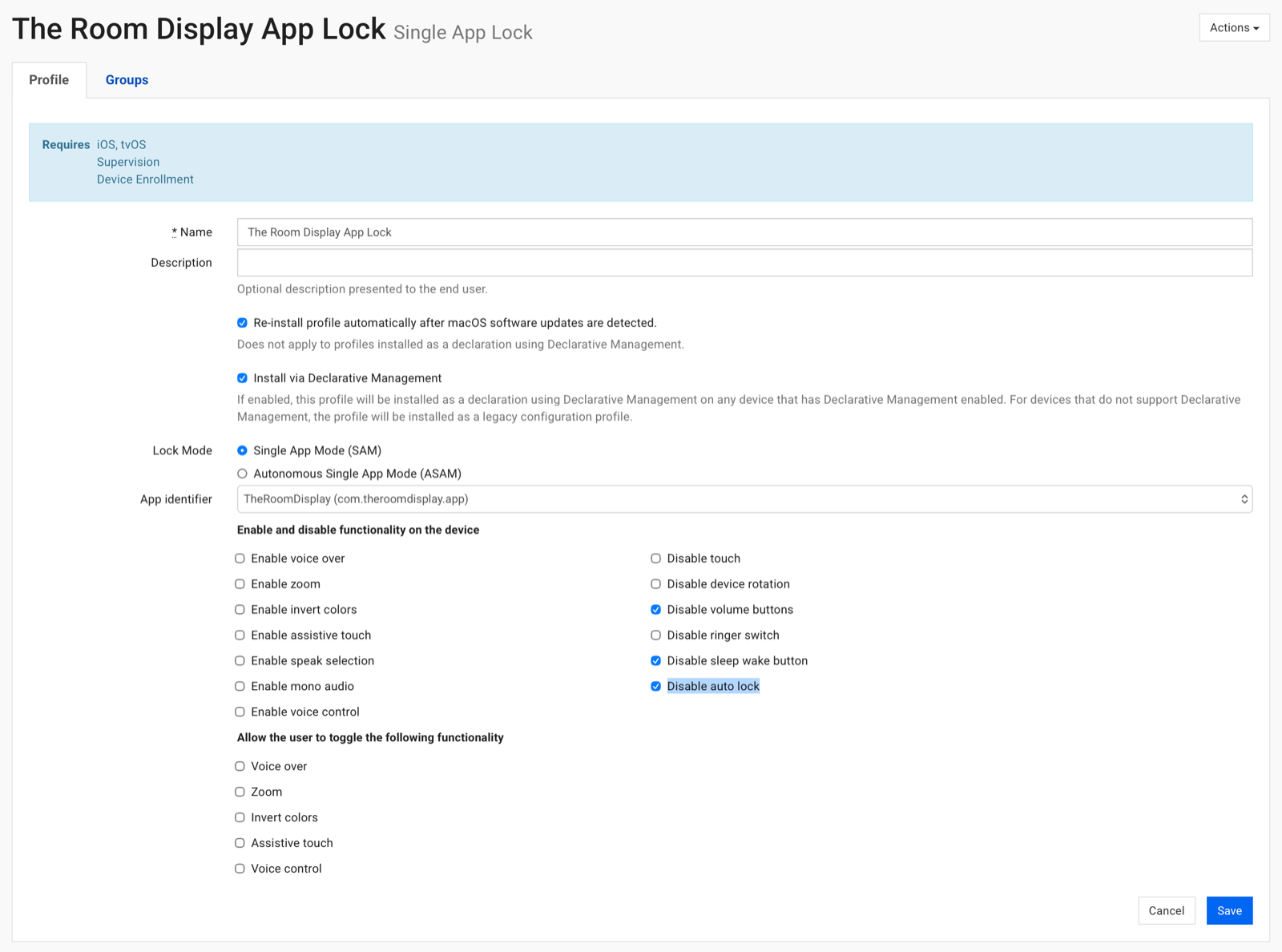
| 2:05 | Add the Single App Mode and no-auto-lock profile to the pilot, reboot it | 15 |
| 2:20 | Roll out to the whole group | 20 |
| 2:40 | Microsoft 365 or OAuth only: sign in on each iPad, then apply Single App Mode | 2–3 per iPad |
| 3:30 | Seat each iPad in its mount, plug in, check it against the room sheet | 3–4 per iPad |
| 4:30 | Buffer for the one iPad that won't cooperate | 30 |
What goes in the managed app configuration?
Managed app configuration is a standard Apple mechanism that lets your MDM send key and value settings to an app. The Room Display reads these keys. Push only the ones you need:
| Key | What it sets |
|---|---|
roomEmail |
The room calendar this iPad shows |
serviceAccountEmail, serviceAccountPrivateKey, adminEmail |
Google service account sign-in (all three together) |
checkinRequired, checkinTimeoutMinutes |
Require check-in, with a 5, 10 or 15 minute timeout |
meetingLookahead |
today, 24h, 72h or 7d |
theme, logoURL, themeColor… |
Classic, Midnight or custom colors, plus your logo |
Settings pushed this way show as managed and locked in the app's Settings screen, so nobody at the door can change them. Changes you push later apply live, without restarting the app. The full key list and an XML example are in the MDM managed configuration docs.
The one key that's different on every iPad is roomEmail. You can handle that two ways: a per-device variable, if your MDM supports one, or one configuration per room scoped to a group that contains only that room's iPad.
Where does managed app configuration live in each MDM?
MDM consoles get redesigned often, so treat these as directions, not exact click paths. Your MDM's documentation for "app configuration" or "managed app config" is the final word.
Jamf Pro
App configuration lives on the app's record under mobile device apps. Open The Room Display there and find the App Configuration section, which takes the settings as an XML dictionary like the one in our docs. Jamf Pro supports variables filled from device inventory, so you can store each iPad's room email in inventory (for example in an extension attribute) and reference it from one shared configuration. Check Jamf's list of supported variables for the exact syntax in your version.
Microsoft Intune
Intune keeps this under Apps, in app configuration policies. Create a policy for managed iOS/iPadOS devices, pick The Room Display, and enter the keys with the configuration designer or as XML. Intune's built-in tokens cover things like device name and serial number, not custom fields. The simplest pattern is one small policy per room, assigned to a device group with that room's iPad, plus one shared policy for check-in, lookahead and theme. On Microsoft 365, check-in needs Direct Room Access, which an admin grants to the iPad's account.
Mosyle
Mosyle lets you attach an app configuration when you set up how the app is installed on a group of devices. Look for the app configuration option in the app's install settings, and paste the XML dictionary there. For per-room values, use separate device groups per room, or device variables if your plan supports them. Mosyle's interface changes more often than most, so check their help center for the current location.
SimpleMDM, Kandji and others
In SimpleMDM, open the app under Apps and use Managed Configuration. Create a custom attribute such as room_email with a value per device, and set roomEmail to {{room_email}}. One configuration then serves the whole fleet. Kandji and other MDMs that support managed app configuration work the same way in principle: find where the app's configuration is set, and paste the keys.
The one ordering rule for Microsoft 365 and OAuth
Interactive sign-in to Google or Microsoft doesn't work while the iPad is locked in Single App Mode. So the order matters:
- Push the app and the managed configuration, including
roomEmailif you like. - On each iPad, open The Room Display and sign in.
- Confirm the right room shows.
- Only then apply the Single App Mode profile.
A Google service account skips steps 2 and 3 entirely, which is why it's the zero-touch path for large fleets.
What the iPads show once they're up
Each iPad becomes a small piece of digital signage beside its room. It shows Available, In Use or Ending soon with a colored ring around the screen, the current meeting and organizer, the time left and upcoming bookings for the window you chose. It refreshes every 30 seconds. Anyone at a free room can book it for 15 minutes, 30 minutes, an hour or a custom time, and with check-in on, no-show bookings are released automatically.
The Room Display costs $99 per iPad, once. No subscription, lifetime updates.
When The Room Display isn't the right fit
- You want one screen per floor listing every room. One iPad shows one resource calendar. There's no overview screen.
- You need fully zero-touch on Microsoft 365. Microsoft sign-in is interactive, so plan a couple of minutes per iPad before you lock it.
- The iPads can't be supervised. Without supervision there's no Single App Mode. Guided Access works for a handful of iPads, but it's manual.
- You want occupancy data. The app has no sensors or analytics.
Frequently asked questions
Can I deploy room displays with MDM without supervising the iPads?
You can install the app and push managed configuration, but Single App Mode requires supervised iPads. Without it, the iPad won't come back into the app on its own after a restart. For small fleets, Guided Access is the manual alternative.
How do I give each iPad a different room with one configuration?
Use a per-device variable if your MDM has one. SimpleMDM custom attributes and Jamf Pro inventory variables both work this way. Otherwise, create one configuration per room and scope each to a group containing only that room's iPad.
Can I change settings later without touching the iPads?
Yes. Edit the managed configuration in your MDM and push it. The app applies the new check-in rule, lookahead, theme or room live, without a restart.
Is a Microsoft 365 deployment zero-touch?
Almost. Everything except the sign-in can come from the MDM. The Microsoft sign-in is interactive, so someone signs in on each iPad before Single App Mode is applied.
Related guides
- Apple Business Manager + MDM for Room Display iPads (Plain-English Guide)
- Google Service Account vs OAuth for Room Displays: Which to Choose
- Theme Colors over MDM: The Contrast Check That Keeps Your Booking Buttons Visible