Best Practices
Booking Shared Rendering Workstations
and High-Spec Macs
Rendering workstation booking for agencies and studios: make each high-spec Mac or PC a calendar resource, book overnight renders, and handle remote use.
Short answer: Make each shared workstation a calendar resource in Google Workspace or Microsoft 365, named by its specs, and book renders as blocks that include overnight time. If the machine sits in its own small room, or one machine is always contested, put a display like The Room Display beside it. Keep check-in off for any machine people use remotely.
Most studios have one machine that everyone wants. The Mac Studio with all the RAM, or the PC with the big GPU. It sits in a corner, and its schedule lives in a Slack thread that starts with "is anyone rendering tonight?" Somebody always is, and they always find out at 11 pm.
Why workstations are worth booking like rooms
A shared workstation is a computer that's too expensive to give to one person, so a team takes turns. That makes it a resource in the same sense as a meeting room: one thing, many people, limited time.
It also has a few habits rooms don't:
- Jobs run unattended. A render can run for 9 hours while nobody is in the chair.
- Jobs run overnight. The best time to render is when nobody needs the machine for anything else.
- People use it remotely. An artist at home connects with screen sharing and never goes near the desk.
- Interrupting is expensive. Someone who logs in during a render and opens a heavy project can crash a 6-hour job.
A calendar handles all of that, as long as people book the actual time the machine is busy, not just the time they sit in front of it.
Slack thread, spreadsheet or calendar?
| Method | Stops double booking? | Works for overnight jobs? | Visible at the machine? | Cost |
|---|---|---|---|---|
| Slack thread | No | Only if everyone reads it | No | Free |
| Sticky note on the monitor | No | No | Yes, until it falls off | Free |
| Calendar resource | Yes, the resource declines overlaps | Yes, book across midnight | No | Included in Google or Microsoft |
| Calendar resource plus display | Yes | Yes | Yes, with a colored status ring | $99 once per iPad |
| Render queue manager | Queues jobs, not people | Yes | On the farm dashboard | Varies, often per node |
If you run a render farm with many nodes, a queue manager is the right tool for jobs. For one to five shared machines that people take turns sitting at, a calendar is enough, and simpler.
How to set it up in 6 steps
- Name machines by what matters. "WS-1 Mac Studio 192 GB" or "WS-2 PC RTX 24 GB". People book by spec, so put the spec in the name.
- Create one resource per machine. In Google Workspace, add each under Buildings and resources with category "Other" and a custom type such as "Workstation". In Microsoft 365, an equipment mailbox works for calendar-only booking. If the machine will get a display, create it as a room mailbox, because the app only lists room mailboxes. My post on shared camera kits explains the same choice for gear.
- Book the full job. If you start a render at 6 pm and expect it to finish at 4 am, book 6 pm to 6 am. The buffer is for the render that runs long.
- Add the job to the title. "Render: Spot 30s v3" tells the next person that the machine is busy, not idle with someone logged in.
- Agree on a remote-access rule. If you connect remotely, you book first. No exceptions. The person at the desk can't see you.
- Decide where a display goes. See below.
Where a display makes sense
The calendar works for every machine. A screen next to it is a separate decision, and it only pays off where people physically walk up to the machine.
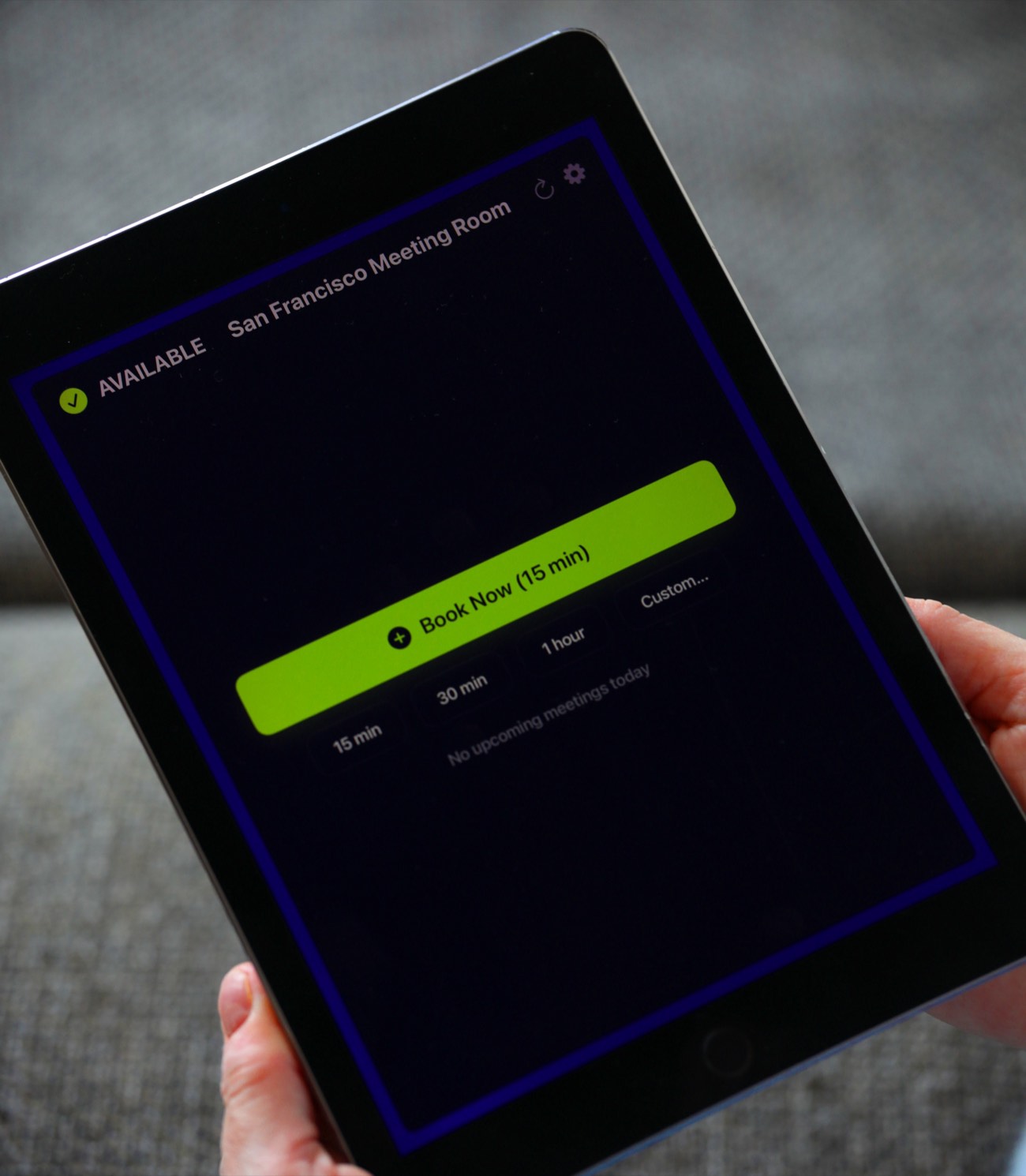
The machine lives in a small room. Many studios keep the loud, hot workstation in a side room. Make that room the resource, and put the iPad beside its door. Anyone walking past sees "In Use, Render: Spot 30s v3, 7 h 12 min left" and keeps walking.
One contested machine at an open bench. Put an iPad on a desk stand next to it, pointed at that machine's calendar. Set the lookahead to "next 72 hours", so people can see tonight's and tomorrow's renders. It's a small piece of digital signage that answers the Slack question before anyone asks it.
Several machines in a row. One iPad shows one resource calendar. It can't show five workstations on one screen. Put a display on the most contested one, or none, and let the calendar handle the rest. I'd rather say that here than after you've bought the stands.
Walk-up booking helps for short jobs. Someone who needs 30 minutes to test a heavy scene taps "30 min" on the iPad, and the booking lands in that machine's calendar. Custom goes up to 4 hours 45 minutes, with an optional title. Overnight renders get booked from Google Calendar or Outlook.
Turn check-in off for remote machines
The Room Display has optional check-in. When a booking starts, the screen asks someone to tap in, and if nobody does within 5, 10 or 15 minutes, the booking is released. It's great for meeting rooms, as I explain in meeting room check-in, explained. On Microsoft 365, check-in needs Direct Room Access, which an admin grants to the iPad's account.
On a workstation people use remotely, it's a problem. The artist at home can't tap an iPad in the office, so their booking would be released while they're connected. Check-in is a per-iPad setting and off by default. Leave it off here.
If the machine is only ever used in person, check-in can clear speculative bookings. Set it to 15 minutes.
The app costs $99 per iPad, paid once, with no subscription. Dedicated room panels typically cost $400 to $1,300 each plus $8 to $42 per room per month, which is real money next to a machine that already cost a lot.
House rules for shared machines
- If it's not booked, it's not yours, even if nobody is in the chair.
- Book the whole render, plus a buffer.
- Remote users book before connecting.
- Don't log out someone else's session. Check the calendar, then ask the organizer.
- Clear your scratch files when your booking ends.
When The Room Display isn't the right fit
- You want the booking to lock the machine. The app doesn't log anyone in or out, or control the computer at all. It only shows and writes calendar bookings.
- You run a render farm. Queue jobs with a render manager. The display is for people taking turns, not jobs.
- You need usage reports per project. There are no analytics dashboards. The calendar history is all there is.
- You want one screen for all machines. One iPad shows one resource. There's no overview screen.
Frequently asked questions
How do I book a shared rendering workstation?
Create the workstation as a calendar resource in Google Workspace or Microsoft 365, then add it to an event like a room. The resource declines overlapping bookings, so two people can't book the same hours.
Can I book a workstation overnight?
Yes. Book the event across midnight in Google Calendar or Outlook, for example 6 pm to 6 am. Walk-up bookings at the display are for shorter jobs starting right now.
Should a shared workstation use check-in?
Only if everyone uses it in person. If people connect remotely, leave check-in off, or their bookings will be released when nobody taps the screen.
Can one display show all our workstations?
No. One iPad shows one resource calendar. Put a display on the most contested machine, or on the door of the room the machines live in, and book the rest in the calendar.
Related guides
- Who Has the Camera This Week? Shared Camera Kits at Agencies
- Rooms, Cars, Cameras: If It Has a Calendar, It Can Have a Display
- Meeting Room Check-In, Explained: How Auto-Release Kills Ghost Meetings