Google Workspace
Google Workspace Resources
Booking More Than Rooms
How to set up Google Workspace resources for more than rooms: categories, custom resource types, features and permissions, plus where a display helps.
Short answer: In Google Workspace, any shared thing can be a calendar resource. Create it in the Admin console under Buildings and resources, set the category to Other for anything that isn't a room, give it your own resource type like Car or Camera, and control who books it through the resource calendar's sharing settings. The Room Display can show any resource category, one resource per iPad.
Most Google Workspace admins set up meeting rooms and stop there. But the same resource system that stops two teams double-booking the boardroom will stop two people driving off in the same pool car. It costs nothing extra, it uses the calendar everyone already has open, and it takes about five minutes per resource.
What is a Google Workspace resource?
A Google Workspace resource is a bookable calendar that represents something shared: a room, a vehicle, a piece of equipment, a parking space. Each one gets its own calendar address ending in @resource.calendar.google.com. People book it by adding it to an event, and Google accepts the booking if it's free and declines it if it isn't.
That last part is the point. A shared spreadsheet can't refuse a double booking. A resource calendar can.
Resource categories, types and features, explained
When you create a resource, a handful of fields decide how people find it and what they see. Here's what each one is for when the resource isn't a room:
| Field | What it does | Example for a non-room |
|---|---|---|
| Category | Meeting space for rooms, Other for everything else | Other |
| Resource type | A label you choose, so people can tell things apart | Car, Camera kit, Studio, Parking |
| Name | What people see when they book | Kit: Camera A |
| Building and floor | Ties the resource to a place | HQ, Floor 2 |
| Capacity | How many people it fits (mostly for rooms) | Leave empty, or seats in a car |
| Features | Reusable tags you define once and attach to resources | 4K, Tripod included, Electric |
| User-visible description | Free text shown to people booking it | Keys in the cabinet at reception. Return by 5 p.m. |
A resource type is a free-text label for what the resource is. Google doesn't restrict it, so pick a short list and stick to it. "Car" and "Vehicle" side by side will confuse people.
The user-visible description is the field most admins skip and the one that saves the most questions. Put the pickup and return rules there.
How to create a non-room resource, step by step
- Open the Admin console and go to Directory, then Buildings and resources, then Manage resources.
- Add a resource with the add button on the Resources tab.
- Set the category to Other. Use the meeting space category only for actual rooms.
- Enter a resource type from your short list, for example "Car".
- Name it with a pattern people will recognize, like "Car: Blue Golf" or "Kit: Camera A".
- Add a building and floor if it lives somewhere specific.
- Write the user-visible description with pickup and return rules.
- Save. Google generates the resource's calendar address.
- Set who can book it in the resource calendar's sharing settings. Give the groups that should book it booking access, and limit everyone else to free/busy if needed.
New resources can take a while to appear in Calendar and in apps that read them. If you're creating dozens at once, managing Google Calendar room resources at scale covers naming conventions and bulk work. For rooms specifically, the Google Calendar room resources guide walks through buildings, rooms and auto-accept.
Booking rules worth setting for equipment
Things behave differently from rooms. A few habits help:
- Book the pickup to the return, not just the use. A camera used from 2 to 4 p.m. probably leaves the gear room at 1:30 and comes back at 4:30. Book that whole window.
- Put the return rule in the description. "Back by 5 p.m., charged" is clearer than an email reminder.
- Keep approvals in Google. If the expensive lens needs sign-off, set that up in Google's resource settings. A display at the door doesn't approve anything.
- Use one resource per item people actually ask for by name. If any of eight identical laptops will do, a single "Loaner pool" resource is easier to book than eight.
Where a display helps, and where the calendar alone is enough
The calendar works everywhere. A screen next to the resource only helps where people physically walk up to it. And one iPad shows one resource calendar, so a display for every item in a fleet rarely makes sense.
| Resource | Calendar only? | Display? Where? |
|---|---|---|
| 10 parking spaces | Yes, book them all in the calendar | Only for the one contested bay (visitor or accessible), indoors at reception |
| A pool car | Yes | Optional, indoors by the key cabinet at reception |
| The one good camera | Yes | Yes, at the gear room door |
| A podcast studio | Yes | Yes, at the studio door |
| Eight loaner laptops | Yes, as one pool resource | Optional, at the helpdesk counter |
Notice that nothing in that table puts an iPad outdoors. iPads are indoor devices. Heat, cold, rain and theft will end one in a parking lot. Put the display where people collect the keys or start the trip, which is indoors anyway.
I wrote more about picking the right spot in rooms, cars, cameras: if it has a calendar, it can have a display.
What The Room Display shows for a resource
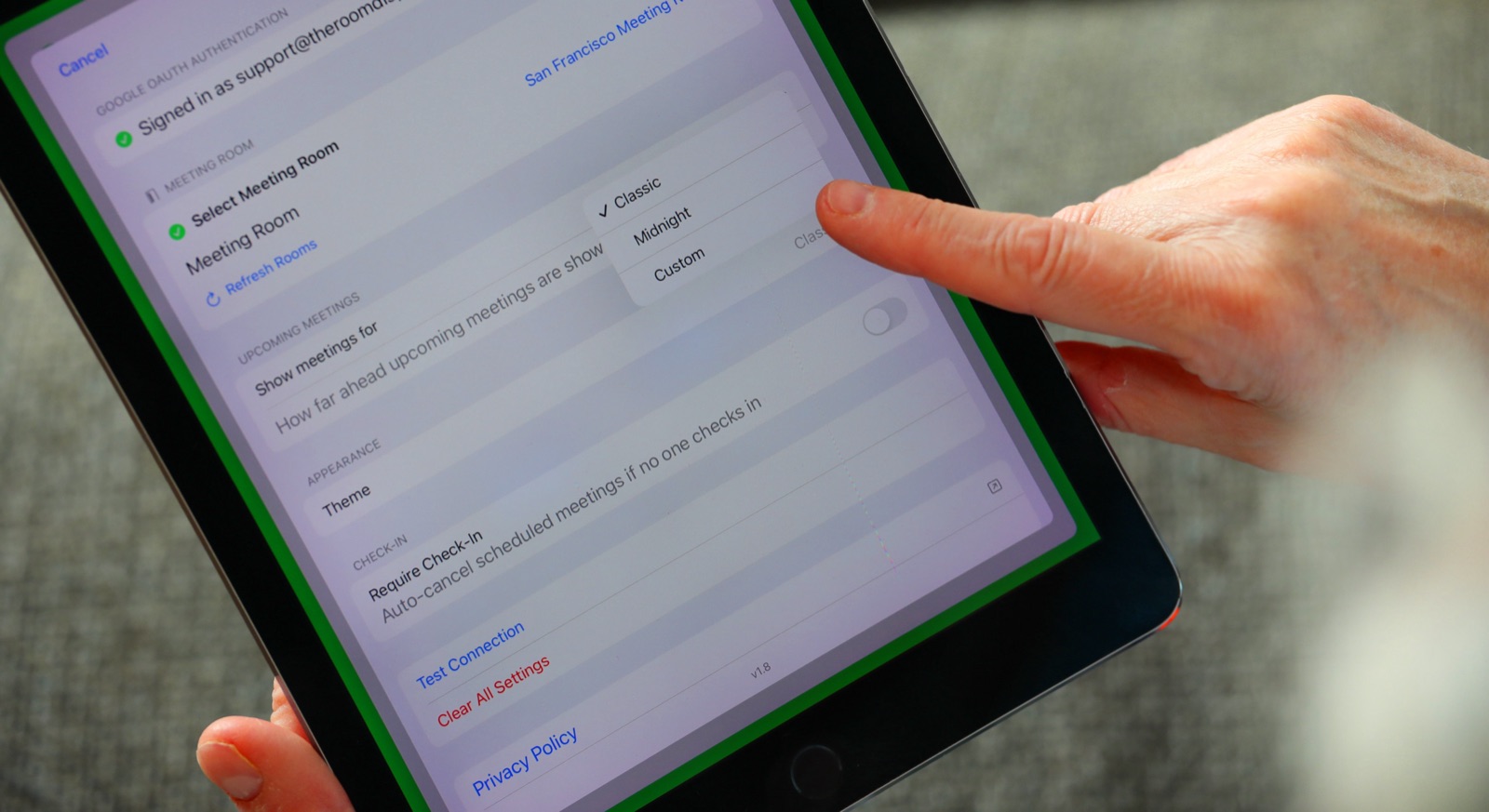
The Room Display turns an iPad into a small piece of digital signage for one resource. It shows Available, In Use or Ending soon with a colored ring around the screen, the current booking and who made it, the time left and upcoming bookings for today, the next 24 or 72 hours, or the next 7 days. A seven-day window suits gear that gets booked out for days at a time. The screen refreshes every 30 seconds.
Anyone at the display can book the resource on the spot for 15 minutes, 30 minutes, an hour or a custom time. The booking goes straight into the resource's Google calendar. With check-in turned on, a booking nobody claims within 5, 10 or 15 minutes is released.
On Google Workspace, the app finds resources through the Admin SDK, and you sign in with OAuth or a service account with domain-wide delegation. Service account or OAuth explains which to choose. Any category works, including Other and your custom types. It's $99 per iPad, once, with no subscription.
When The Room Display isn't the right fit
- You want one screen showing every car or kit. One iPad shows one resource. There's no overview or fleet screen.
- You need barcode or badge check-out. The app books time on a calendar. It doesn't scan items in and out.
- The resource is outdoors with no indoor pickup point. Skip the display and let the calendar do the job.
- People who book aren't in your Google Workspace. They can use the display at the door, but booking ahead needs a calendar account or someone on staff to book for them.
Frequently asked questions
Can Google Calendar book things that aren't rooms?
Yes. Create a resource with the category set to Other and give it your own resource type, like Car or Camera. People book it by adding it to an event, and Google prevents double bookings the same way it does for rooms.
Does The Room Display work with Other resources in Google Workspace?
Yes. Any resource category can be picked in the app, including Other and custom types. Each iPad shows one resource.
Can one iPad show all our resources?
No. One iPad shows one resource calendar. For a fleet, book everything in the calendar and put a display only where one specific item is contested, or at the door of the room where the gear lives.
Why doesn't a new resource show up yet?
New resources can take time to appear in Google Calendar and in apps that read them. Give it a day, and in the meantime you can book it by adding its calendar address to an event as a guest.
Who can book a Google Workspace resource?
By default, people in your organization. To restrict it, change the resource calendar's sharing settings so only certain groups can book and everyone else sees free/busy only.
Related guides
- Managing Google Calendar Room Resources at Scale
- Rooms, Cars, Cameras: If It Has a Calendar, It Can Have a Display
- Google Service Account vs OAuth for Room Displays: Which to Choose