Setup Guide
The Non-IT Office Manager
Room Display Runbook
A jargon-free, step-by-step runbook for office and facilities managers to get iPad meeting room displays live — what to buy, who to ask, and how to launch.
Short answer: you don't need to be technical to put a working room display outside every meeting room. Buy an iPad and a wall mount for each room, install a one-time $99 app, ask whoever manages your Google Workspace or Microsoft 365 for calendar access, pick the room, and mount it. A single room takes about 20 minutes end to end.
If "calendar API" and "service account" make your eyes glaze over, this runbook is for you. It assumes you're the person who orders the coffee, books the plumber, and now owns the "which room is free?" problem — not someone with a networking certification. Every step below is either something you can do yourself or a clearly worded request you hand to IT.
What you're actually building
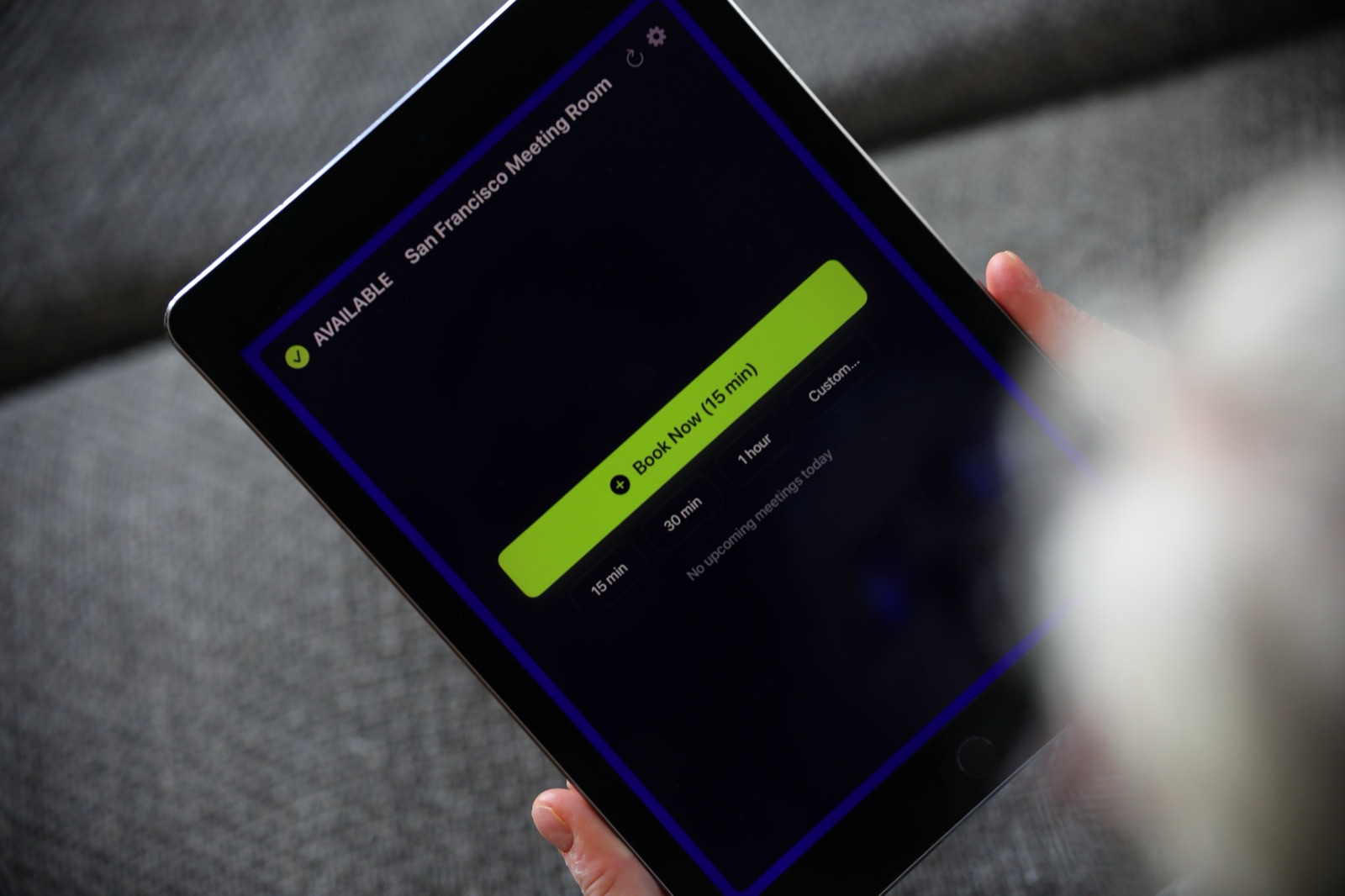
A room display is an iPad mounted next to a meeting room door. It shows, at a glance, whether the room is free or busy, what's coming up, and lets someone book it on the spot with a tap. It reads directly from the same calendar system your colleagues already use — Google Calendar or Microsoft 365 Outlook — so there's nothing new for anyone to learn.
That's the whole product. No monthly fee, no separate booking website, no training session.
Step 1: Make your shopping list
For each room you want to cover:
| Item | Notes | Rough cost |
|---|---|---|
| iPad | Any iPad from 2017 or later running iOS 15+ works — a used or retired one is perfect | $99–$300 |
| The Room Display app | One-time $99 per iPad on the App Store, no subscription | $99 |
| Wall mount | A lockable mount with cable access, sized to your iPad | $30–$120 |
| Power | A nearby outlet or a bit of surface-mounted cable trunking | Varies |
You do not need special hardware, a server, or an IT budget line beyond this. Retired company iPads are ideal — see second life for retired company iPads.
Step 2: Decide who has the calendar keys
This is the one question you can't answer alone. Someone in your organization administers either Google Workspace or Microsoft 365. You need them for about ten minutes. Find out which platform you run — check whether your work email opens in Gmail or Outlook if you're unsure.
Each meeting room should already exist as a bookable "resource" or "room mailbox" in that system. If it does, you're most of the way there. If it doesn't, that's the one thing to request first:
- Google: see the Google Calendar room resources guide
- Microsoft: see the Microsoft 365 room mailbox setup
Step 3: Hand IT a clear request
Don't ask IT to "set up room displays." Ask for exactly what the app needs. Copy-paste something like this:
We're adding iPad displays outside our meeting rooms. The app reads room calendars directly — nothing is stored in any third-party cloud. For Google, we need either a service account with calendar access or an OAuth sign-in on a room account. For Microsoft 365, we need to allow an OAuth sign-in (Microsoft Graph). Can you confirm our rooms exist as bookable resources and help with sign-in?
That's a five-minute conversation, not a project. If IT is protective of admin access, the app also works signing in as a single room account with OAuth — read setting up a room display without admin access.
Step 4: Configure one iPad as a pilot
Do the first room yourself before ordering mounts for all of them:
- Charge the iPad and connect it to office Wi-Fi.
- Install The Room Display from the App Store.
- Open Settings in the app, choose Google or Microsoft, and sign in / import credentials with IT's help.
- Pick the room from the list that appears.
- Watch it show real availability. Try the Book Now button and the 15/30/60-minute quick-book buttons.
Once one room works, every other room is the same steps with a different room selected.
Step 5: Mount it and lock it down
Put the iPad in its wall mount beside the door at eye level, plug in power, and turn on a few housekeeping settings so it behaves like an appliance:
- Enable Guided Access or use MDM so the iPad stays in the app and can't wander to Safari — see iPad kiosk mode.
- Set the display to never auto-lock and keep it plugged in.
- If you manage a fleet, an MDM tool pushes settings to every iPad at once.
Step 6: Go live and tell people
Send a two-line email: "Every meeting room now has a display by the door. Green means free — tap Book Now to grab it. It's the same calendar you already use." That's the entire change-management plan. People understand a traffic light.
For a bigger launch, the rollout checklist covers ordering, staging, and going live across many rooms in one pass.
Frequently asked questions
Do I need IT to run the displays day to day?
No. Once configured, each iPad runs on its own, refreshing availability automatically. You only need IT for the initial calendar access.
What if we change from Google to Microsoft later?
The Room Display supports both. You'd re-sign-in on the new platform; the iPads and mounts stay exactly as they are.
Is our meeting data going to some vendor's cloud?
No. The app is local-only — it talks directly to your Google or Microsoft calendars. Nothing is stored on a third-party server.
How many rooms can one person set up in a day?
Plenty. After the first pilot, each additional room is roughly 15–20 minutes including mounting. See how many meeting rooms you actually need if you're still scoping.
What does it cost to run each year?
Nothing recurring. It's $99 per iPad once — no subscription. Compare the full conference room display cost.
Related guides
- iPad meeting room display setup guide (2026)
- Rollout checklist for room displays
- The small office playbook