Setup Guide
iPad Screen Keeps Going Dark?
How to Keep Your Display Always On
Fix the hidden Guided Access sleep timer, Low Power Mode, and MDM auto-lock policies in about two minutes.
Short answer: if your iPad meeting room display keeps going dark — even with Auto-Lock set to Never — the culprit is almost always Guided Access, which has its own hidden sleep timer that overrides everything else. Set Settings → Accessibility → Guided Access → Display Auto-Lock → Never. If that's already done, check Low Power Mode, and on MDM-managed fleets, the Single App Mode payload and passcode policy.
This is the single most common support question I get, and the fix takes about two minutes. Here's how to keep your iPad screen always on, whether you're running one display or a whole fleet through an MDM.
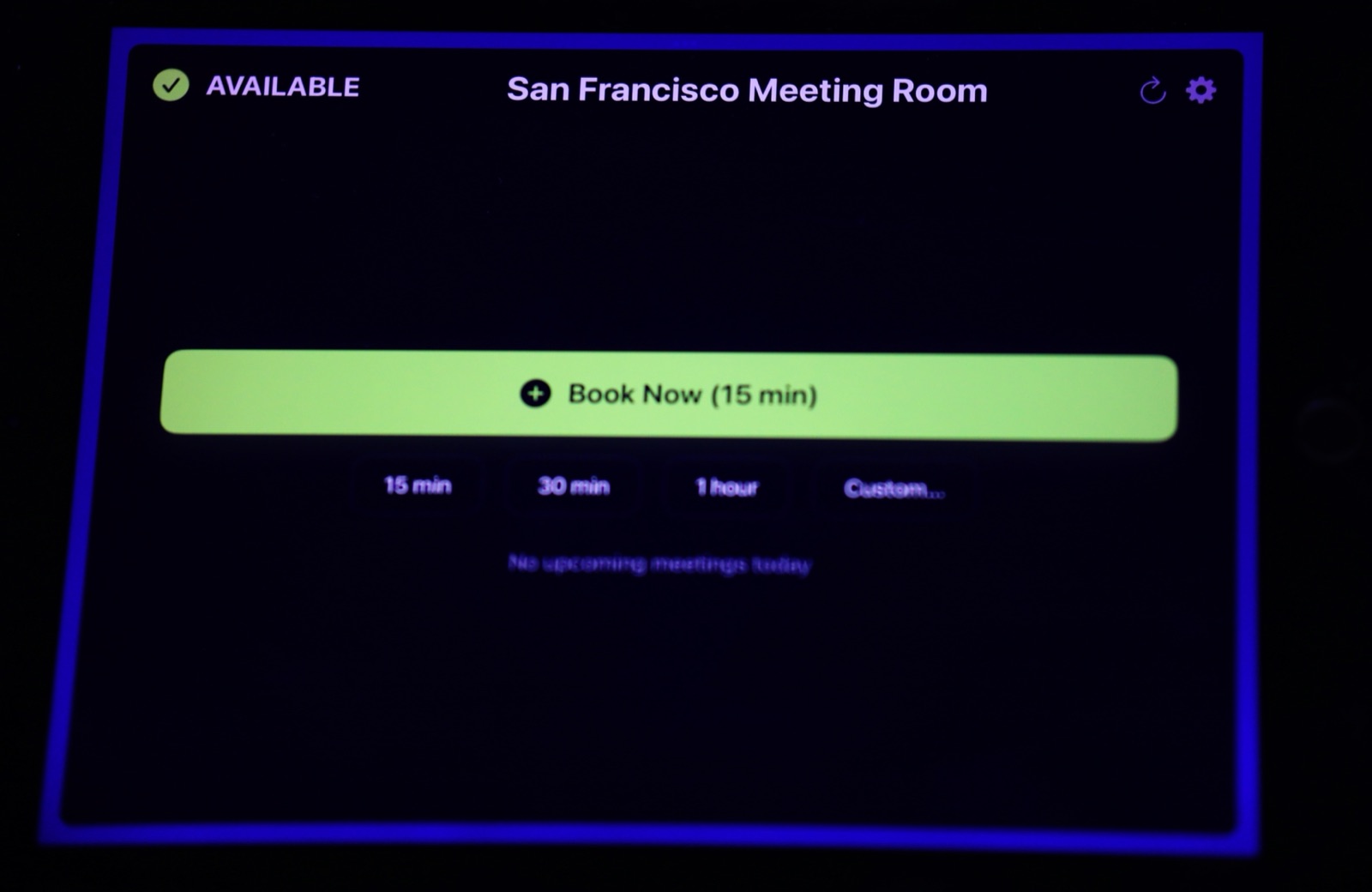
Quick fix summary
| Symptom | Cause | Fix |
|---|---|---|
| Screen goes dark in single app mode despite Auto-Lock = Never | Guided Access has its own Display Auto-Lock timer | Settings → Accessibility → Guided Access → Display Auto-Lock → Never |
| Screen sleeps after 30 seconds no matter what | Low Power Mode forces a 30-second lock | Settings → Battery → turn off Low Power Mode, keep iPad plugged in |
| Screen sleeps on MDM-managed iPads | Single App Mode payload missing "Disable auto lock", or a passcode policy forces a max auto-lock time | Enable Disable auto lock in the payload, remove max auto-lock from the passcode policy |
The usual suspect: Guided Access
Most people set up single app mode on an iPad using Guided Access — triple-click the button, lock the app in place, done. What almost nobody knows is that Guided Access ignores your normal Auto-Lock setting and uses its own timer instead.
So you can set Settings → Display & Brightness → Auto-Lock to Never, triple-check it, and the screen will still go dark. Infuriating, but easy to fix:
- Open Settings → Accessibility → Guided Access
- Tap Display Auto-Lock
- Set it to Never
That's it. Do this on every iPad you use as a room display. In my experience this solves the "screen keeps turning off" problem about 90% of the time.
Second suspect: Low Power Mode
When Low Power Mode is on, iPadOS forces the screen to sleep after 30 seconds and quietly ignores your Auto-Lock setting — the "Never" option even gets greyed out. Low Power Mode doesn't switch itself on, but iPadOS offers it in a prompt when the battery drops to 20%, and one tap on that prompt is all it takes. An iPad that isn't permanently plugged in can develop this problem out of nowhere. (The reverse is automatic: Low Power Mode switches itself off once the battery charges back up to 80%.)
The fix: go to Settings → Battery and make sure Low Power Mode is off — and keep your display iPads on power around the clock. A wall-mounted iPad running a room display draws very little electricity, and a stable power supply prevents a whole category of weird behavior.
Third suspect: MDM policies
If you deploy your iPads through an MDM (SimpleMDM, Jamf, Mosyle, Kandji, Intune, etc.) with true Single App Mode instead of Guided Access, two settings can still put your screens to sleep:
The Single App Mode payload has a "Disable auto lock" option — and it's off by default in most MDMs. If it's unchecked, the iPad follows its normal sleep behavior even while locked into your app. Turn it on. Depending on your MDM the payload is called "Single App Lock", "App Lock", or "Single App Mode" — same Apple payload underneath.
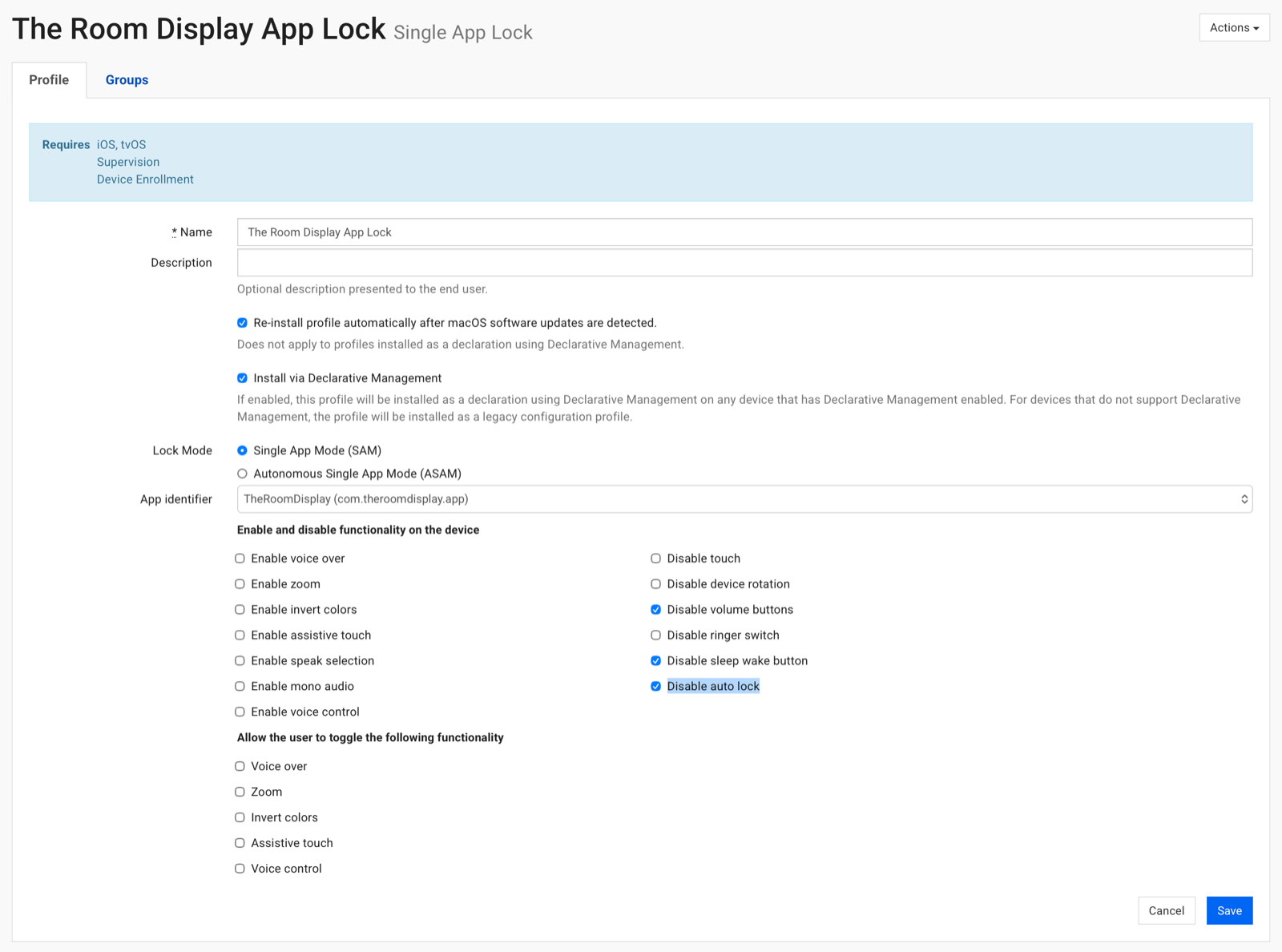
A few more things worth knowing while you're in that profile — using SimpleMDM's Single App Lock profile above as the example:
- Also check "Disable sleep wake button". It's the MDM equivalent of disabling the Sleep/Wake button in Guided Access options: without it, a curious finger on the top button blanks the screen, and your always-on display is off until someone notices. "Disable volume buttons" is worth ticking too — nobody needs to mute a wall display.
- Pick Single App Mode (SAM), not Autonomous Single App Mode (ASAM). ASAM is for apps that lock and unlock themselves (think exam or point-of-sale apps). A dedicated room display should be locked permanently, which is exactly what SAM does.
- The payload requires a supervised, enrolled device. If the profile won't install, check that the iPad is enrolled via Apple Business Manager and in Supervised mode — Single App Mode isn't available on manually configured iPads.
- The app identifier to target is
com.theroomdisplay.app.
Passcode policies can force a maximum auto-lock time. If your MDM pushes a passcode/security policy with a "maximum auto-lock" or "max inactivity" value, that wins over everything — including Auto-Lock = Never on the device. Either exclude your display iPads from that policy or create a separate policy group for them without the auto-lock restriction.
One more MDM tip: complete the app sign-in and room selection before pushing the Single App Mode payload. iPadOS blocks interactive sign-in windows while an iPad is locked into Single App Mode. More on that in the setup guide.
Can I schedule the display to turn off at night?
Not with a built-in iPadOS setting — there's no native way to schedule the screen on from, say, 8 AM to 7 PM and off outside those hours. The practical answer today is to leave the display on 24/7; the power draw is tiny and iPad LCDs don't suffer from burn-in the way OLED signage does.
That said, scheduled office-hours dimming (screen goes dark outside working hours, wakes on tap) is on The Room Display roadmap, so displays can save energy overnight without any MDM gymnastics.
Checklist: keep your iPad room display always on
- Settings → Display & Brightness → Auto-Lock → Never
- Settings → Accessibility → Guided Access → Display Auto-Lock → Never
- Settings → Battery → Low Power Mode → Off
- Keep the iPad permanently on power
- MDM only: enable Disable auto lock in the Single App Mode payload
- MDM only: enable Disable sleep wake button (and Disable volume buttons) in the same payload
- MDM only: no maximum auto-lock value in the passcode policy for display iPads
Frequently asked questions
Why does my iPad screen turn off even though Auto-Lock is set to Never?
Because Guided Access uses its own separate sleep timer. Set Settings → Accessibility → Guided Access → Display Auto-Lock to Never. If that's already done, check that Low Power Mode is off.
Is it bad to leave an iPad screen on 24/7?
No. The iPads you'd use as a room display have LCD panels, which don't get burn-in like OLED. (The only OLED iPads are the 2024-onward iPad Pros — overkill for a wall display anyway.) Keep it plugged in, and expect the battery to age faster than a normal iPad — a fair trade for a device that costs a fraction of dedicated room display hardware.
Does The Room Display keep the screen awake by itself?
Yes — the app disables the iPadOS idle-sleep timer the whole time it's running. But iPadOS-level settings (Guided Access Display Auto-Lock, Low Power Mode, MDM policies) sit above the app and can still turn the screen off. That's why the checklist above matters.
What about scheduling the screen on and off by time of day?
iPadOS has no built-in schedule for the display. Scheduled office-hours dimming is planned as an in-app feature for The Room Display.
Still going dark after all of this? Email me at hi@elinegholm.com with your iPad model and how the iPad is managed (Guided Access or which MDM), and I'll help you figure it out.