Best Practices
Hot Desk Booking:
See Which Desk Is Free at a Glance
Hot desk booking with Google or Microsoft calendars. When a desk deserves its own display, when a team room does, and when the calendar is enough.
Short answer: Book hot desks as calendar resources in Google Workspace or Microsoft 365, and for most desks stop there. A screen per desk only pays off on the few desks people fight over: a focus desk, a premium window desk, or an enclosed team room booked as one resource. The Room Display shows one calendar per iPad, so it marks one desk or one room, not a whole floor.
I get asked about desk displays a lot, usually by someone picturing a little screen on every desk. For a floor of 40 identical desks that's 40 iPads, 40 power runs and 40 things to keep charged, all to answer a question the calendar already answers. This post is about where a display actually helps, and what to do with the rest of the floor.
Why "is this desk free?" is hard to answer by looking
A desk gives you almost no clues. A jacket on the chair might mean a one-hour meeting, or it might have been there since Thursday. An empty desk might be booked by someone stuck in traffic.
And people book desks days ahead "just in case," then work from home. I covered why desks and rooms need different planning in hot desking vs. dedicated meeting rooms. This post is about a single desk on a single Tuesday.
Book the desks in your calendar first
A desk resource is a calendar resource that stands for one desk, so it can be booked from Google Calendar or Outlook and can't be double-booked. This is the part that does most of the work, with or without screens.
- Create one resource per bookable desk. In Google Workspace, add it in the Admin console under Buildings and resources. Pick a category and give it a type like "Desk". In Microsoft 365, create a room mailbox per desk.
- Name desks the way people find them. "3F Desk 12 (window, dual monitor)" beats "DSK-0312". Put the feature people care about in the name.
- Group them by floor or zone, so the room picker in Outlook or Google Calendar doesn't show 200 desks in one list.
- Set a booking window. On Microsoft 365,
Set-CalendarProcessing -BookingWindowInDays 7stops people from claiming the window desk through March. On Google, make it a written rule. - Block recurring desk bookings if "permanent hot desks" are creeping back. On Microsoft 365 that's
-AllowRecurringMeetings $false.
Microsoft also offers workspace mailboxes, which let several people book seats in one area up to a set capacity. They're handy for a calendar-only desk pool. The Room Display's room list comes from Microsoft Places rooms, though, so if a desk needs a display, create that one as a room mailbox. My Microsoft 365 room mailbox setup guide walks through it.
Which desks deserve a display?
Here's the decision I'd use. The test is simple: do people walk up to this desk wondering if they can sit down, and does it matter if they guess wrong?
| Desk type | Display? | Why |
|---|---|---|
| Standard open-plan desk in a pool of identical desks | No | If one is taken, the next one is just as good. The calendar is enough. |
| Premium desk (window, standing, big monitor) | Maybe | Only if it's genuinely contested and people argue about it. |
| Focus desk in a quiet zone | Yes | People walk over specifically for it, and interruptions are the problem it solves. |
| Enclosed team room booked as one resource | Yes | One iPad at the door covers the whole room, so the cost per seat is low. |
| Guest desk near reception | Yes | Visitors and other offices' staff need to see it at a glance. |
The team room row is where I'd start. A desk neighborhood is a group of desks set aside for one team, and if it sits behind a door, you can book the whole thing as a single resource. Product books it Monday and Tuesday, Sales books Wednesday, and the iPad at the door shows who has it today.
Three setups that work
The focus desk. Say you have two quiet desks in a corner with external monitors. Each gets a small iPad on a desk stand at the edge of the desk, powered from the desk's own outlet. People book ahead in their calendar, or walk up and tap 1 hour. Check-in is on, so a booking nobody shows up for gets released. On Microsoft 365, check-in needs Direct Room Access, which an admin grants to the iPad's account.
The team room. Say you have an enclosed room with eight desks. One iPad mounted beside the door at eye height. Set the lookahead to 7 days so anyone walking past sees which team has it all week. Teams book it from the calendar for whole days.
The open pool. Say you have 30 identical desks. No displays at all. People book "any desk on 3F" from their phone the night before, and a printed floor plan at the entrance shows the desk numbers. That's the honest answer for most of a floor.
What the display does at a desk or team room
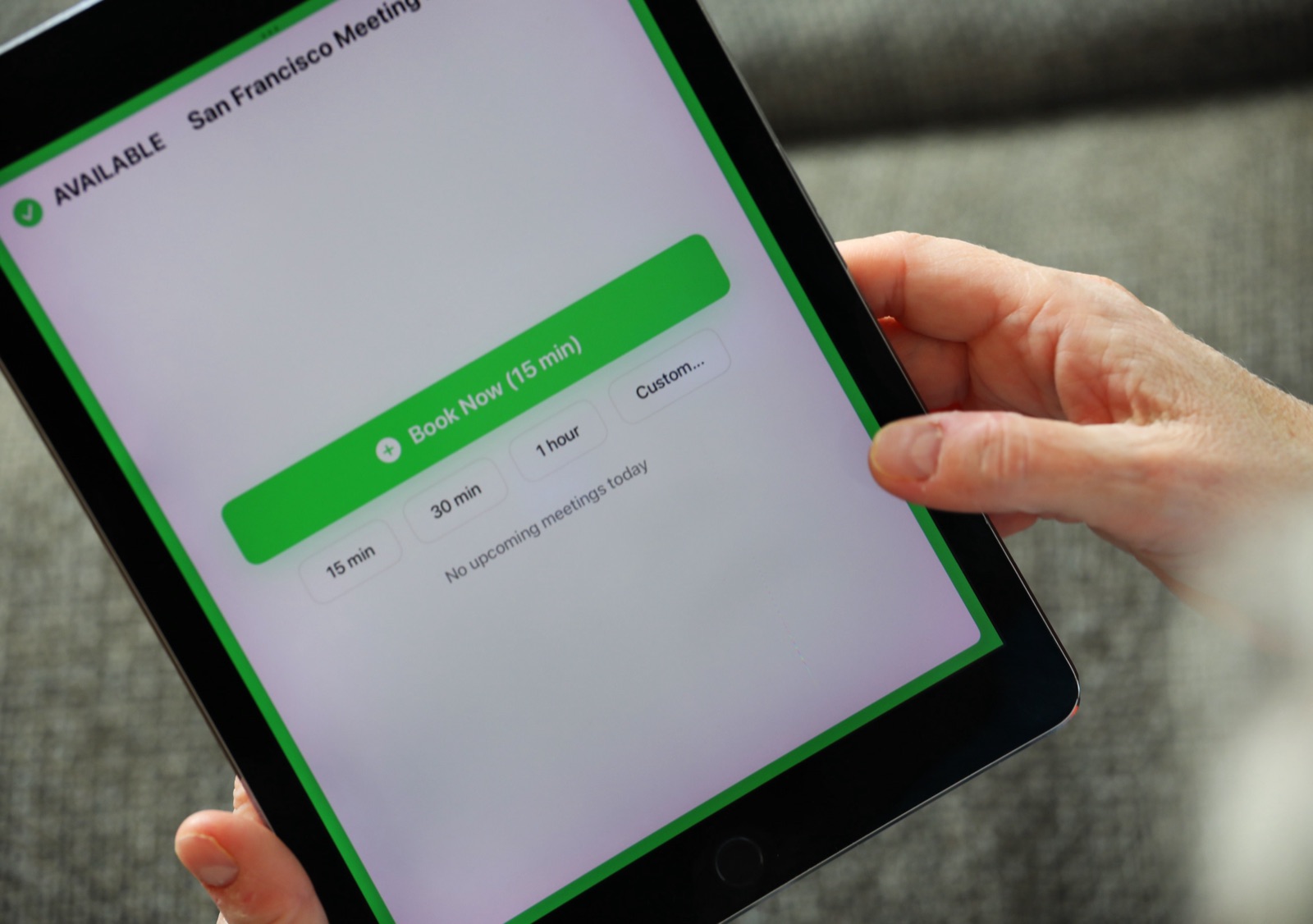
The Room Display turns an iPad into a small piece of digital signage for one resource, with booking built in. For a desk or a team room it shows:
- Status with a colored ring around the screen: Available, In Use, or Ending soon. You can read it from across the room.
- Who has it now (booking title and organizer) and how much time is left.
- Upcoming bookings for the window you pick: Today, the next 24 hours, 72 hours, or 7 days.
- Walk-up booking: Book Now (15 min), plus 15 min, 30 min, 1 hour and Custom. The booking goes straight into the desk's calendar, so Outlook and Google Calendar see it right away.
Anyone standing at the iPad can book it. There's no login at the desk. Who can book ahead from Outlook or Google Calendar still follows your calendar permissions.
Check-in matters more for desks than for rooms
Desk bookings are cheap to make, so people make too many. Turn on Require Check-In and set the timeout to 15 minutes for desks. Desk arrivals are fuzzier than meeting start times, so the longer window is kinder. If nobody taps Check In within that window, the booking is released and the desk shows Available again, in the calendar too. No sensors needed. More on how the mechanic works in meeting room check-in, explained.
Note that check-in only exists where there's a display. Desks in a calendar-only pool rely on people cancelling bookings they won't use. A short weekly reminder helps more than you'd think.
Practical details
A desk iPad needs constant power from the desk's outlet, and should sit on a partition or the front edge of the desk, never between a person and their monitor. Lock it with Guided Access or Single App Mode through MDM. Any iPad on iPadOS 15 or later works, so retired company iPads are fine.
The cost is $99 per iPad, once, with no subscription. Two focus desks and one team room come to $297. See pricing.
When The Room Display isn't the right fit
- You want a floor map that shows every desk as a colored dot. One iPad shows one resource, and there's no overview screen.
- You want badge or sensor check-in at each desk. Check-in here is a tap on the iPad.
- You need utilization reports across hundreds of desks. Your calendar data is there, but the app doesn't build dashboards.
- Every desk is identical and plentiful. Then you don't need displays at all. Book in the calendar and save the money.
Frequently asked questions
Can one iPad show which hot desks are free across a whole floor?
No. The Room Display shows one resource calendar per iPad. For a floor of identical desks, book them in Google Calendar or Outlook and skip the screens. Use a display only on a contested desk or at the door of a team room booked as one resource.
Can I book a hot desk in Outlook or Google Calendar?
Yes. Create each desk as a resource (a room mailbox on Microsoft 365, or a resource in the Google Admin console) and people add it to an event like any room. The calendar blocks double bookings automatically.
How do I stop people booking desks they never use?
On desks with a display, turn on check-in with a 15-minute timeout so unclaimed bookings are released. For the rest, cap how far ahead people can book and block recurring desk bookings.
Do I need occupancy sensors for desk booking?
Not for basic desk booking. A calendar plus check-in on the contested desks covers most offices. Sensors make sense if you need detailed occupancy data, which is a different product.
Related guides
- Hot Desking vs. Dedicated Meeting Rooms: What a Growing Office Actually Needs
- Meeting Room Check-In, Explained: How Auto-Release Kills Ghost Meetings
- Rooms, Cars, Cameras: If It Has a Calendar, It Can Have a Display