Best Practices
Consultation Room Booking
for Small Clinics and Practices
Consultation room booking for small clinics where practitioners share rooms. Keep patient names off the calendar, set up rooms, and show status at the door.
Short answer: In a small clinic where practitioners share consultation rooms, book each room as a resource in Google Workspace or Microsoft 365 and keep patient appointments in your practice management system. The room calendar names the practitioner or the session type, never the patient. The Room Display then shows each room's status on an iPad beside the door, for $99 once per iPad.
This guide is for multi-practitioner practices: therapy groups, physical therapy, chiropractic and nutrition practices, small medical or dental offices with a shared consult room, and wellness centers that rent rooms to independent practitioners by the half-day. The problem is usually the same. Four people share three rooms, the schedule lives on a whiteboard or in one person's head, and someone knocks on a door mid-session to ask if the room is free.
Should the room calendar and the patient schedule be the same thing?
No. Keep them apart. A practice management system is the software that holds patient appointments, records and billing. The room calendar only answers one question: which practitioner has which room, and when.
| Practice management system | Room calendar (Google or Microsoft) | |
|---|---|---|
| What it holds | Patient appointments, notes, billing | Room blocks by practitioner |
| Who sees it | Clinical and front-desk staff | Staff, and anyone reading the door display |
| Patient names | Yes | Never |
| Example entry | Appointment with a named patient | "Dr. Patel, AM clinic" or "Session" |
| Shown on a door display | No | Yes |
The Room Display reads Google Workspace and Microsoft 365 calendars only. It doesn't connect to your EHR or practice management system, and that's a feature here. Patient data has no path to the hallway screen if it never enters the room calendar.
What should a clinic room booking say?
The display shows the booking title and the organizer's name. In a clinic, the organizer is normally the practitioner, which is fine. The title is where mistakes happen.
Good titles: "AM clinic", "Session", "Consult", "Team meeting", "Supervision". Bad titles: anything with a patient's name, initials or reason for visit.
Three habits keep it clean:
- Write the rule down. "Room bookings never contain patient information." One line in your staff handbook does more than any setting.
- Mark sensitive bookings private. In Google Calendar, set visibility to Private. In Outlook, turn on Private. The Room Display then shows "Private Meeting" instead of the title, and the room still reads as In Use.
- On Microsoft 365, consider stripping subjects. A room mailbox can delete the subject and replace it with the organizer's name for every booking (the
DeleteSubjectandAddOrganizerToSubjectsettings). That protects you from the one person who forgets the rule.
There's no setting in the app to hide titles. It shows what the calendar holds and respects the private flag. I cover the trade-offs in should a room display show the meeting title or the organizer's name.
A word on HIPAA. In the US, HIPAA governs protected health information, and a patient's name next to a room and a time on a hallway screen is the kind of detail you don't want to explain. I'm not giving legal advice, so check with whoever handles compliance at your practice. The simplest position is that no patient information goes into the shared room calendar at all. Then the display, the calendar and anyone glancing at either never see it.
How do you set it up?
Budget an afternoon for a practice with 3 to 8 rooms.
- List the rooms and name them by function. "Consult 1", "Treatment 2", "Group Room". Don't name rooms after practitioners. People leave; rooms stay.
- Create a calendar resource per room. In Google Workspace, use Buildings and resources in the Admin console. In Microsoft 365, create a room mailbox for each. (Equipment mailboxes don't appear in the app's room list, so rooms with a display must be room mailboxes.)
- Set who can book ahead. Practitioners and the front desk, usually. Calendar permissions control booking from Google Calendar or Outlook.
- Book recurring blocks. Most practitioners keep the same rooms on the same half-days. A recurring "Dr. Patel, AM clinic" block every Tuesday does most of the scheduling for you.
- Build in turnover time. If a room needs 10 minutes of cleaning between sessions, end blocks 10 minutes early. More on this in buffer time between meetings.
- Install The Room Display on an iPad, sign in and pick the room. Leave the lookahead on Today, which suits a clinic day.
- Lock the iPad to the app with Guided Access (free and built in). Here's how: iPad kiosk mode for room displays.
Where should the display go?
Think of the display as a small piece of digital signage for staff, not patients. Mount it in the staff corridor, beside the door at eye height, with constant power and Wi-Fi. Avoid the waiting room. Walk-up booking has no login: anyone standing at the display can book a free slot. That's useful for a practitioner who needs a room for an unscheduled phone consult. It's not useful when a bored patient taps "Book Now" while waiting.
What staff get from the screen:
- A colored ring and status: Available, In Use, or Ending soon. Ending soon tells the next practitioner the room is almost free, without a knock.
- Time left and the next bookings, refreshed every 30 seconds.
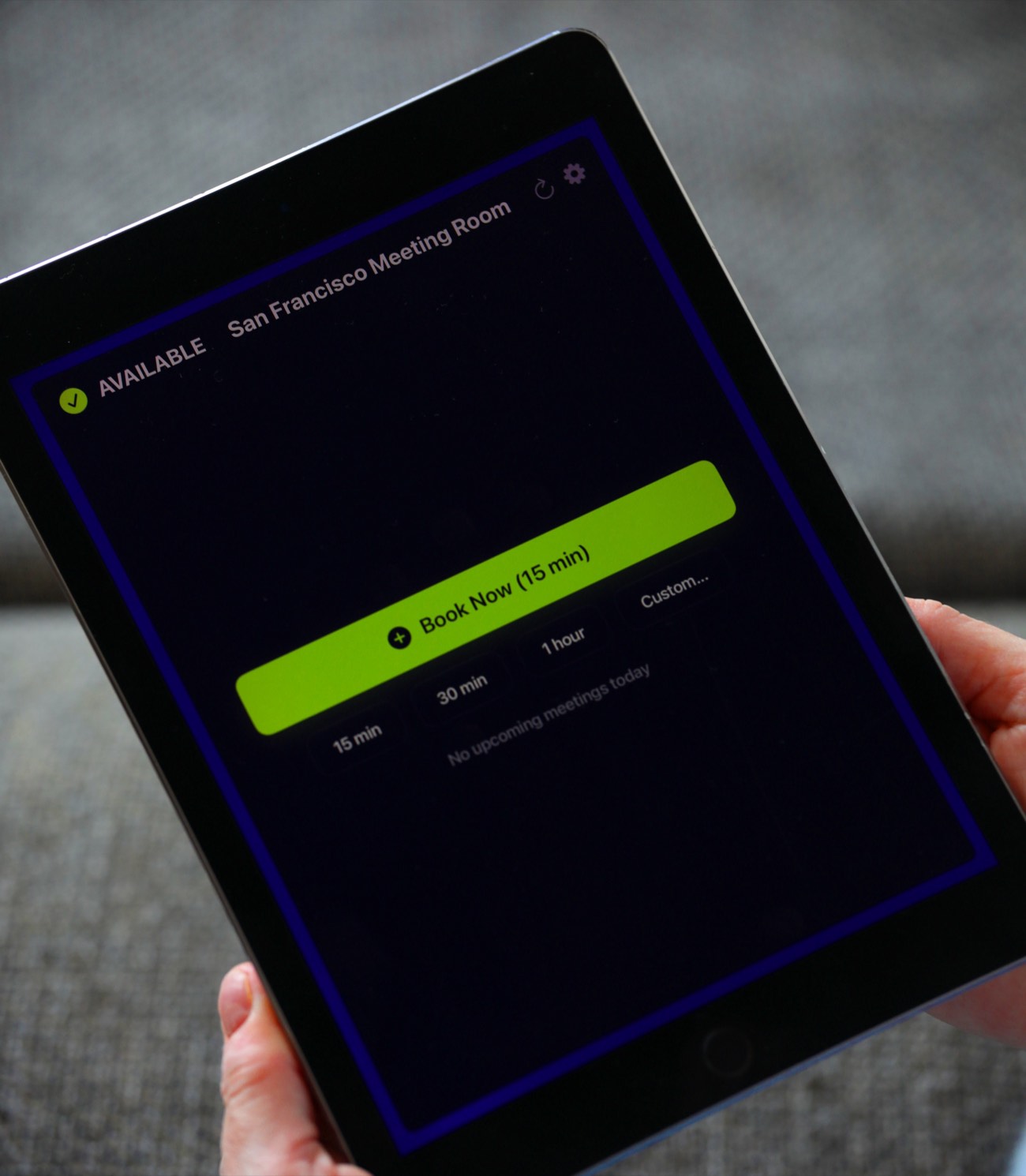
- Walk-up booking: Book Now (15 min), plus 15 min, 30 min, 1 hour or a custom duration, with an optional title.
- Optional check-in. Turn on "Require Check-In" and a block nobody taps into within 5, 10 or 15 minutes is released. If practitioners rent rooms by the block, check your agreements first. A released block becomes a free room for someone else. On Microsoft 365, check-in needs Direct Room Access, which an admin grants to the iPad's account.
On cleaning: Apple publishes cleaning guidance for iPads. Follow it rather than spraying clinical disinfectant at the screen.
What does it cost?
The Room Display is $99 per iPad, paid once. No subscription, lifetime updates, email support. It runs on any iPad with iPadOS 15 or later, so a retired front-desk iPad works fine.
Say your practice has 5 consult and treatment rooms. That's $495 once. Dedicated room panels typically cost $400–$1,300 each plus $8–$42 per room per month, which for 5 rooms is $2,000–$6,500 upfront and $480–$2,520 a year. Details are on the pricing page.
Each iPad talks directly to Google Workspace or Microsoft 365. There's no third-party booking cloud in between, and credentials are stored in the iPad Keychain.
When The Room Display isn't the right fit
- You want patients to check in or book their own appointments. That's a patient kiosk or online scheduling, not a room display.
- Room use is driven entirely by your EHR and nothing is written to a Google or Microsoft room calendar.
- You need to know if a room is physically empty. The app has no sensors or occupancy detection.
- You want one front-desk screen showing every room. One iPad shows one room's calendar.
Frequently asked questions
Is it a HIPAA problem to show room bookings on a hallway display?
It can be if titles contain patient information. Keep patient names, initials and visit reasons out of the room calendar entirely, and mark sensitive bookings private so the display shows "Private Meeting". This isn't legal advice; confirm your setup with your compliance lead.
Can The Room Display connect to our EHR or practice management system?
No. It reads and writes Google Workspace and Microsoft 365 calendars only. Keep patient appointments in your clinical system and use the room calendar for practitioner room blocks.
How do we stop patients from booking rooms on the display?
Mount displays in staff-only corridors, not in the waiting room. Anyone standing at a display can book a free slot, so placement is your control. Booking ahead still follows your calendar permissions.
How do independent practitioners who rent rooms book them?
If they have an account in your Google Workspace or Microsoft 365, they book the room like any meeting. If not, the front desk books blocks on their behalf, and they can walk up and book a free room at the display.
Related guides
- Should a Room Display Show the Meeting Title or the Organizer's Name?
- Buffer Time Between Meetings: How to End the Back-to-Back Room Handover Mess
- iPad Room Display Security: What IT Admins Should Check Before Approving